
How do I limit the number range in my Tracker column?
You can configure number columns with minimum and maximum boundaries to ensure data stays within expected ranges.
Setting number boundaries
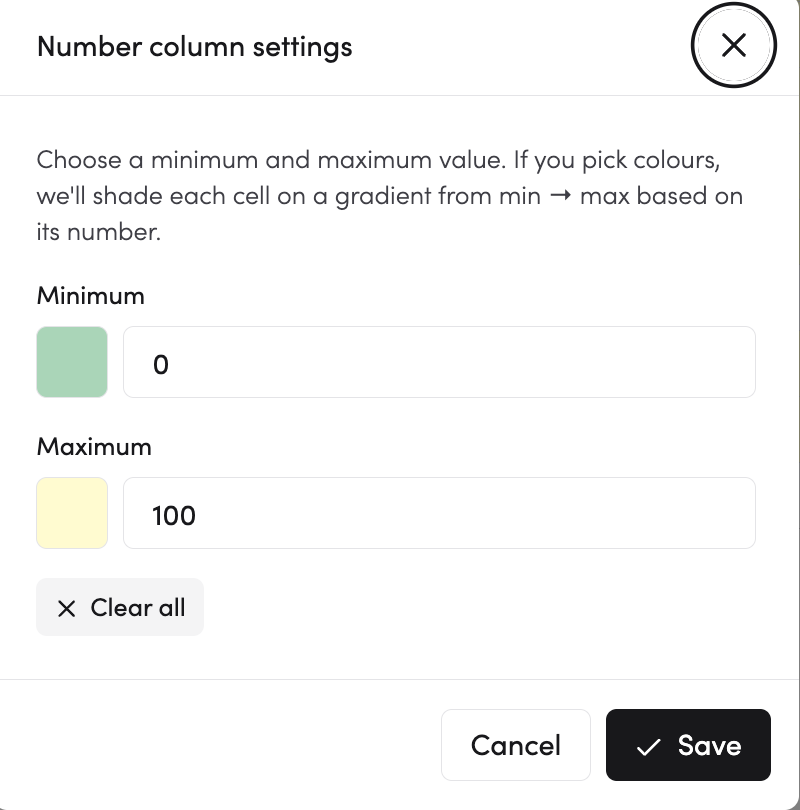
- Click the number column header
- Select Column settings
- Set your minimum and/or maximum values
- Click Save
Configuration options
- Minimum: The lowest allowed value
- Maximum: The highest allowed value
- Leave either blank for no limit on that end
Examples
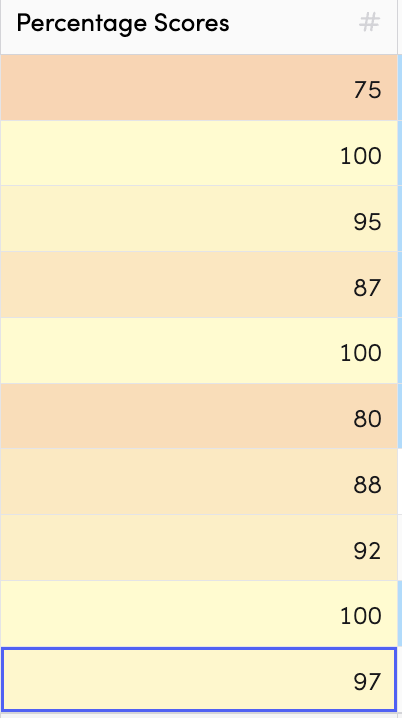
- Percentage scores
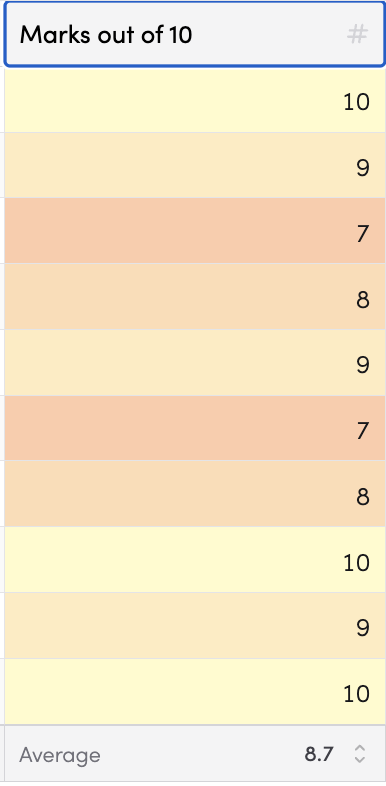
- Marks out of 10
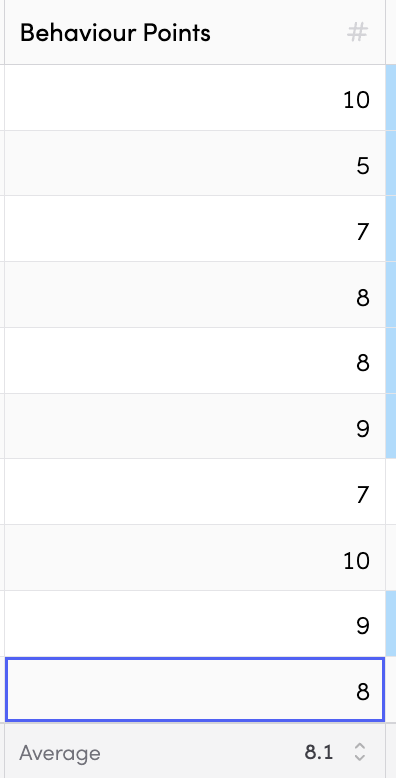
- Behaviour points
- Temperature readings
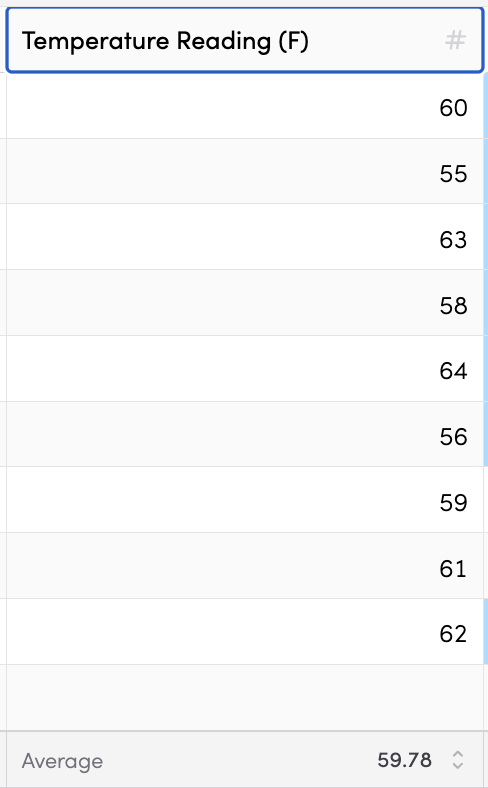
How boundaries work
When you enter a value outside the allowed range, it will be constrained to the nearest boundary. For example, with a max of 100: - Entering "105" would be saved as "100" - Entering "95" would be saved as "95"
Gradient colours
You can also assign colours to your minimum and maximum values. When set, cells will display a gradient background based on where the value falls in the range - making it easy to spot high and low values at a glance.
Tip
Setting boundaries helps prevent data entry errors and keeps your tracking consistent. It's especially useful when multiple people are entering data or when you're entering data quickly.