
How can I use colours with my Tracker?
You can use colours across three different column types in your tracker: checkboxes, select options, and number ranges.
Checkbox columns
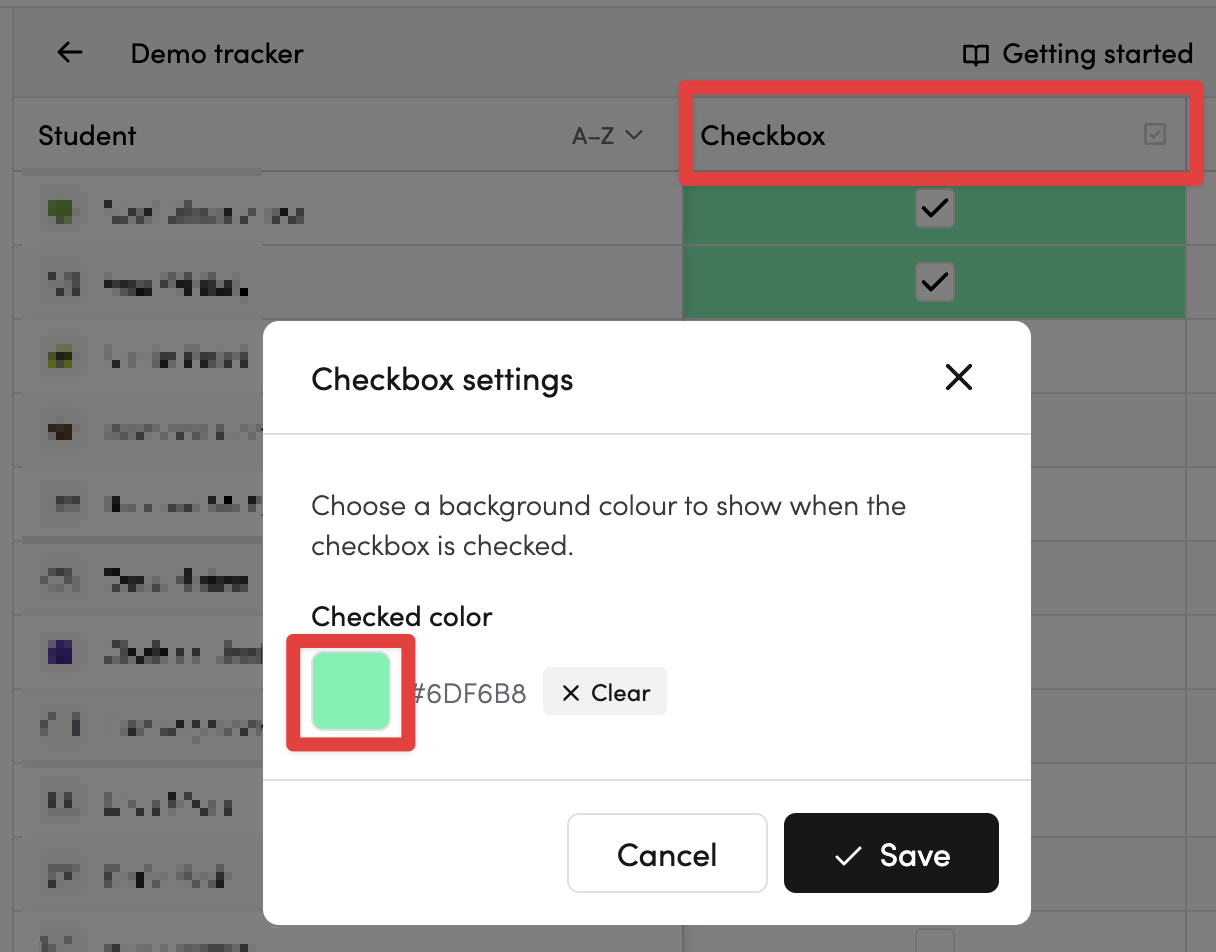
Set a background colour that appears when a checkbox is ticked.
- Click on the checkbox column header
- Select Column settings
- Choose a colour from the colour picker
- Click Save
When you check a box, the cell fills with your chosen colour instead of the default.
Select columns
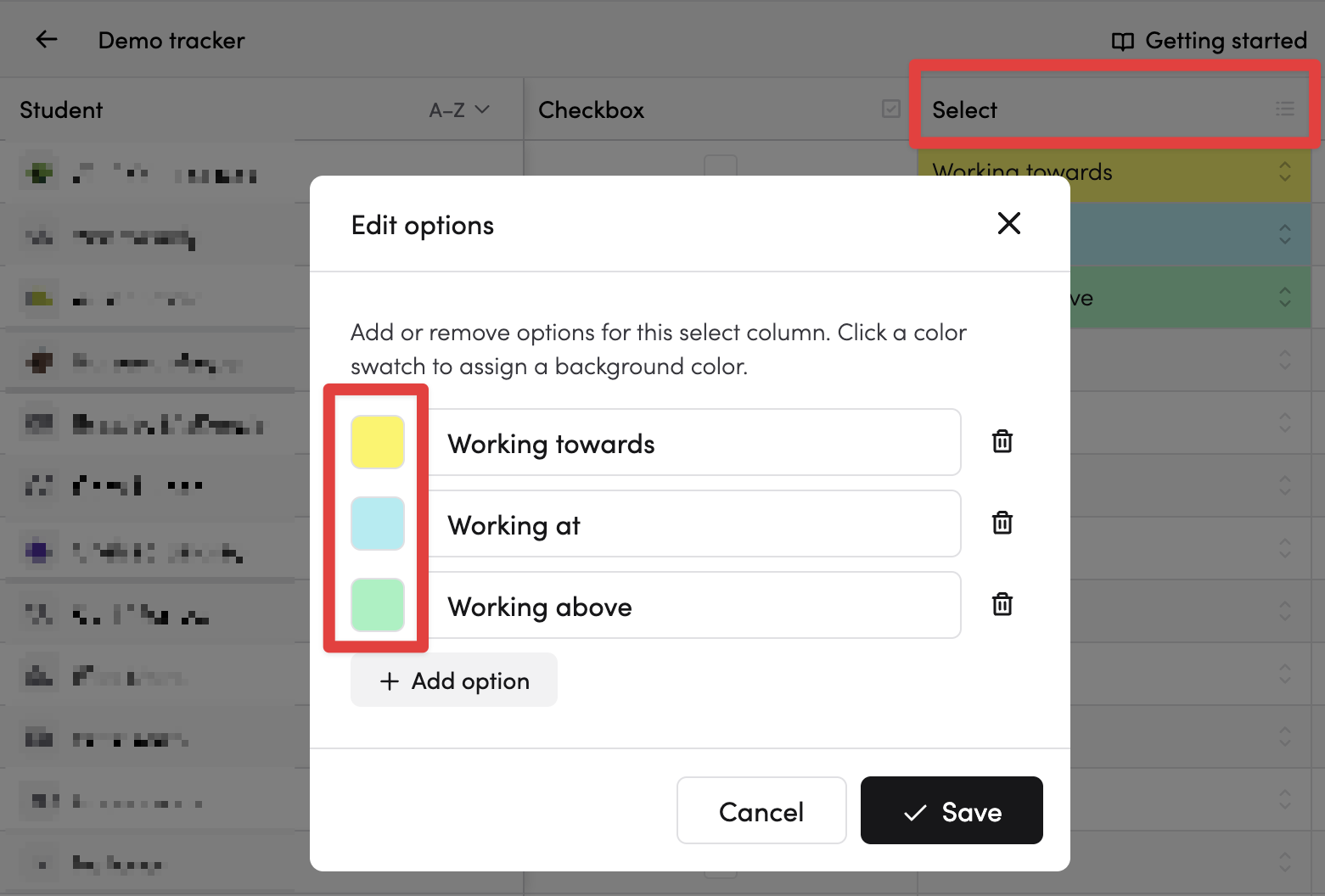
Give each option in a select column its own colour, so you can scan your tracker at a glance.
- Click on the select column header
- Select Column settings
- Next to each option, click the colour swatch to pick a colour
- Click Save
When a student has a value selected, the cell background changes to that option's colour. Text colour adjusts automatically for contrast.
Number columns
Set a colour gradient between a minimum and maximum value. Cells shade smoothly between the two colours based on the student's value.
- Click on the number column header
- Select Column settings
- Set the Min value and pick a colour for it
- Set the Max value and pick a colour for it
- Click Save
A student scoring at the minimum sees the min colour, a student at the maximum sees the max colour, and values in between show a blended shade.
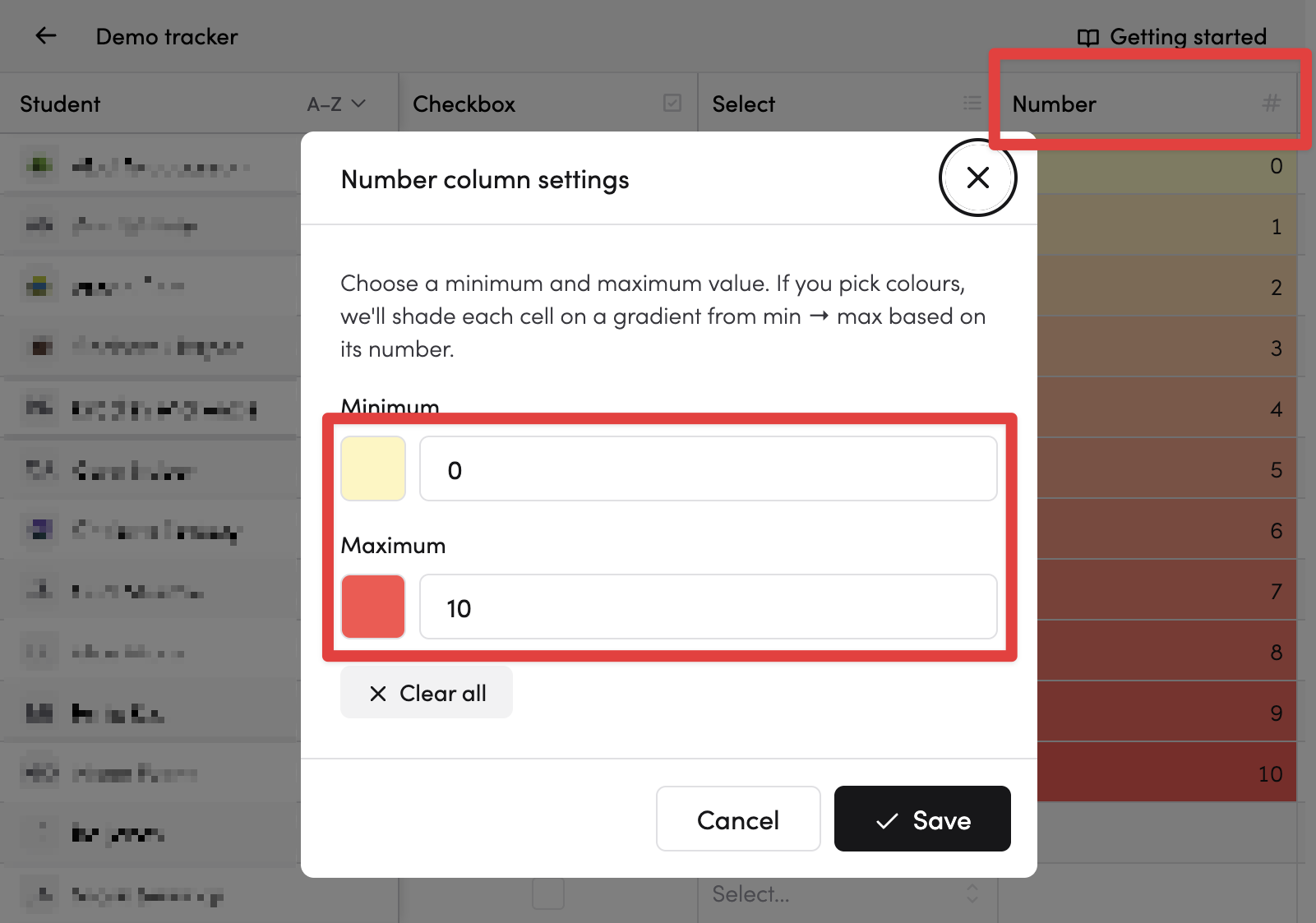
Note: a number cell must have minimum and maximum values set for the colour shading to work.
Choosing colours
The colour picker gives you several ways to pick a colour:
- Palettes — 10 built-in palettes (e.g. Hive, Pastel Rainbow, Neon, Botanical) for quick selection
- Custom hex — enter any hex colour code directly
- Recent colours — your recently used colours are tracked automatically
- Saved colours — save colours you use often so they're always to hand
The saved and recent colours are shared between all colour pickers in The Hive.
Ideas for using colours
- Traffic light system: Create a select column with green, amber, and red options
- Progress gradient: Set a number column from 0 (red) to 100 (green) to visualise scores
- Subject coding: Use different checkbox colours for different subjects or skill areas
- Priority levels: Red for urgent, amber for standard, green for complete