Rocket Launch
Rocket Launch is a space-themed quiz game where every team plays at the same time. Each team has its own rocket on a launch pad and its own question panel - every correct answer adds a fuel cell, and the first team to fill their tank blasts off to the moon.
How do I access Rocket Launch?
You can access Rocket Launch in three ways:
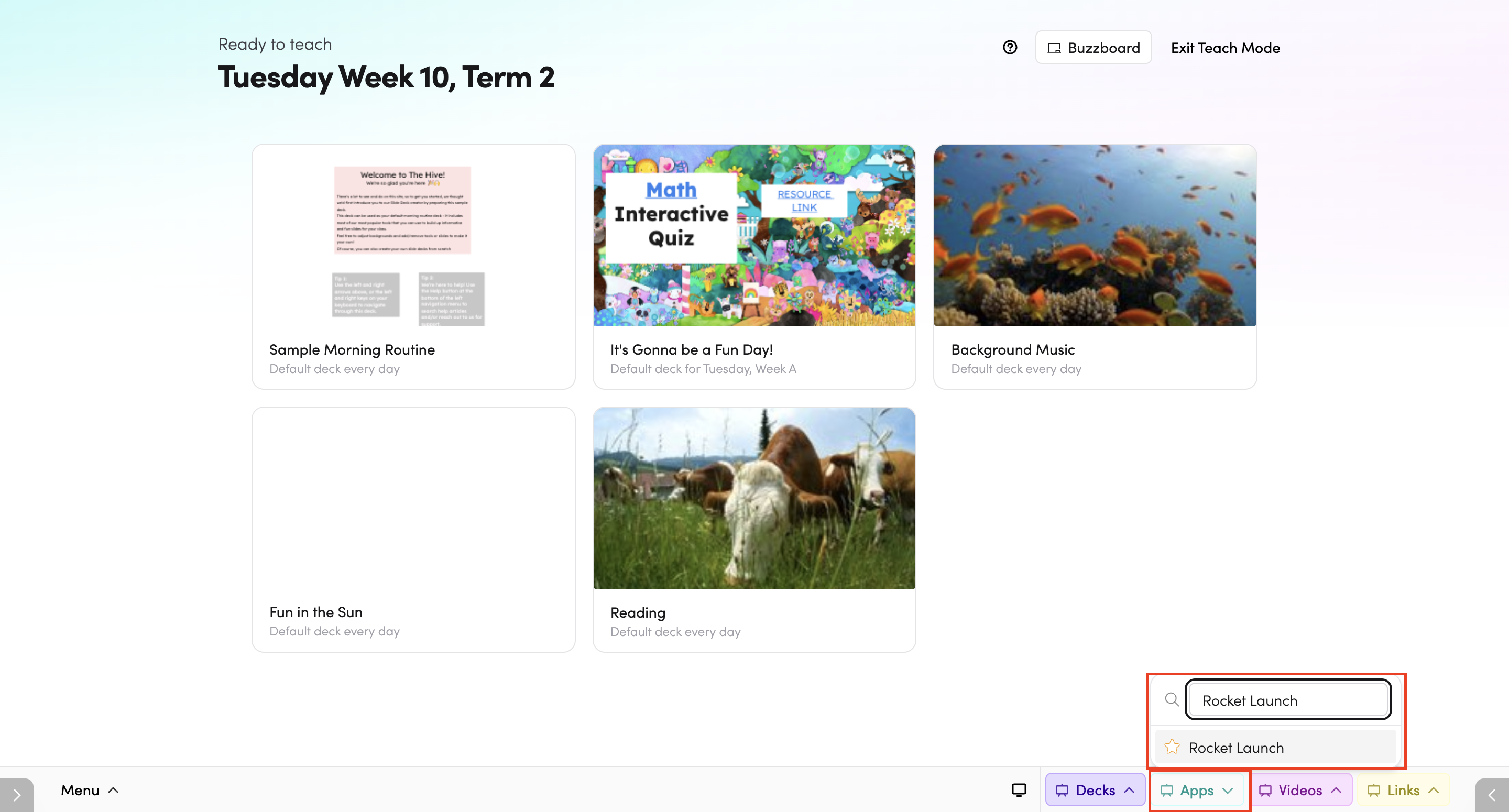
- Through Teach Mode - open Rocket Launch directly from the bottom bar of Teach Mode.
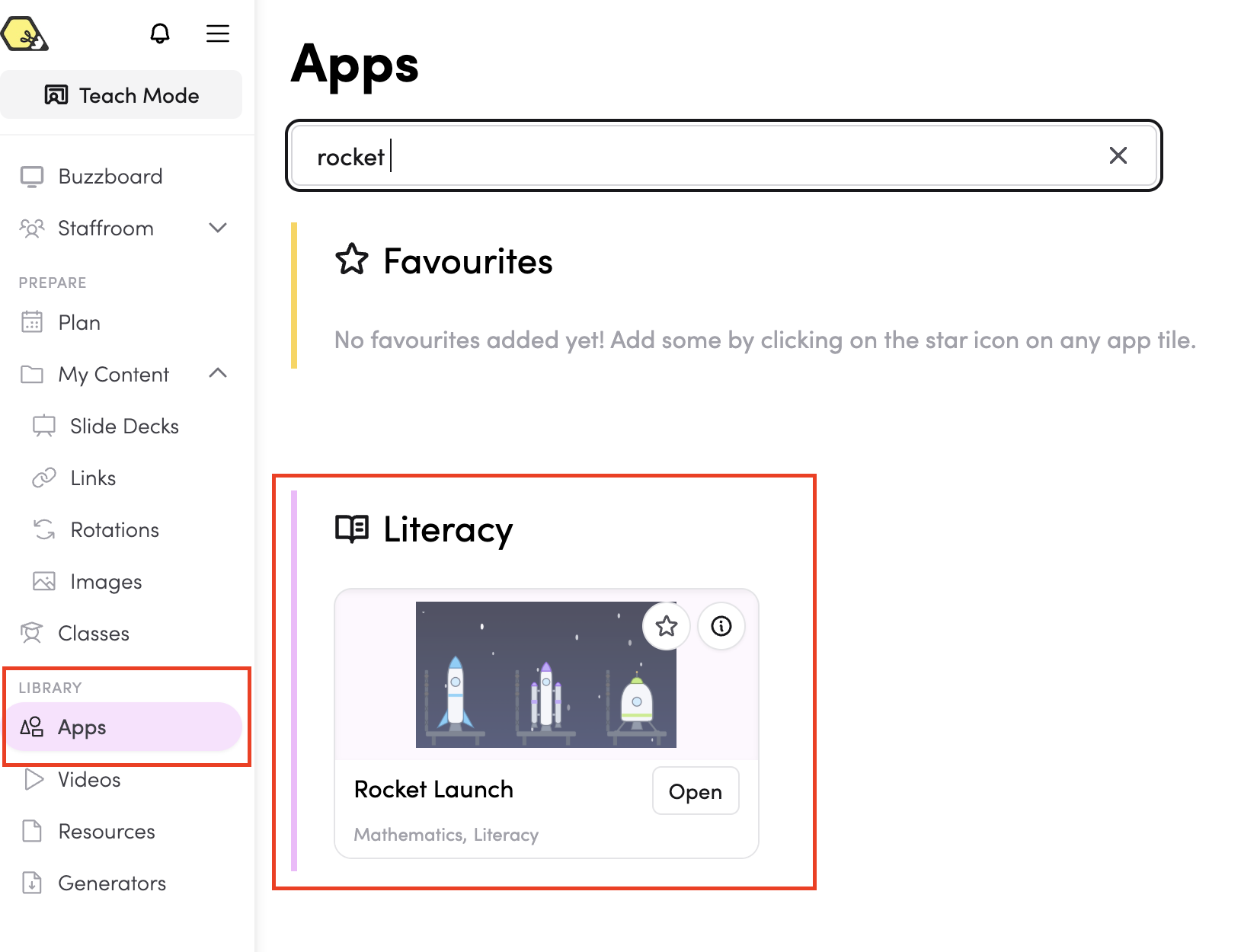
- From the Apps library - browse or search for Rocket Launch in the Apps library.
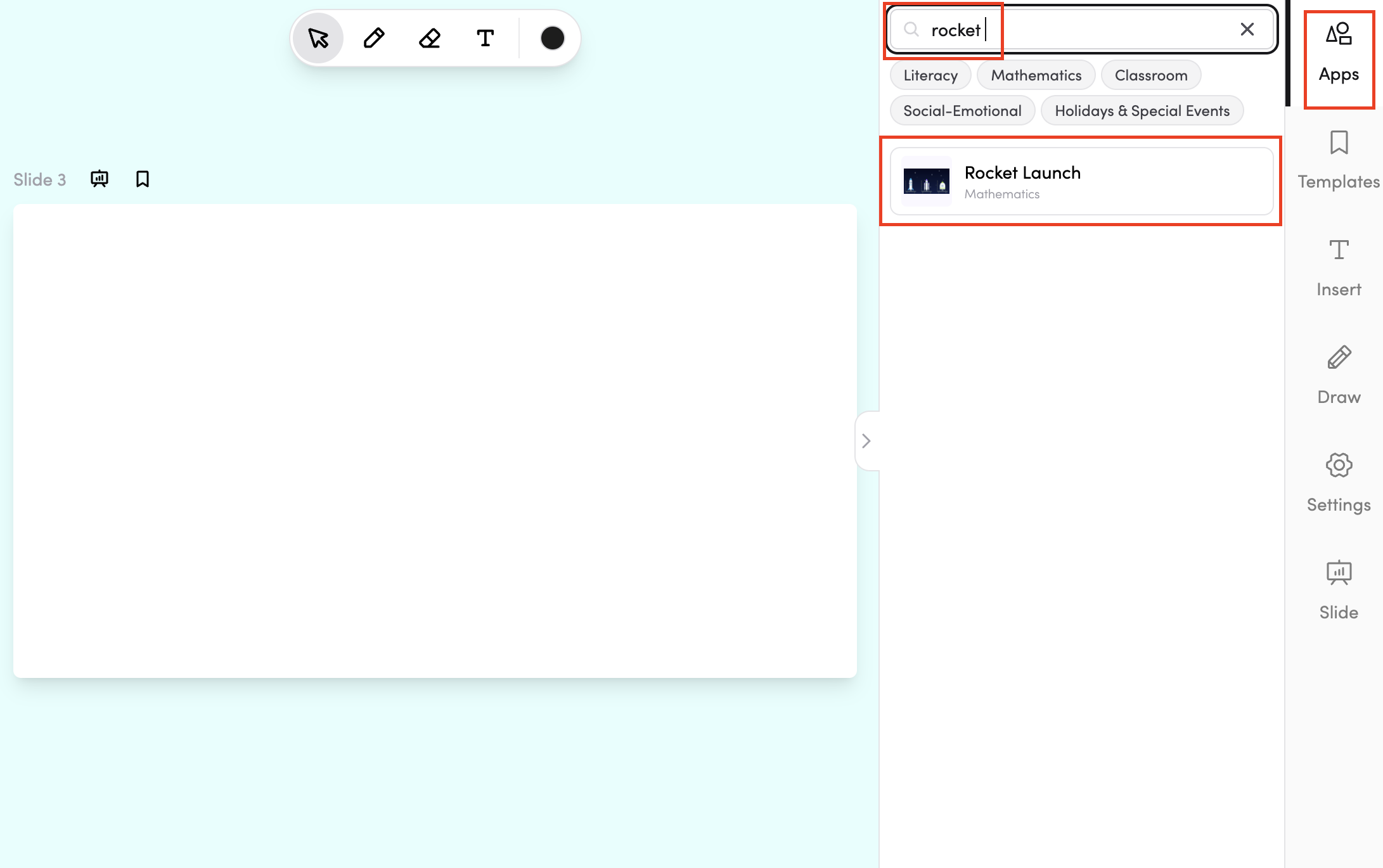
- In your slide deck - search for Rocket Launch in the apps panel on the right and tap it to drop it onto your slide. From there, you can move and resize it however you like.
How do I use Rocket Launch?
All teams play at once, each answering their own questions by tapping their panel. A correct answer adds a fuel cell to that team's rocket.
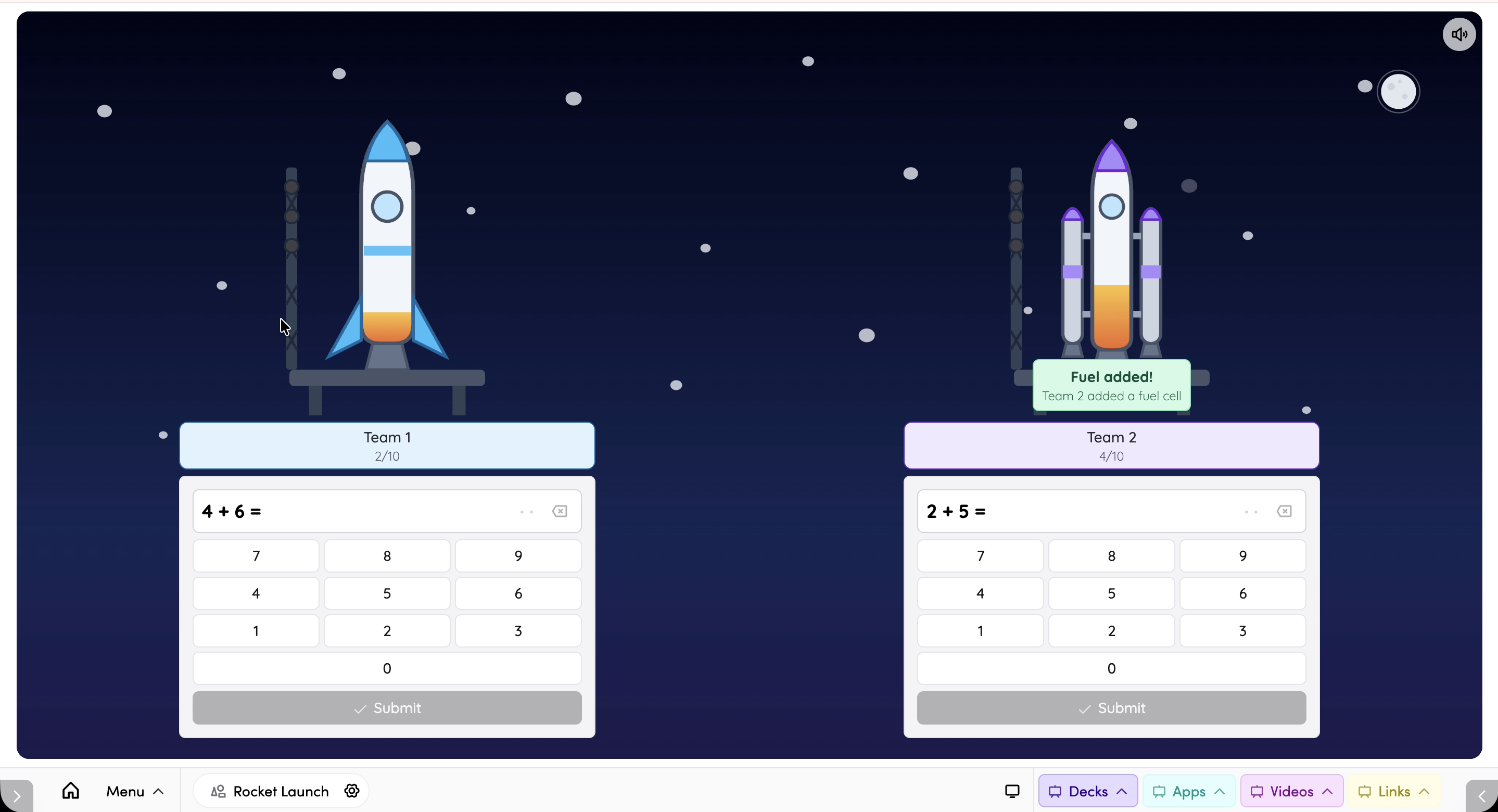
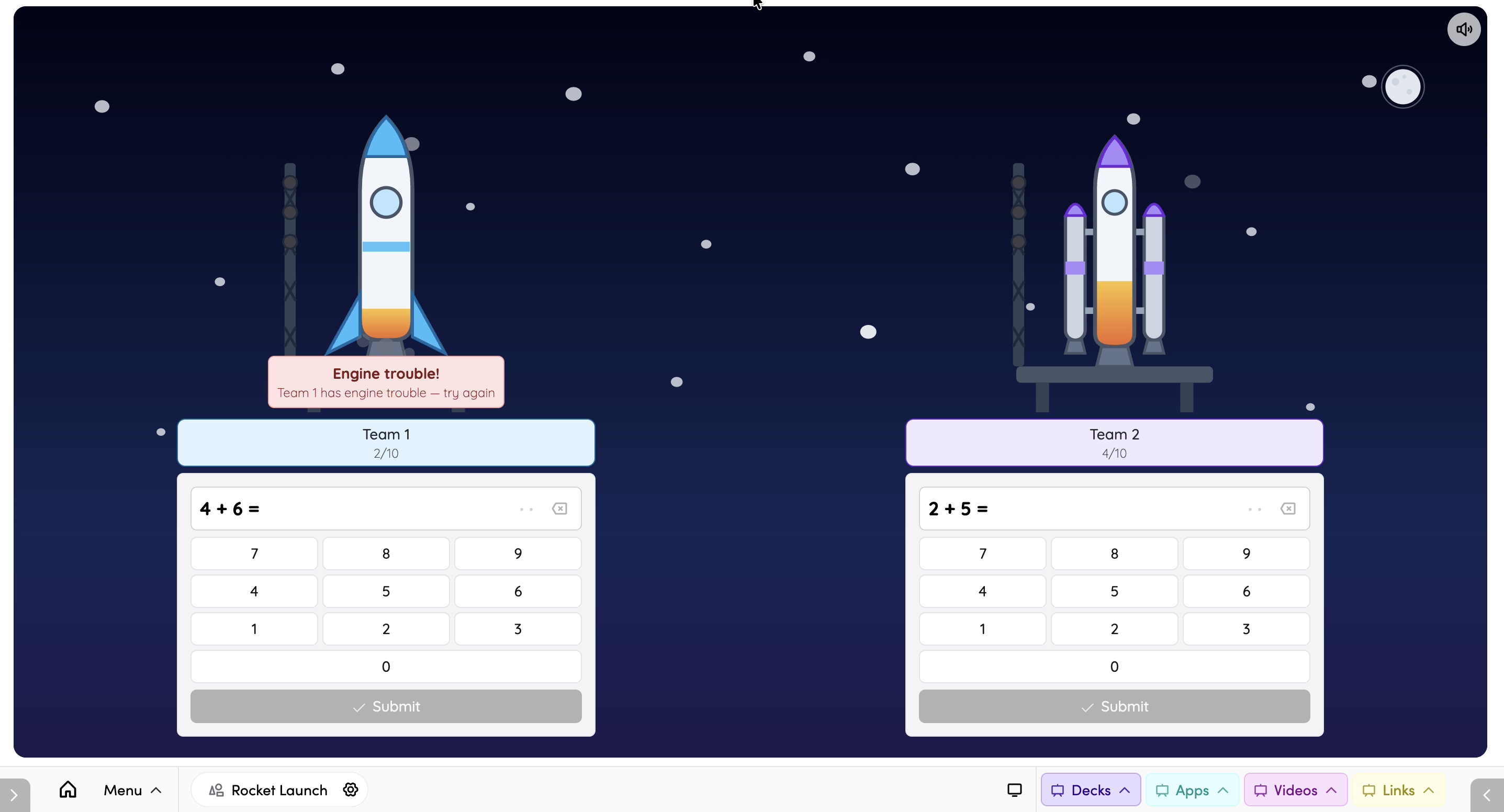
A wrong answer causes a quick engine splutter - no fuel is lost, and the same question stays on screen for the team to try again.
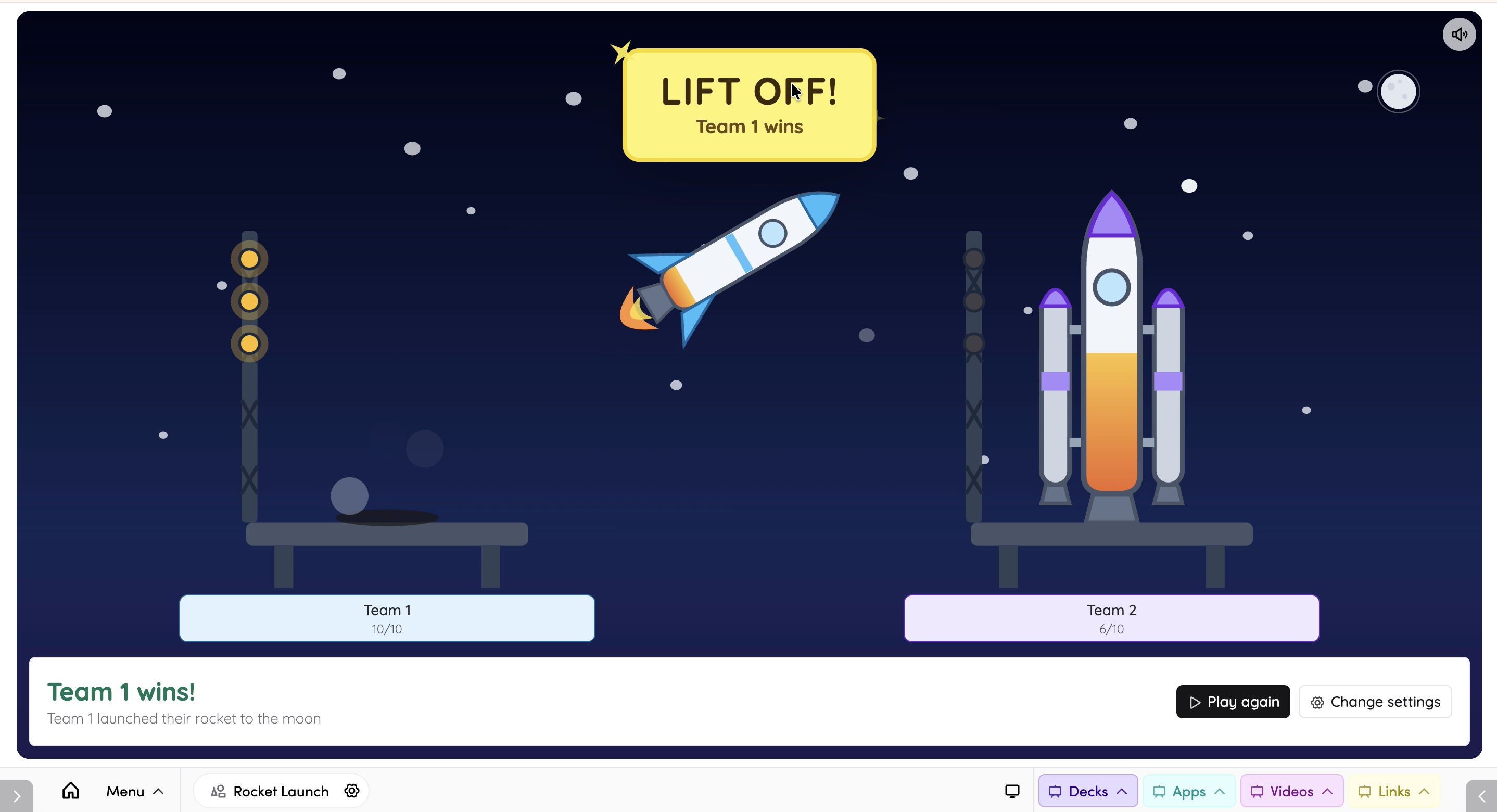
When a team gets within three fuel cells of a full tank, a three-light countdown arms their rocket. The first team to fill their tank wins with a lift-off - their rocket leaves the pad and parks beside the moon while the others stay grounded. A shared race-finished panel then replaces the question panels, with options to Play again or Change settings.
Each team's questions are shuffled independently, so students can't copy an answer from a neighbouring panel.
Ways to play
- On an interactive whiteboard (recommended) - Rocket Launch works best on a classroom interactive whiteboard, where teams of students - or several individual students - can step up and tap their own panels simultaneously.
- As a whole class - set up a single team and work through the questions together, aiming to get every answer correct and launch the rocket as a class. A great way to introduce the app before letting teams compete.
Setting up a game
Open the setup panel (gear icon) before starting.
- Teams - Rocket Launch is played by two to four teams. Name each team and use its colour swatch - each team gets its own rocket model and colour. Tap Add team to add another team, or tap the ✕ next to a team to remove it.
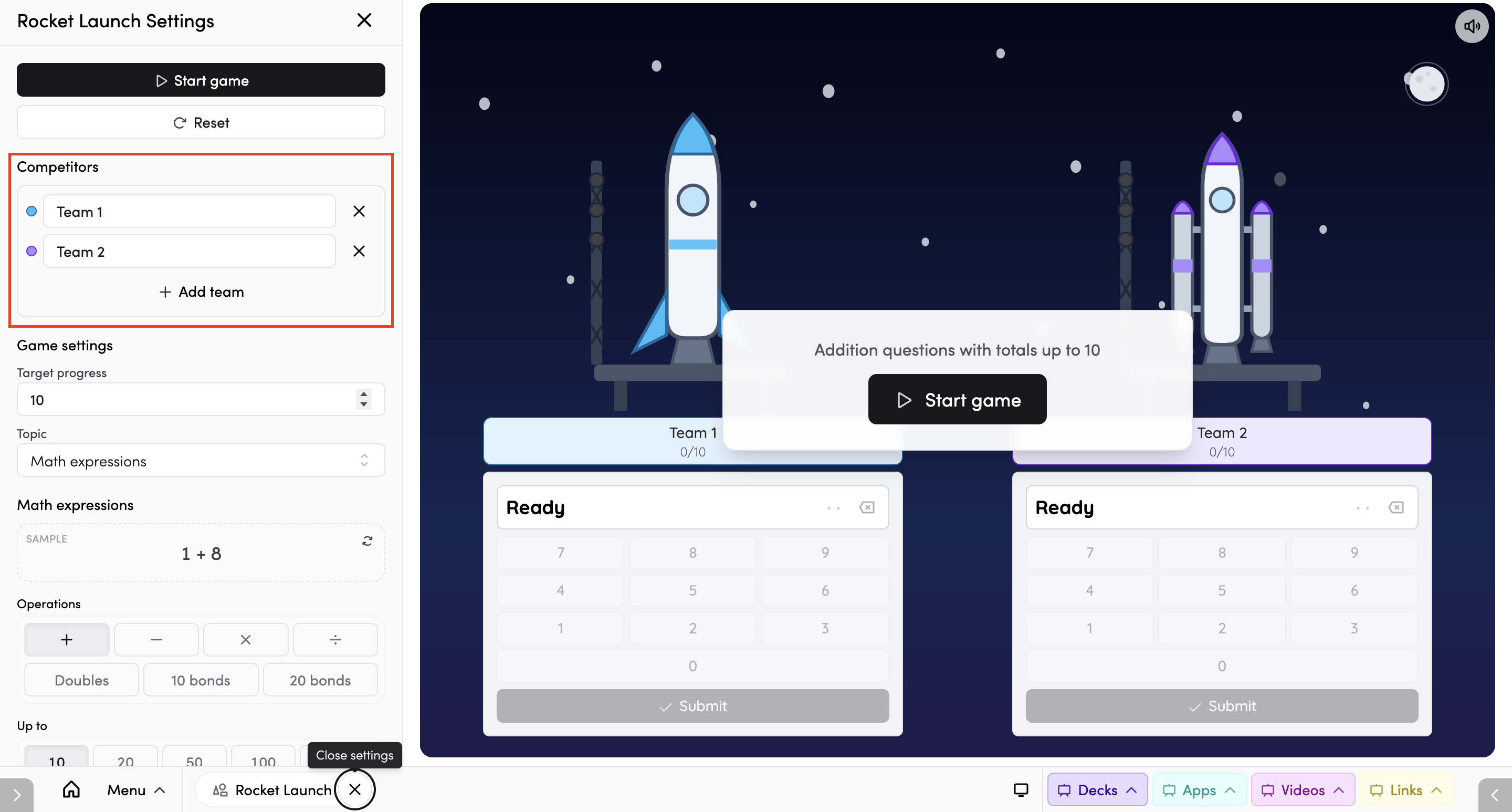
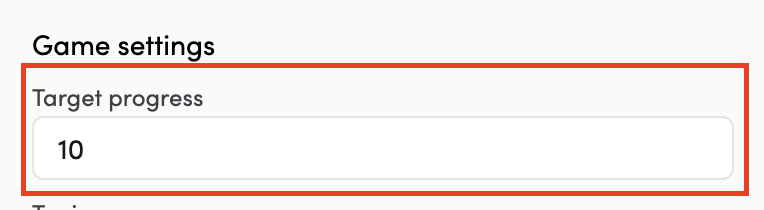
- Target progress - choose how many fuel cells a rocket needs to launch. The default is 10.
- Topic - use the dropdown to choose what teams will be answering. Because teams answer by tapping, your topic needs tap-able answers.
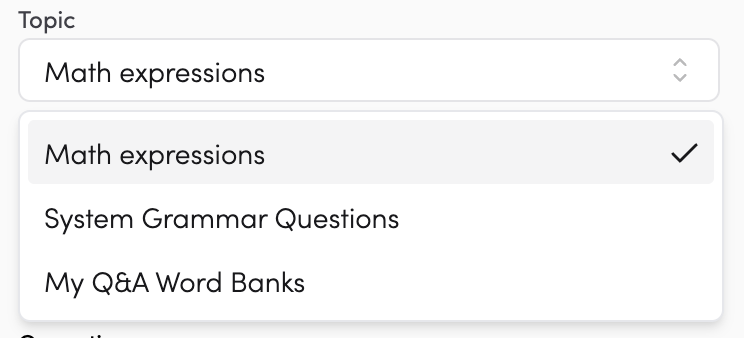
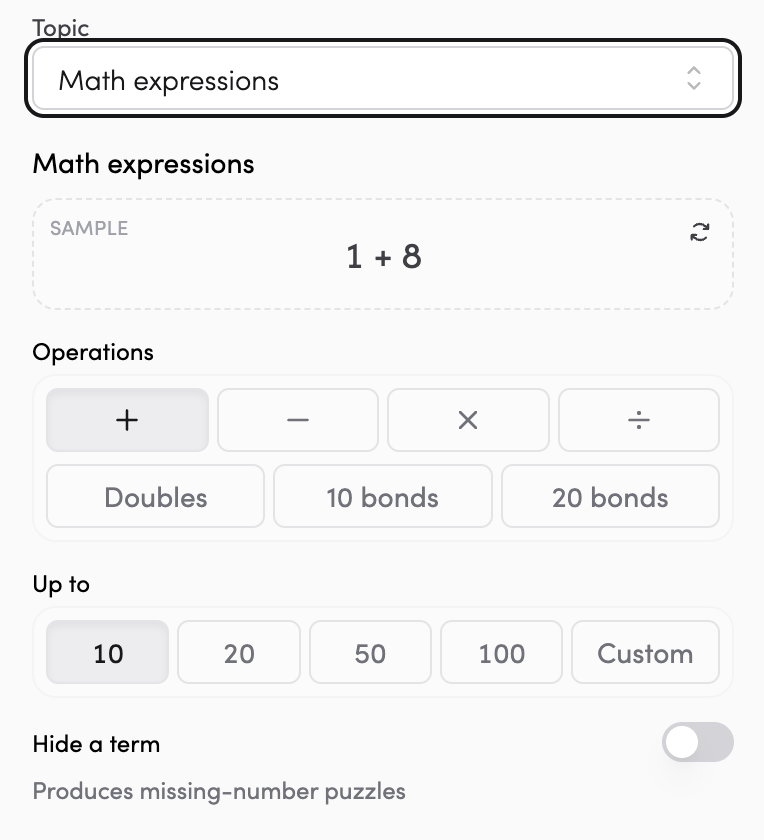
- Math expressions - auto-generated maths questions answered on a number pad. Choose your operations (addition, subtraction, multiplication, division, doubles, 10 bonds, 20 bonds) and set the number range.
- Grammar questions - ready-made question banks provided by The Hive, answered with tap buttons.
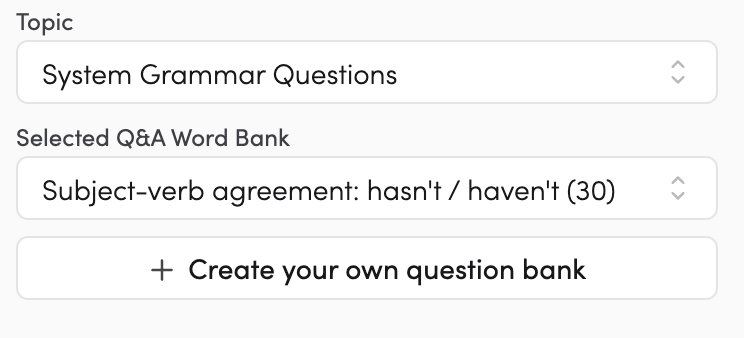
- My Q&A Word Banks - your own question banks, answered with tap buttons. Pick an existing one, or tap Create question bank to build a new one.
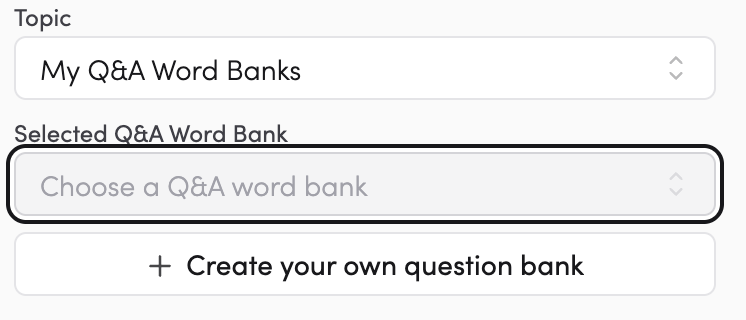
Note: question banks need six or fewer different answers to work in Rocket Launch. Banks with too many answers appear greyed out = choose a smaller bank, or use Math expressions instead.
Once you're happy with your settings, tap Start game. A 3 – 2 – 1 – GO! countdown plays, and every team's panel stays locked until "GO!" so all teams start together.
Tips
- Use a whiteboard so teams can tap their own panels at the same time.
- Keep question banks small - six or fewer different answers - so the tap buttons work.
- Try whole-class play first with a single team to introduce the app before letting teams compete.
- Lower the fuel target for a quick game, or raise it for a longer one.
- Tap the star icon to add Rocket Launch to your favourite apps.
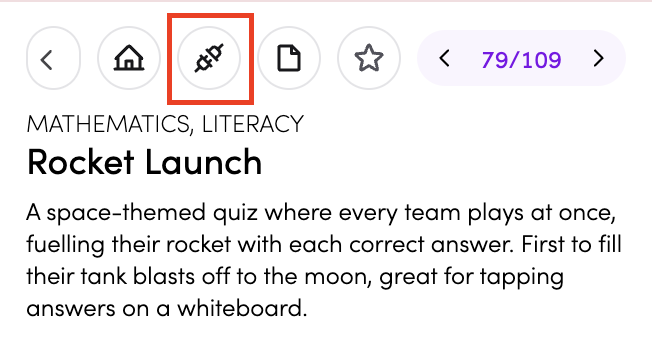
- Tap the timetable icon to connect Rocket Launch to your timetable. (Read more about timetable connections here)