
How do I use slide templates?
Templates let you create new slides from pre-made designs, saving you time when building your presentations. You can browse system templates or use your own saved templates.
There are two kinds of template:
- Slide templates are whole slides, background included. Use one to start a new slide.
- Snippets are just the content, with no background. Drop one onto the slide you are working on, such as a number line or a set of apps you always use together.
Adding a snippet to your slide
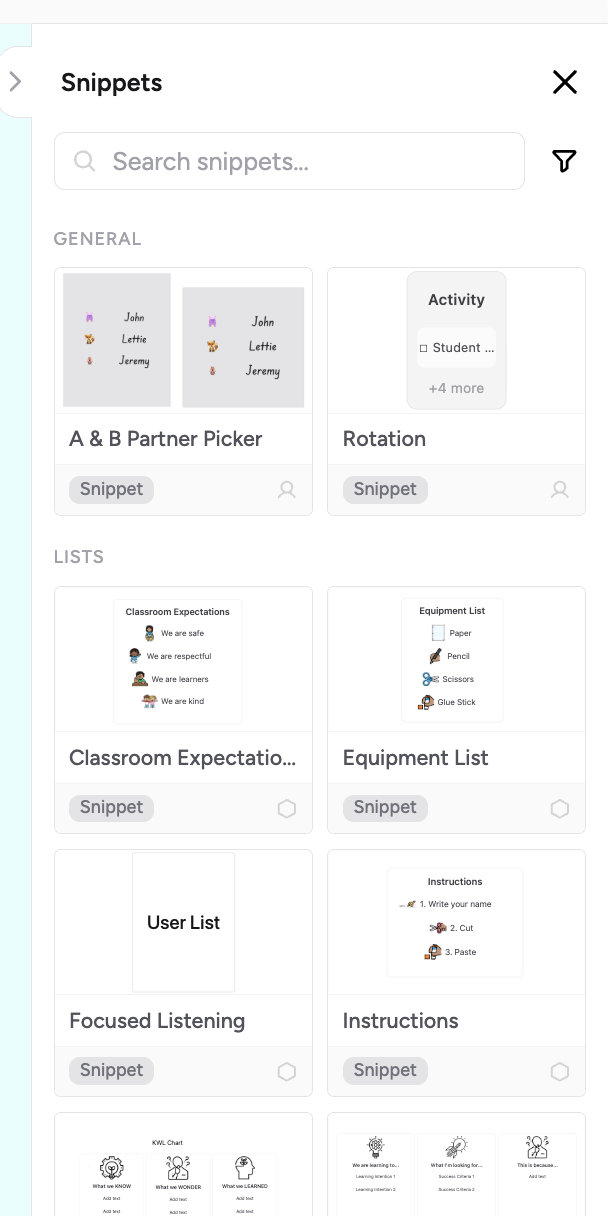
- Click Snippets in the Add panel.
- Click a snippet. Its content goes onto the slide you are on. Your background stays the same.
A snippet keeps its groups and layering. Press Ctrl+Z (Cmd+Z) once to undo the whole snippet.
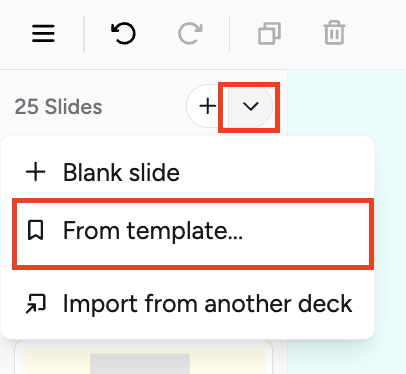
Alternatively, you can add a snippet by clicking the dropdown arrow next to the + button at the top of the slide manager.
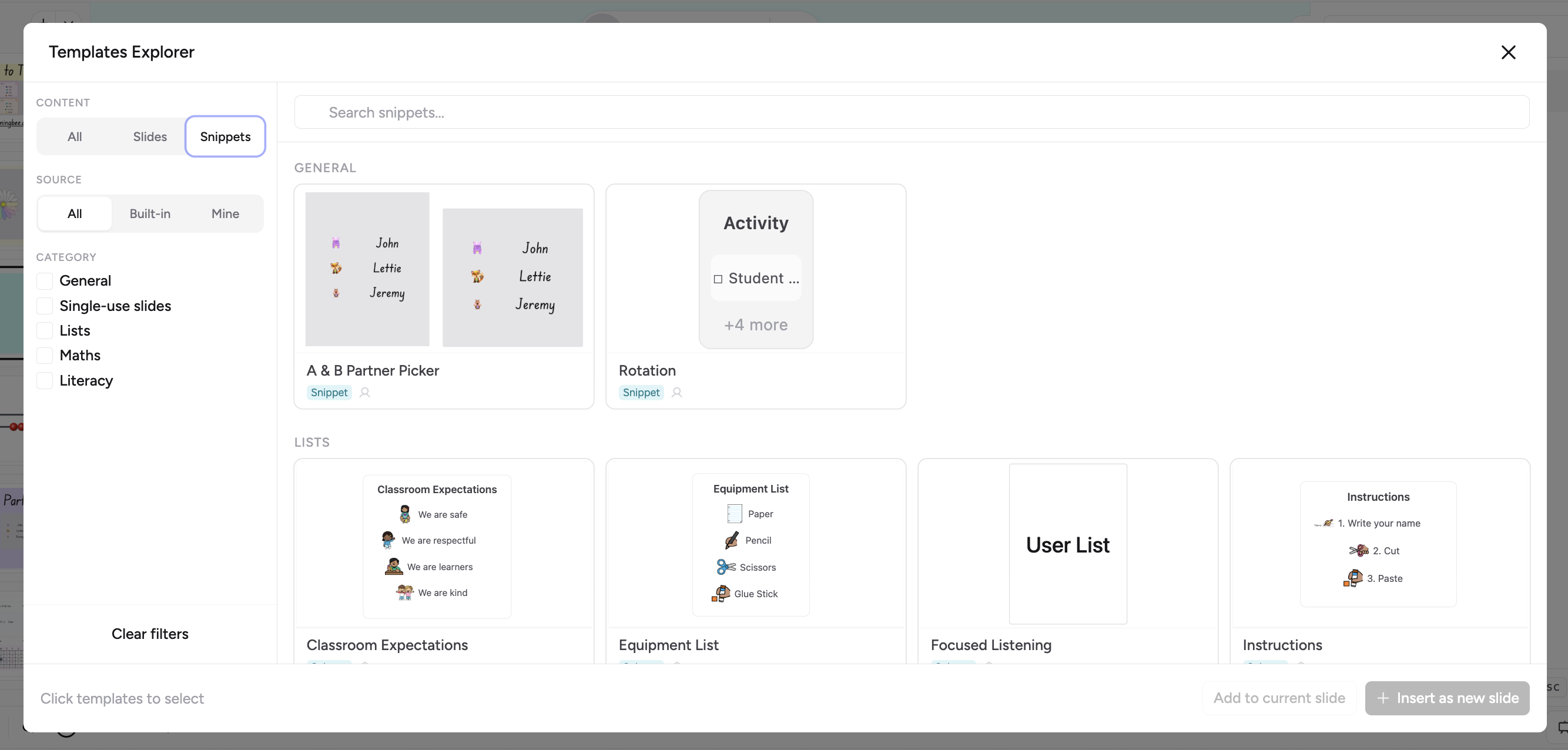
Insert as a new slide (from the Add Slide button)
- Click the dropdown arrow next to the + button at the top of the slide manager
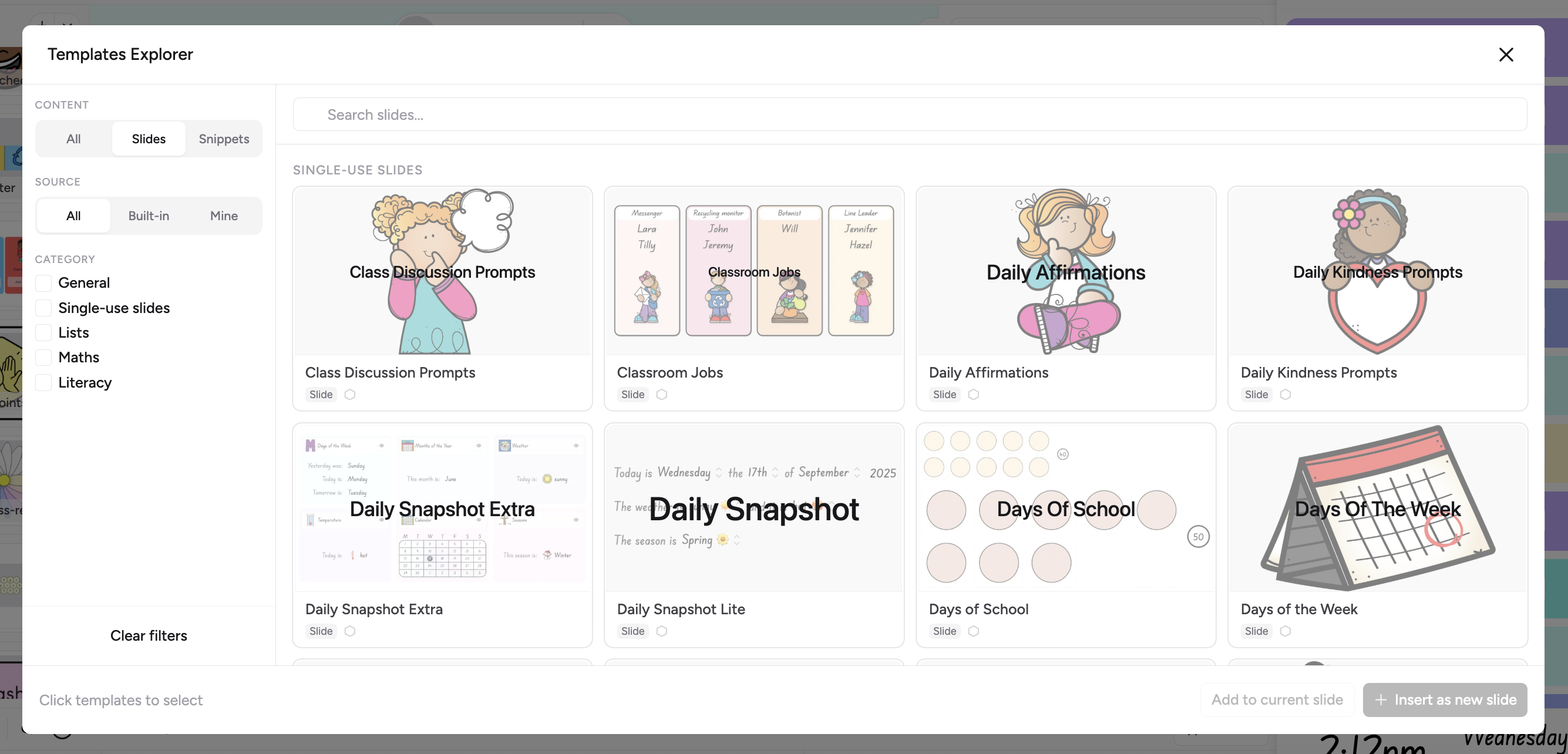
- This opens the template picker
- Browse or search for a template
- Click to insert it as a new slide, template background (if set) is included
Choose whatever suits you best — add to the current slide when you want to combine content, or insert as a new slide for a fresh layout.
Template categories
Templates are organised into categories to help you find what you need. Categories might include things like title slides, content layouts, image-focused layouts, and more.
System templates vs. your templates
- System templates: Pre-made templates available to everyone — great starting points for common slide layouts
- Your templates: Slides you've saved as templates yourself — perfect for reusing your own designs
Both lists can hold slide templates and snippets.
Tips
- Templates include all content from the original slide — text, shapes, images, apps, and background settings
- After inserting a template, you can freely edit everything on the new slide
- Use templates to maintain a consistent look across your presentation
- Save your own favourite layouts as templates to speed up future slide creation (see "How do I save my own slide as a template?")