
How do I create and edit my Subjects?
Subjects are the building blocks of your timetable. Set them up once with your preferred image, colour, and default settings, and they'll be ready to add to your Weekly Routine or weekly plan.
How do I access Subjects?
From the Plan view, click 'Subjects' in the upper-right corner.
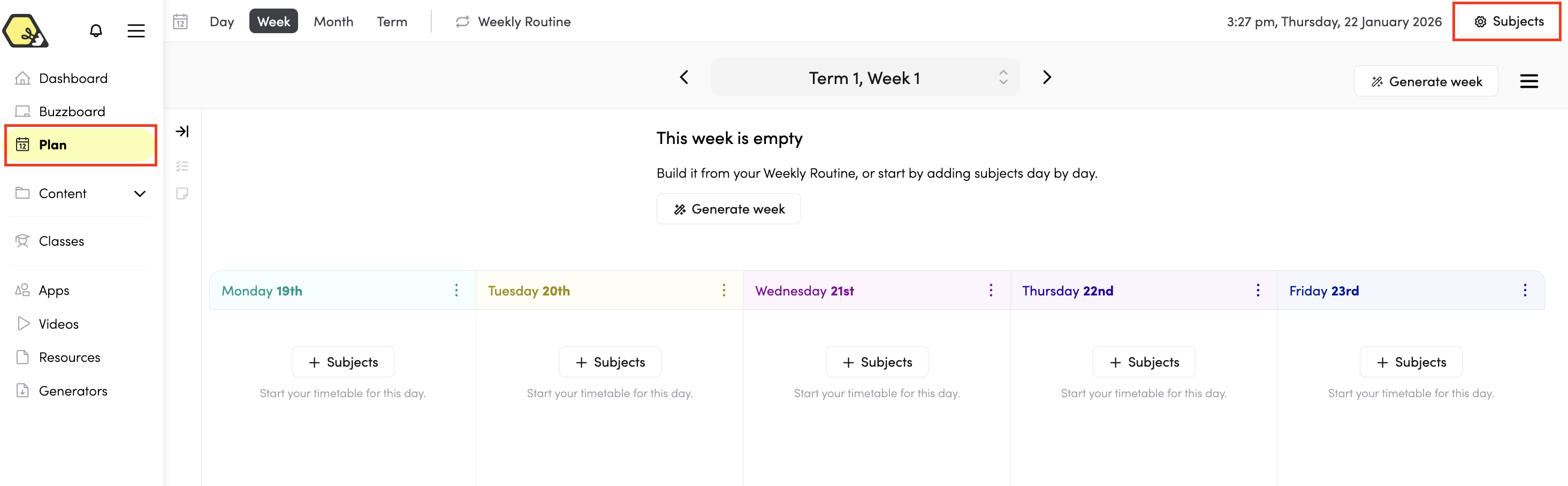
You can also access a subject's settings directly from your timetable - expand any subject entry and tap 'Edit subject' at the bottom.

How do I create a new subject?
Click '+ New' and type in your subject name.
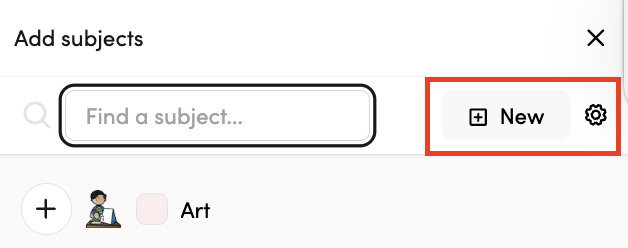
Tip: The Hive has pre-created subjects you can use and customise. To access these, click the book icon in the lower-left corner and follow the onboarding process to select and save the ones you need.
How do I edit a subject?
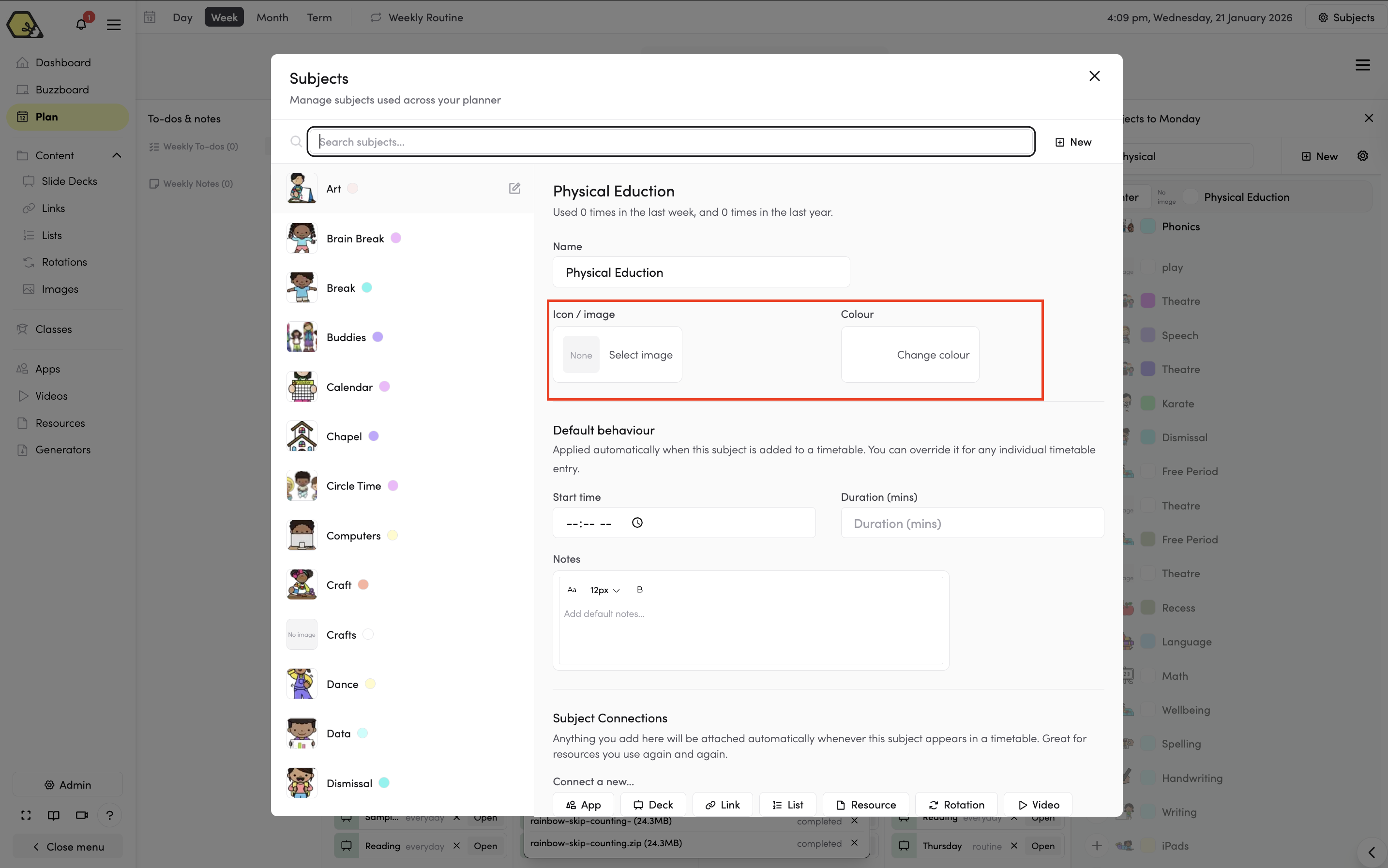
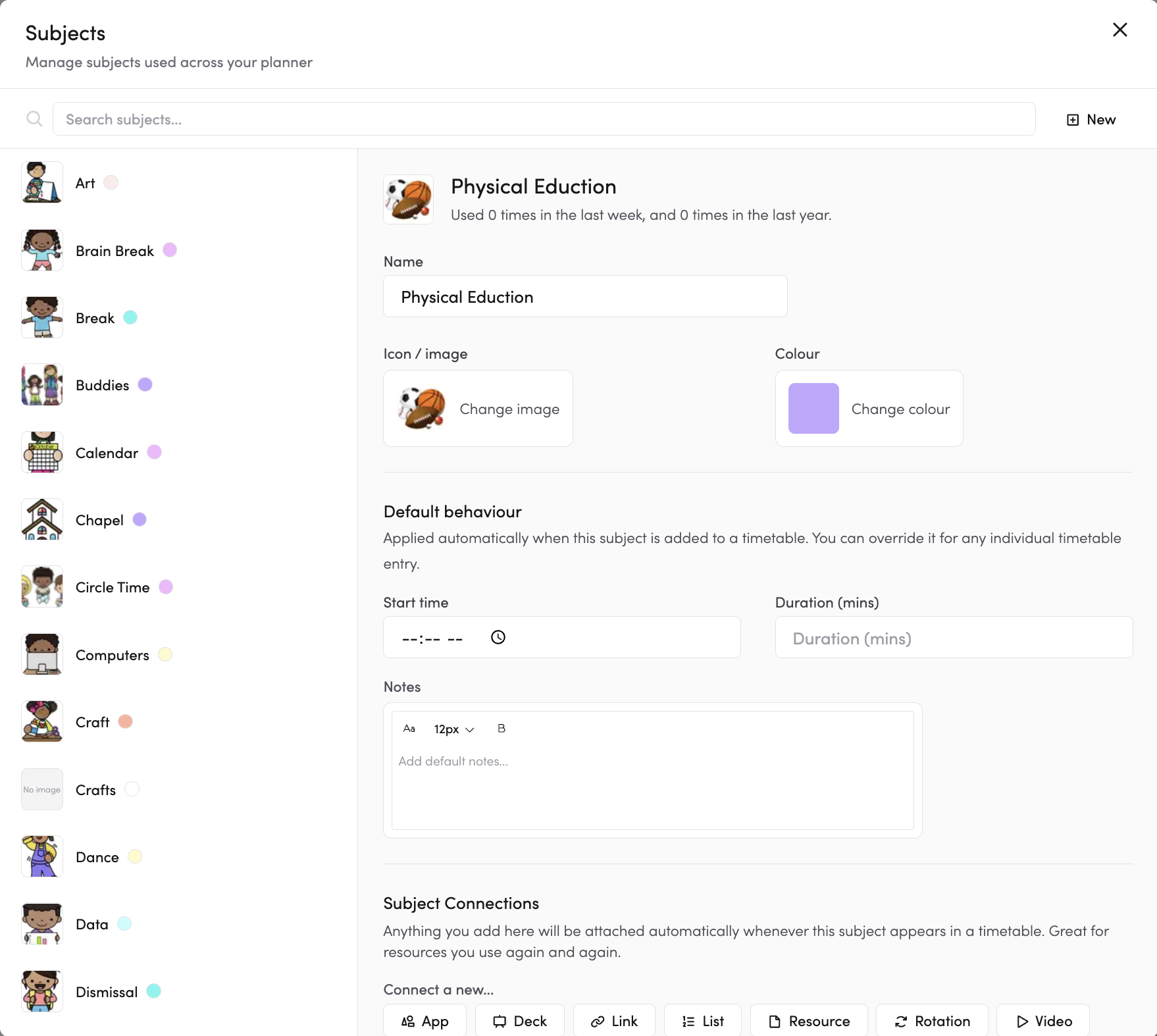
Click on any subject to open its settings. From here you can update the image, colour, and default behaviours.
Image
Click 'Select Image' to choose from the Hive image library — just search for what you need and select it.
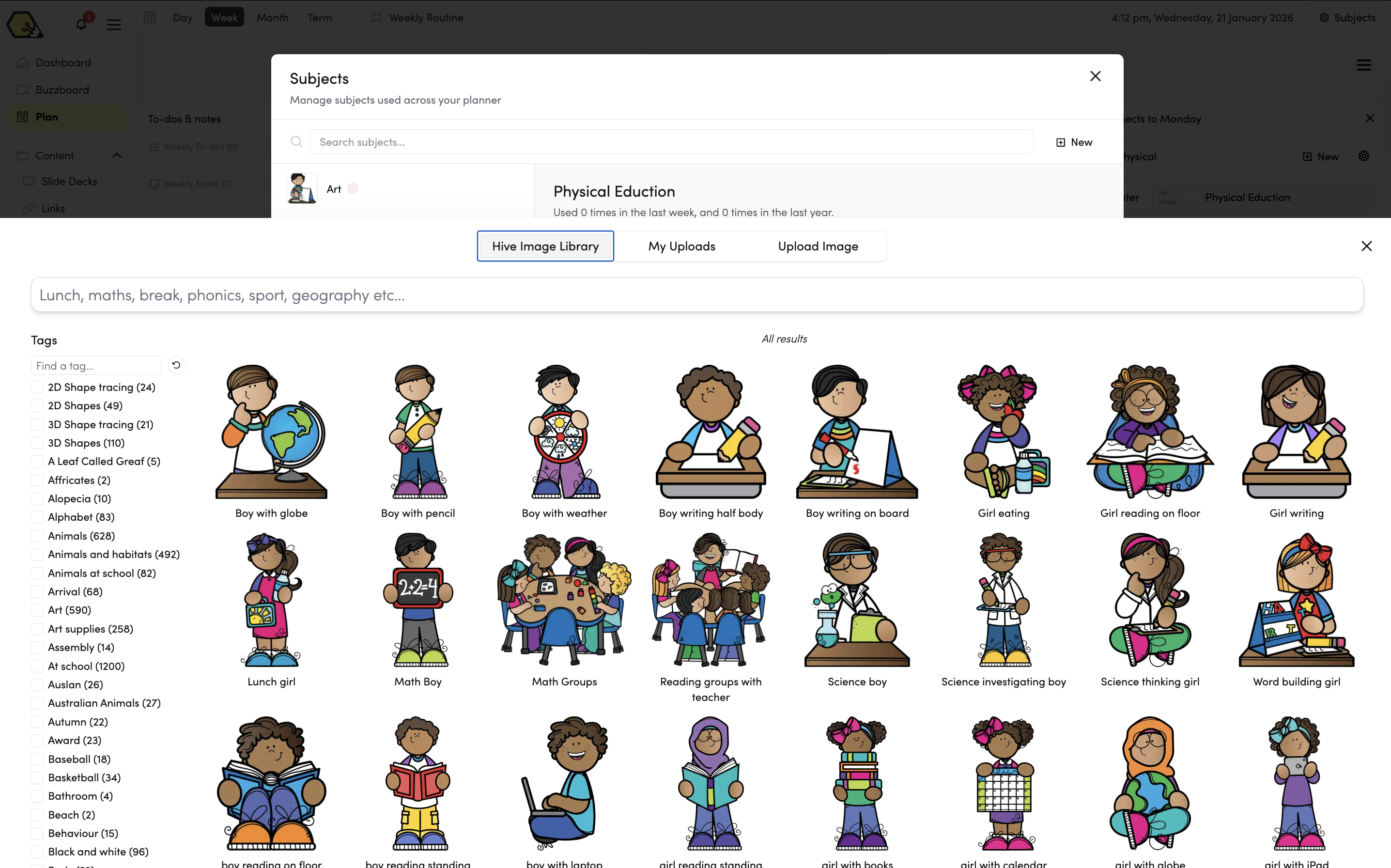
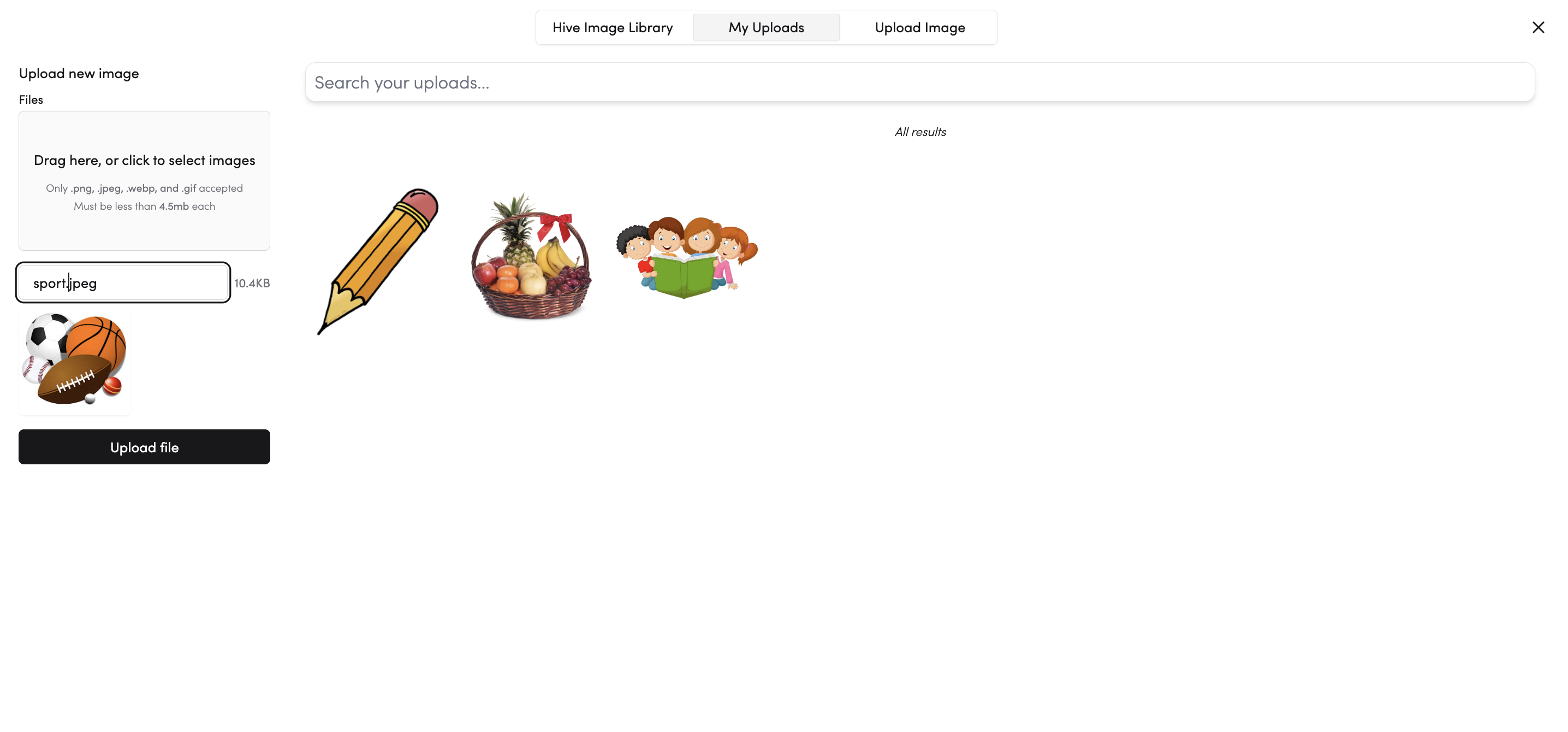
You can also use your own images. Click 'My Uploads' to access previously uploaded images or upload a new one.
Colour
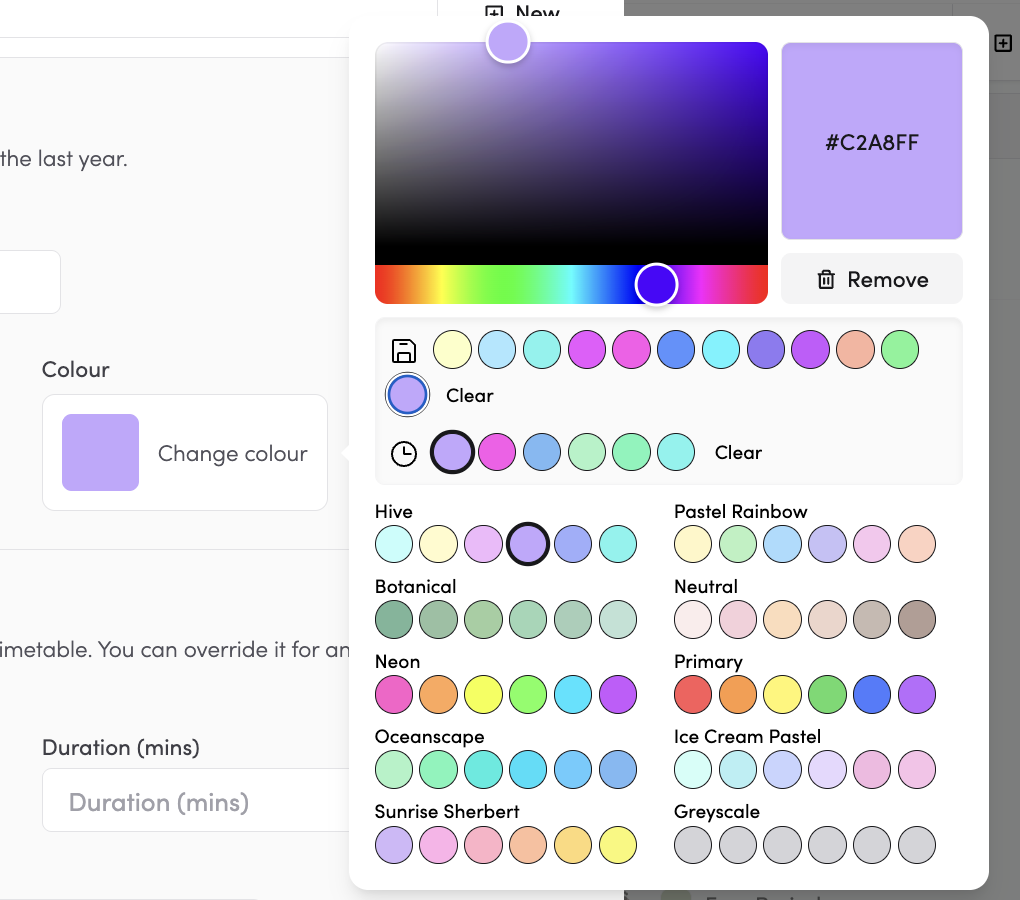
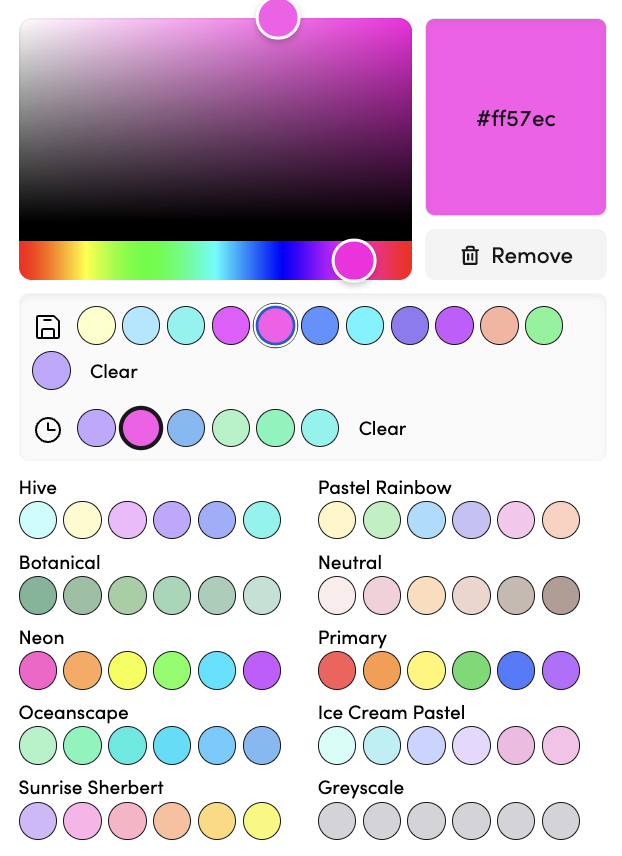
Click 'Change Colour' to open the colour palette. Choose from the available options or drag the slider to select a specific colour.
Default behaviours
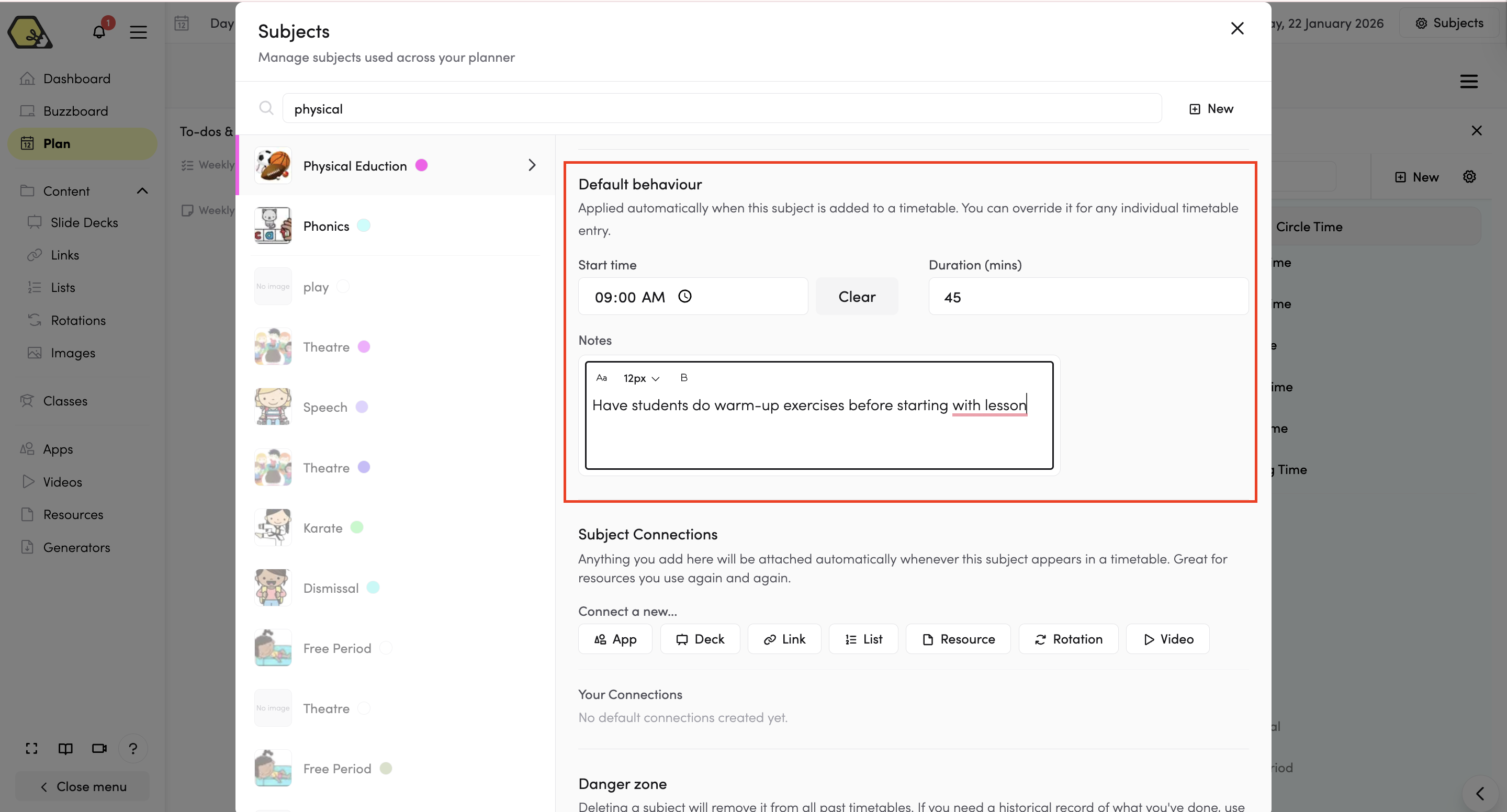
You can set a default start time, duration, notes, and connections for each subject. These will apply automatically every time that subject is added to a timetable — saving you from having to set it up each time.
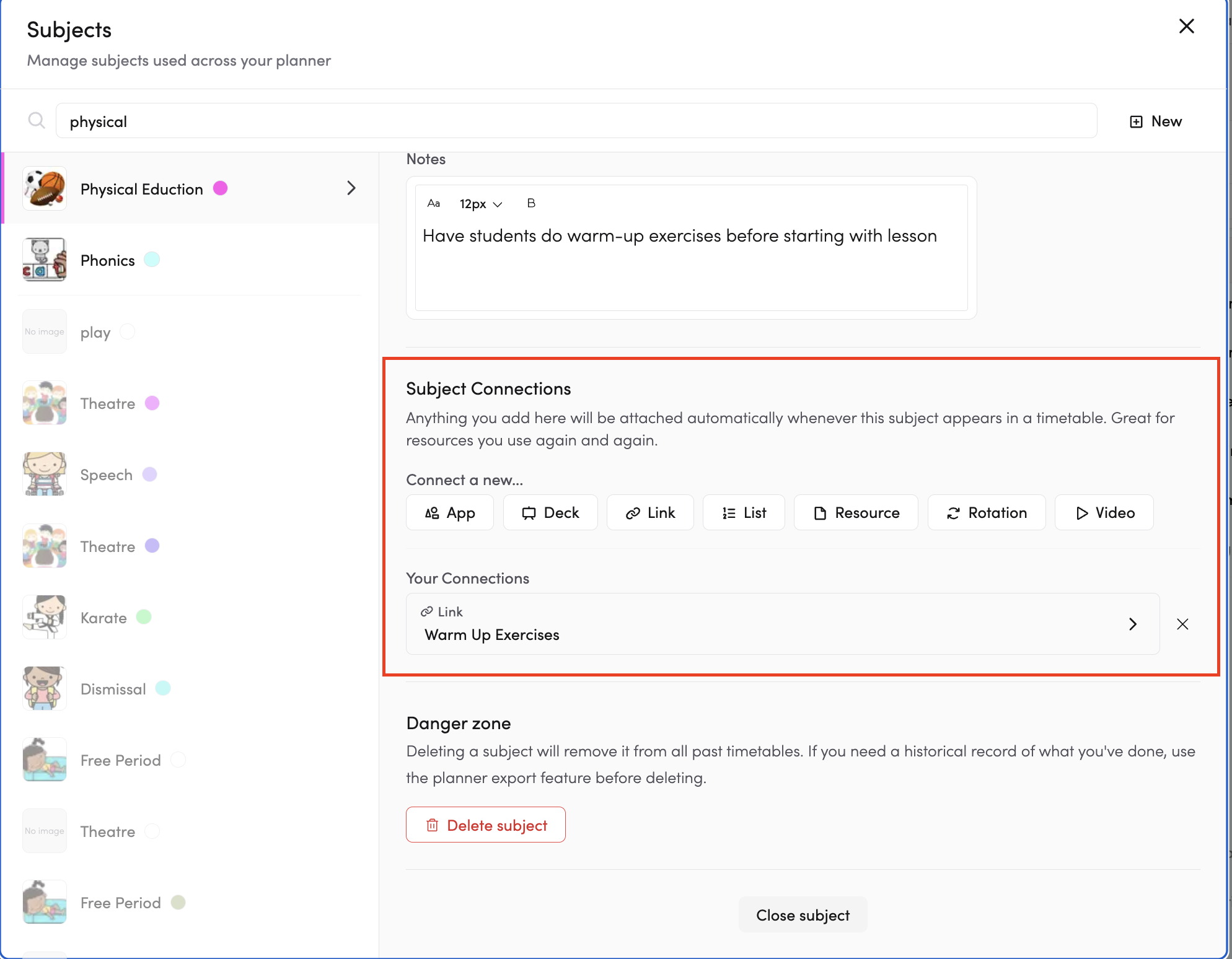
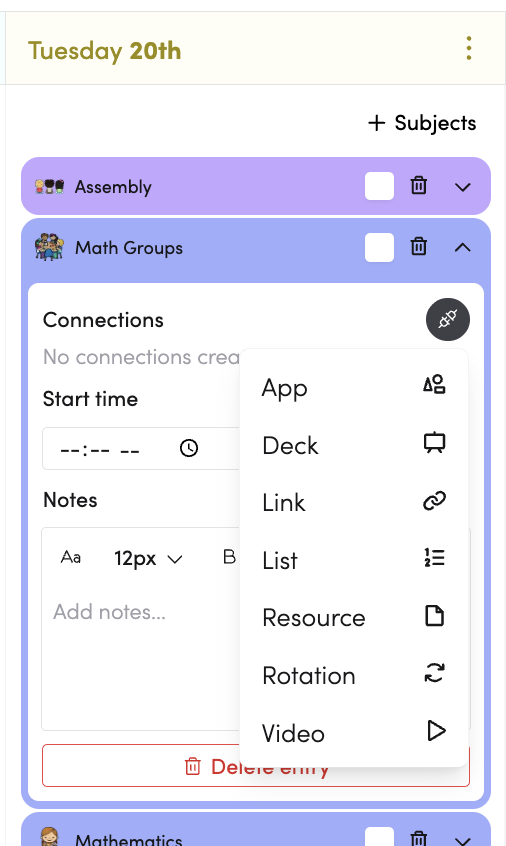
To add default connections, expand the connections section and choose what to link — such as an app, video, link, or resource.
How do I add one-off connections?
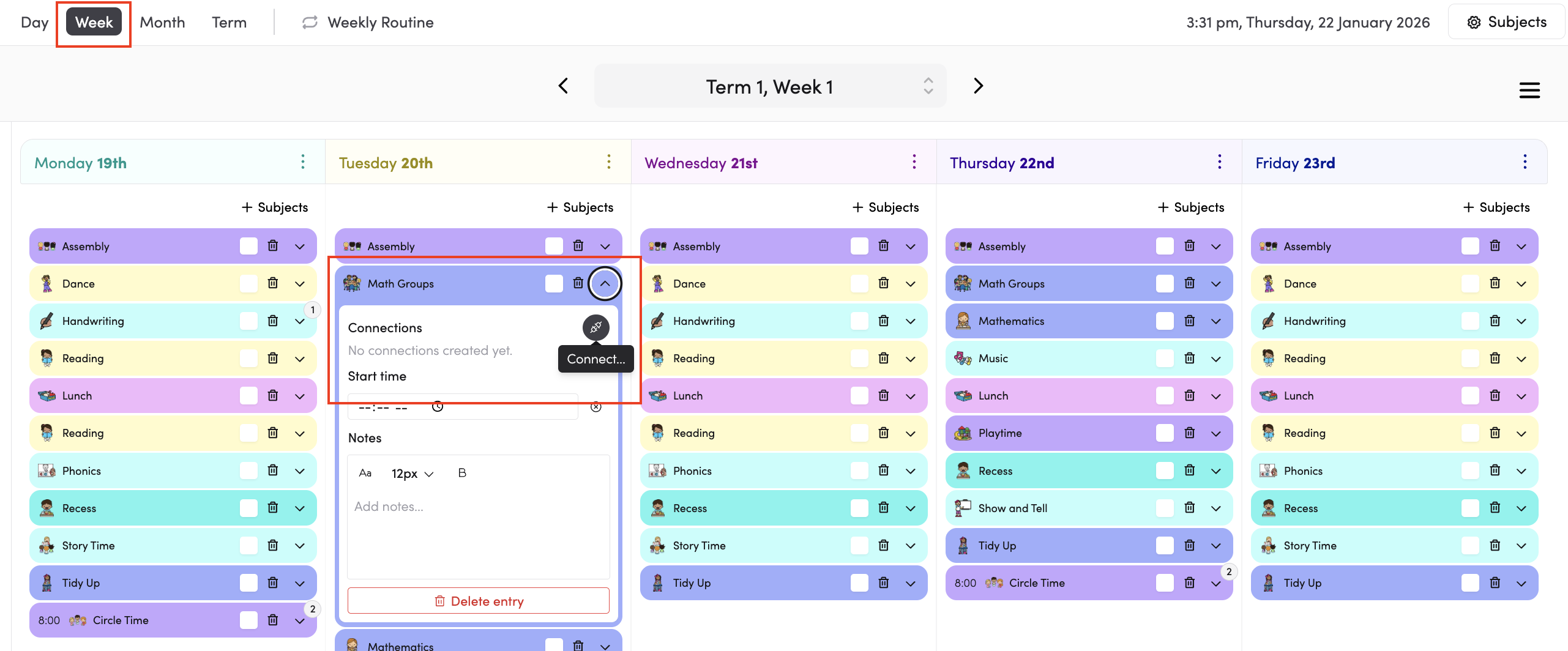
If you need to attach something to a subject for a specific day only, expand that subject directly in your Day or Week plan and add the connection there. It won't affect your Weekly Routine or any other instance of that subject.
How do I add subjects to my timetable?
Once your subjects are set up, add them to your Weekly Routine to carry them across every generated week, or add them directly to a specific day or week in your plan.