
How do I create my Weekly Routine?
Your Weekly Routine is a template for your typical teaching week. Set it up once and you can generate your timetable in a single click — saving you time every week and making sure everything is ready to go when you enter Teach Mode.
How do I access the Weekly Routine?
You can get to the Weekly Routine two ways:

- From the left sidebar — click Plan at any time from anywhere in the Hive.
- From the Dashboard — look for the Prepare section and click through from there.
Once you're in the Planner, select Weekly Routine from the top navigation.

How do I set up my Weekly Routine?
1. Set your term dates
Before anything else, make sure your term dates are configured. The Hive uses them to know which week of your routine to apply, whether you're in Week A or Week B, and when you're on holidays.
Click the menu (three lines, top right) and select 'Edit term dates'.

Note: You can also access your term dates by clicking 'Term' on the top navigation.
You can choose from pre-loaded dates for each Australian state and New Zealand, or enter your own manually if your school's calendar is different.


If your school uses a fortnightly cycle, you can also set whether the first term starts on Week A or Week B — handy if holidays have shifted things around.
2. Add your subjects
Click 'Subject' under any day to start adding your regular lessons and activities. You can set a start time for each entry — the Hive will suggest likely times based on what's around it, so it should be quick to fill in.

If your days follow a similar pattern, save time by using the three-dot menu (⋮) next to a day to copy it across to another day. You can then make any adjustments from there.


3. Add connections to your routine entries
This is where the Weekly Routine really saves you time. You can connect apps, links, slide decks, or rotations to any subject in your routine — so they're automatically ready to go every time you generate your timetable.
If no connections have been added yet, you'll see the full list of connection types to choose from: Video, Resource, Link, App, Deck, and Rotation.
To add a connection, expand a subject entry and click 'Add' next to Connections.

Once a connection has been added, it will appear listed under Connections. You can add more at any time by clicking 'Add' again.

For example, if you always use a particular app during Phonics on Wednesdays, connect it once in your routine. Every time you generate that week, it will be waiting for you in Teach Mode — no searching, no extra tabs.
Note: Any connections you add to your Weekly Routine will carry through automatically when you generate your weekly timetable.
4. Add your slide decks
You can add slide decks to your Weekly Routine so they're ready to go in Teach Mode without any extra setup each week. Add a deck to a specific day if you only use it on certain days, or add it under 'Always-available Slide Decks' to make it available every day.

Once you generate your week, any decks in your routine will automatically carry over to your plan. Read more about making slide decks appear in Teach Mode here.
How do I generate my timetable from the Weekly Routine?
Once your routine is set up, go to the Week view and click 'Generate week'. The Hive will fill in your timetable for that week based on your routine template.


The Hive knows which week of your cycle you're in (e.g. Term 2, Week 1, Week A) based on your term dates — so it pulls from the right week of your routine automatically.
If you need to jump ahead to a future term or week, use the dropdown in Week view to navigate, or switch to Term view and click on any day or week to move there directly.
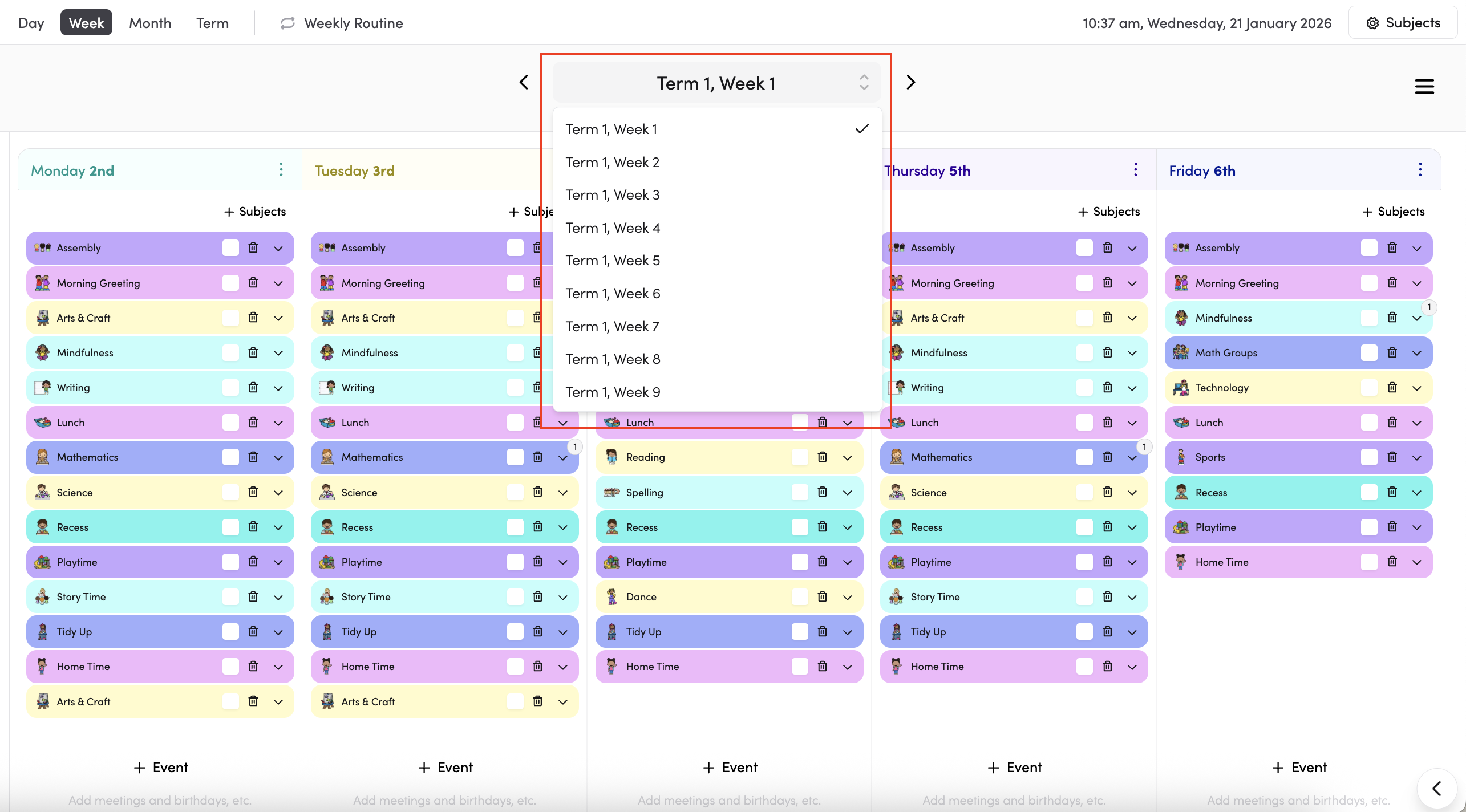
Note: Generating a week will only fill in empty days. It won't overwrite anything you've already added. If you want a completely fresh week, use the menu (three lines, top right) and select 'Delete Week' first.
Any changes you make to your Weekly Routine won't automatically update timetables you've already generated. If you update your routine, you'll need to delete and regenerate any affected weeks.
Tips
- The Weekly Routine is your biggest time-saver. The more complete it is — subjects, times, and connections — the less you'll need to do each week.
- Only timetables built in the Day or Week plan will appear in the visual timetable on the right side.
- Start times matter. If entries are out of order, a warning will appear. Just adjust the times to fix it — the Hive will flag it so nothing gets missed.
- Want to learn more about connecting apps and resources to your timetable? Read more here.
- Read more about creating and editing subjects here.