Fifa World Cup 2026 Tracker
World Cup 2026 Tracker lets your class follow the FIFA World Cup as it unfolds. Fill in real match results each morning, watch the group tables and knockout bracket build themselves, and follow the nations your class cares about. It takes a couple of minutes a day and turns the tournament into flag, geography, and data lessons.
How do I access World Cup 2026 Tracker?
You can access World Cup 2026 Tracker in three ways:
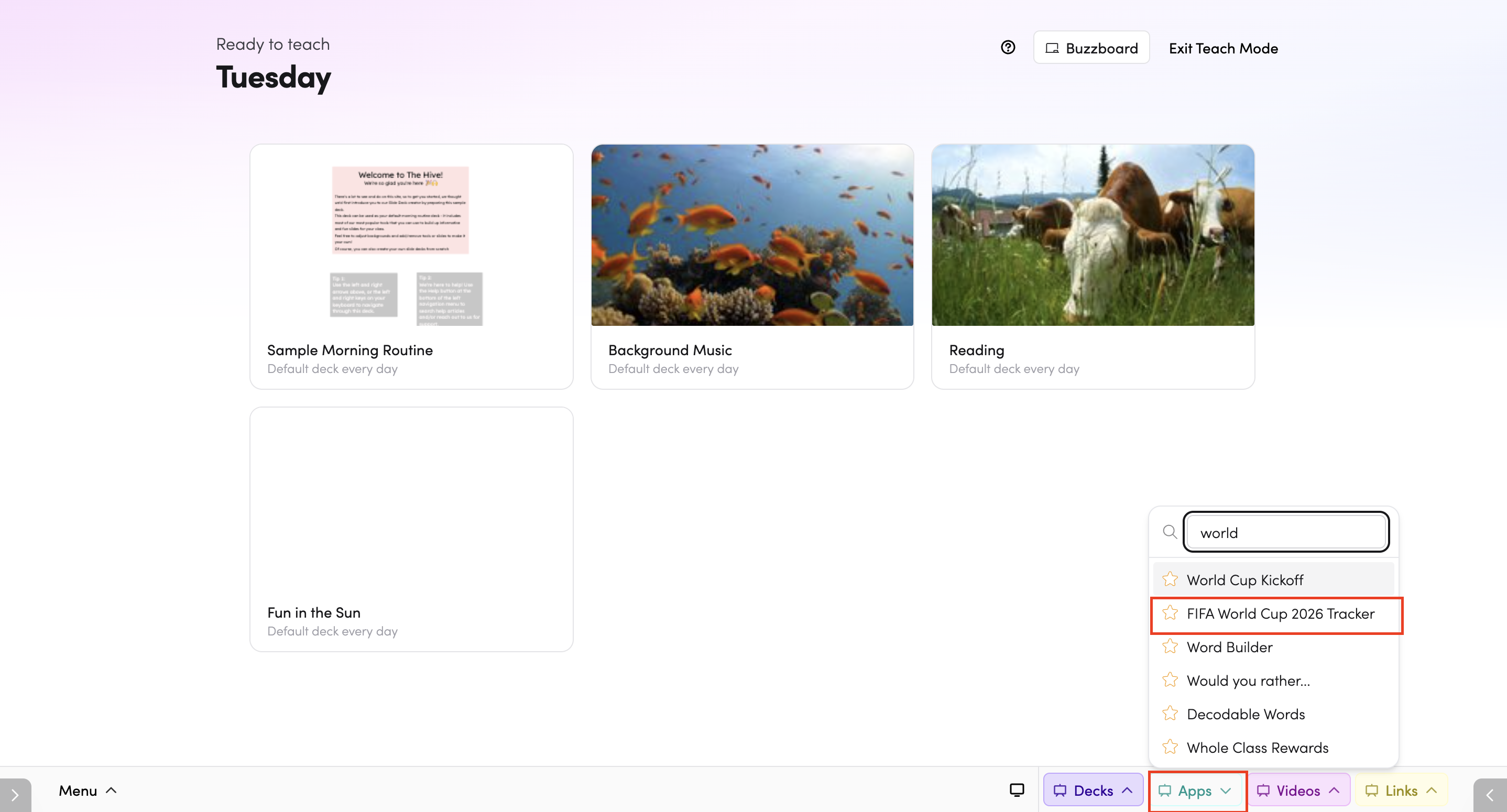
- Through Teach Mode - open World Cup 2026 Tracker directly from the bottom bar of Teach Mode.
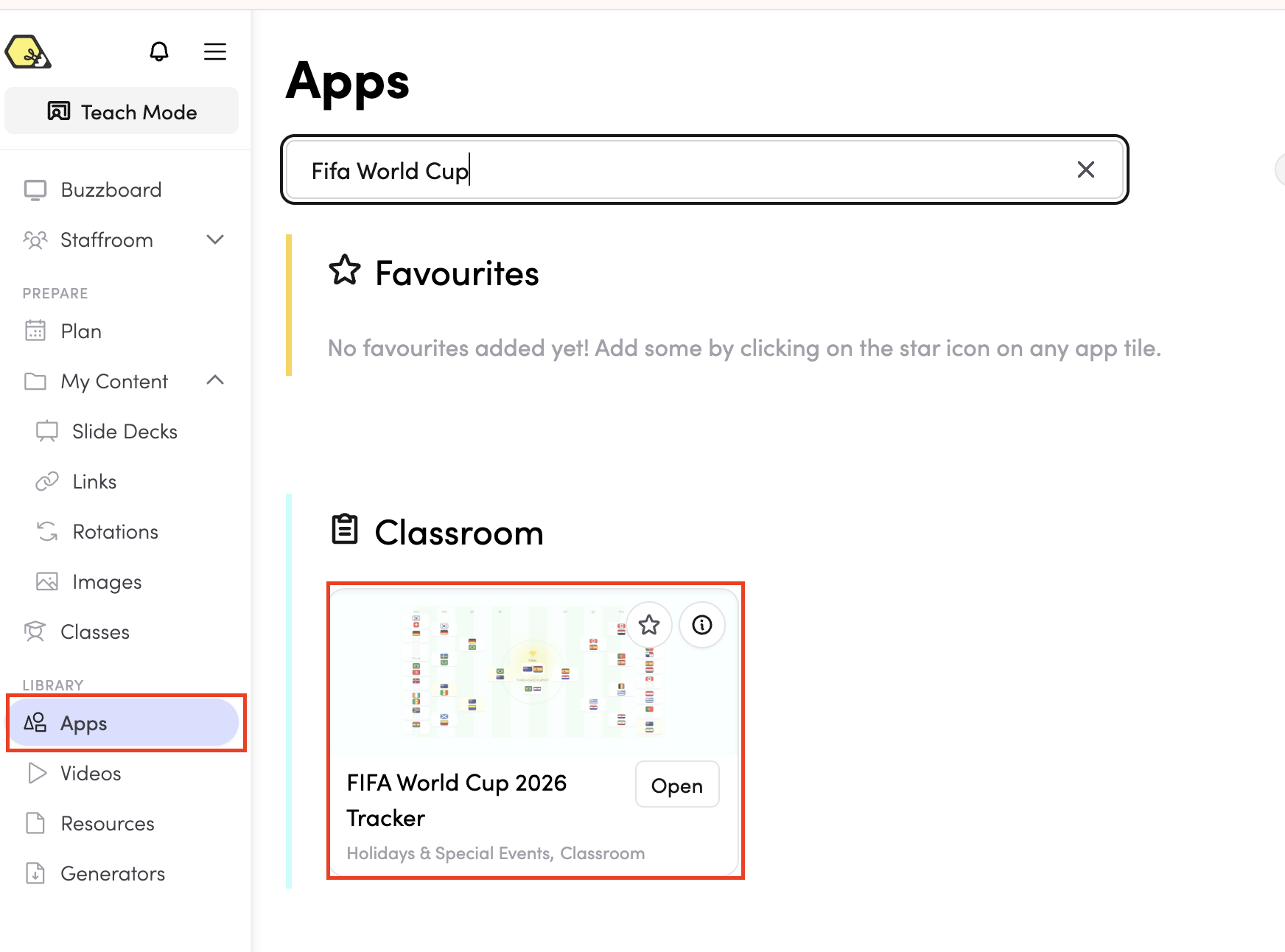
- From the Apps library - browse or search for World Cup 2026 Tracker in the Apps library.
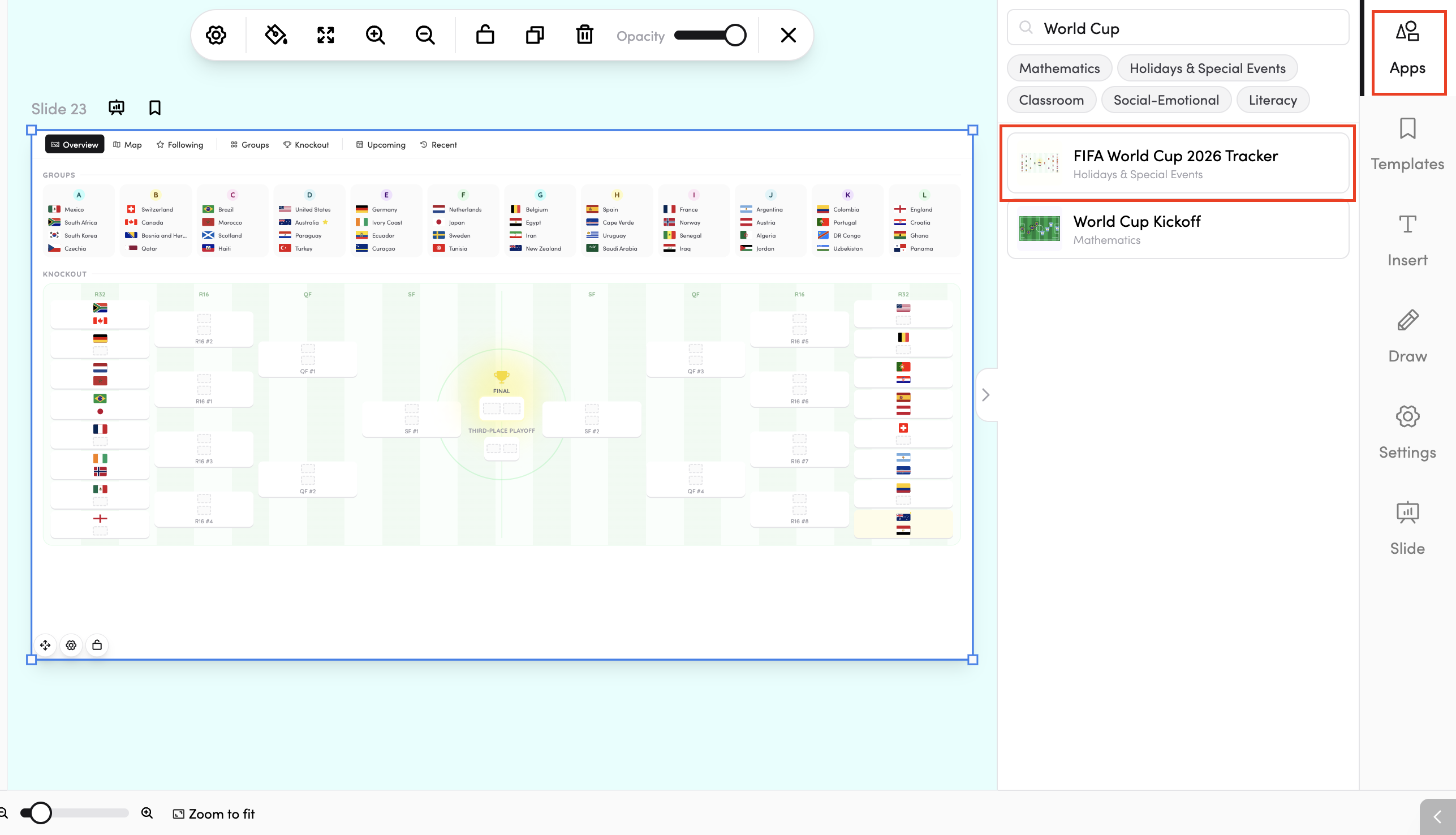
- In your slide deck - search for World Cup 2026 Tracker in the apps panel on the right and tap it to drop it onto your slide. From there, you can move and resize it however you like.
How do I use World Cup 2026 Tracker?
The tracker is made up of views you switch between using the tabs along the top. The tracker remembers the last view you were on:
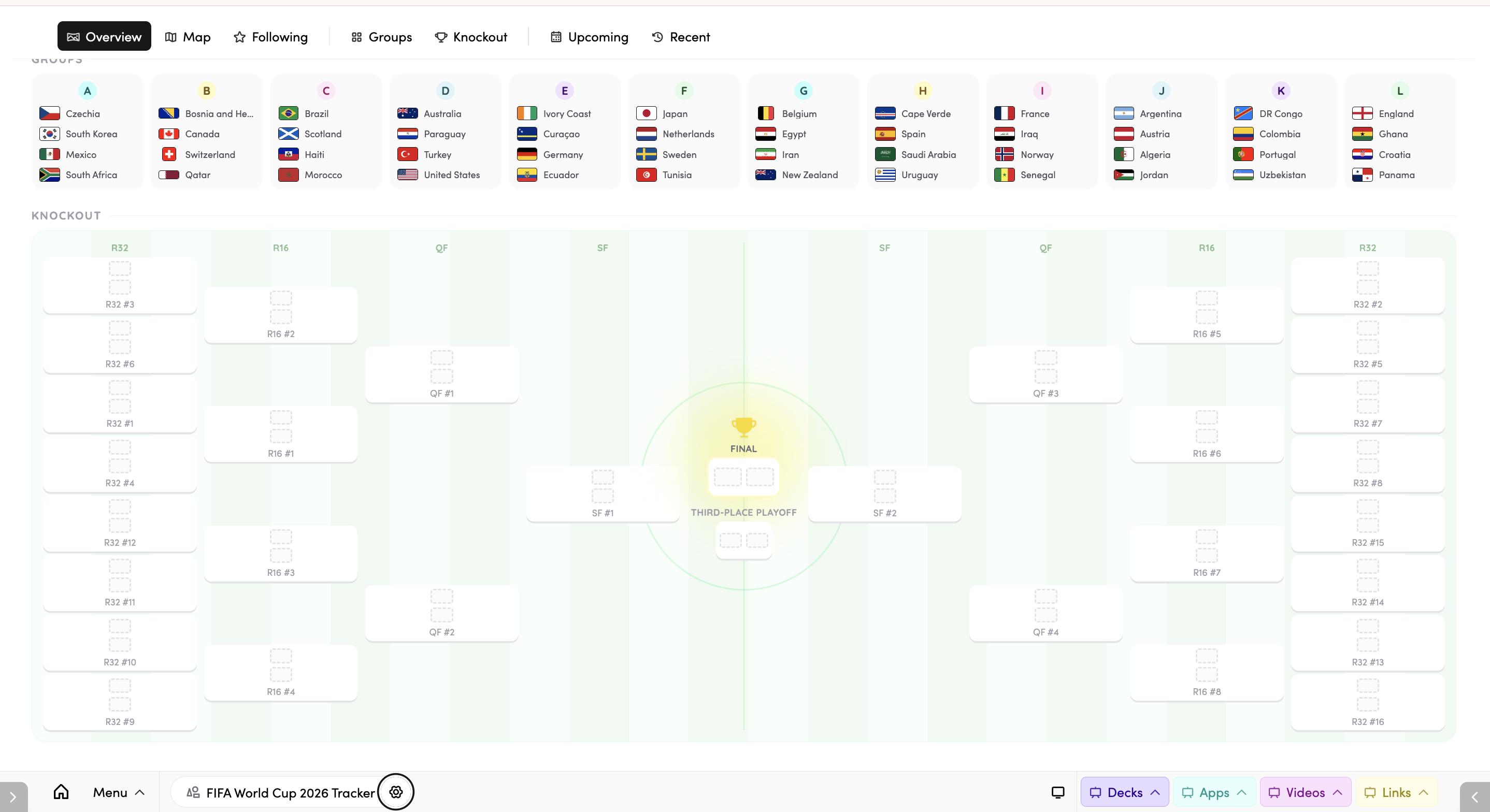
- Overview - the whole tournament at a glance: group flags flowing into the bracket and the final. A good default to project.
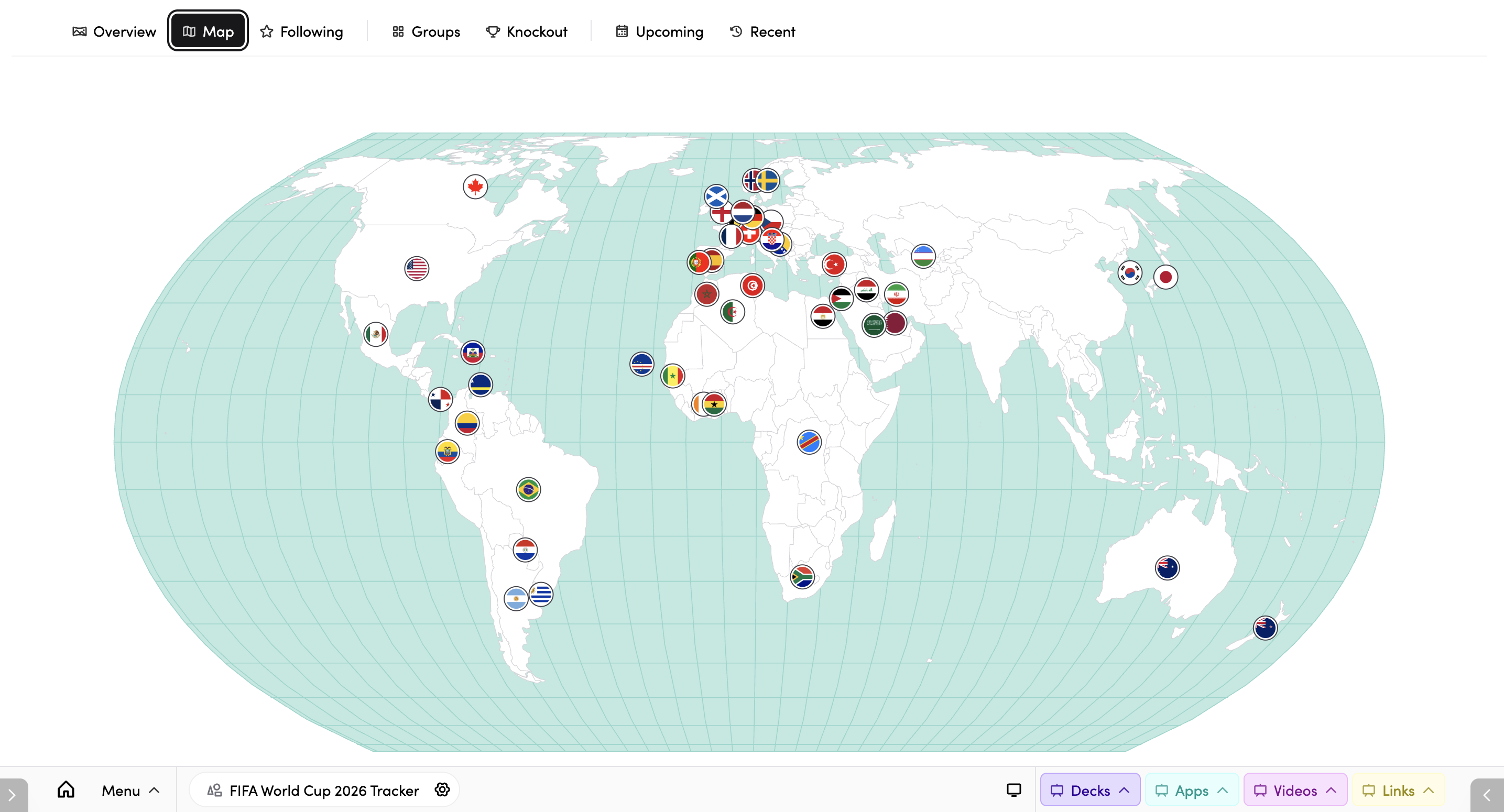
- Map - the competing nations on a world map.
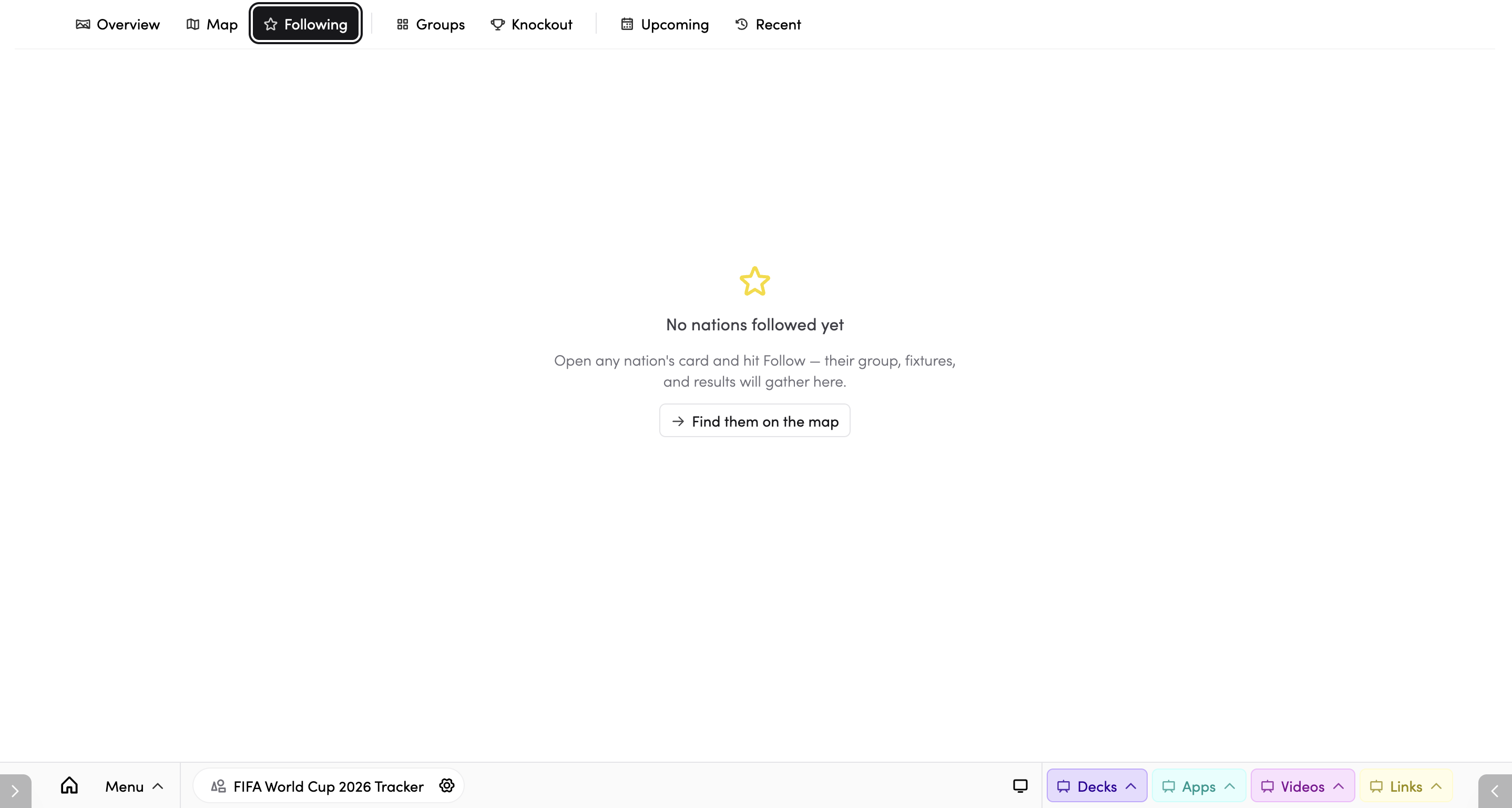
- Following - fixtures and group standings for just the nations you follow.
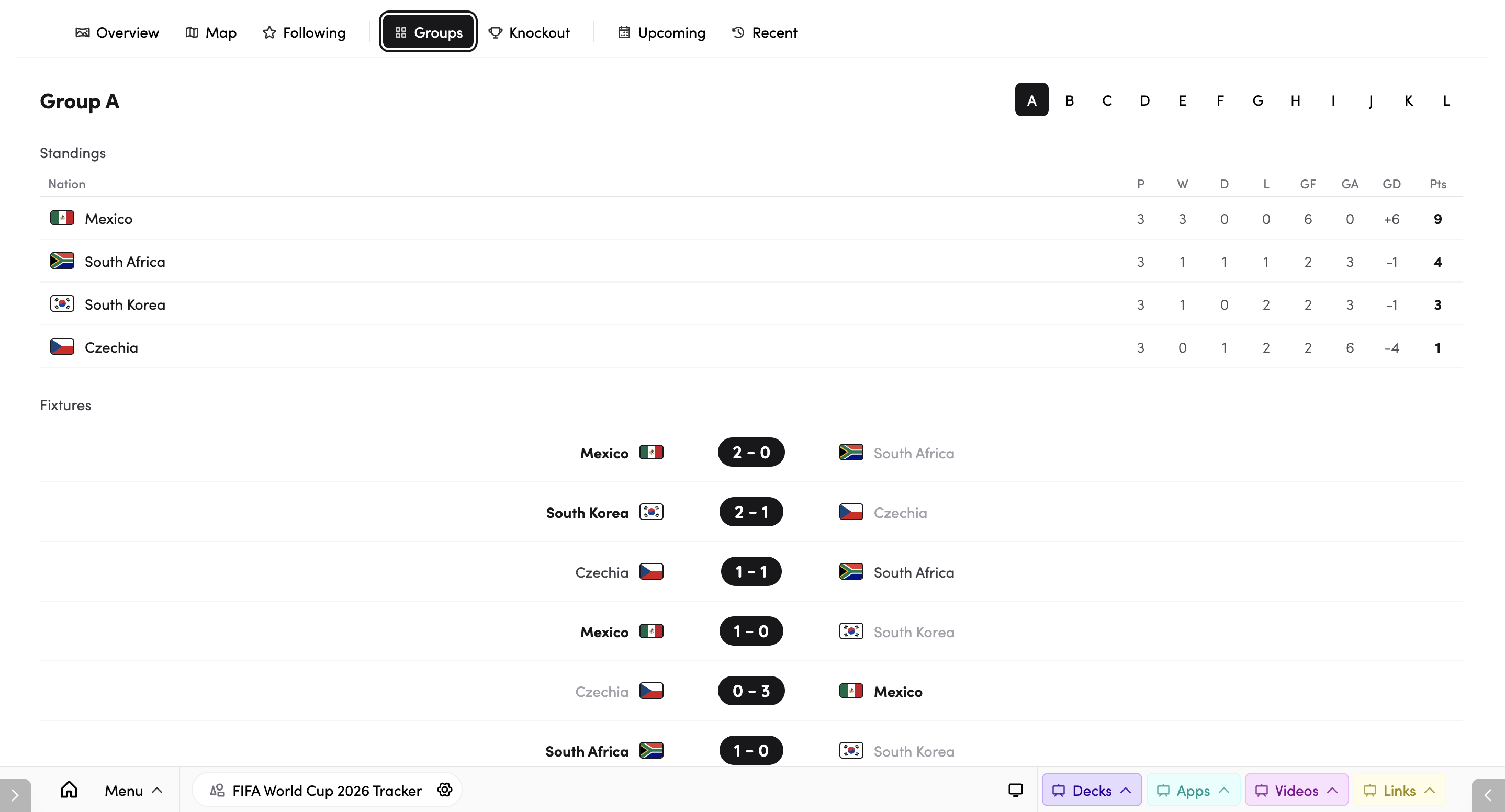
- Groups - one group's table and fixtures. Switch between groups from here.
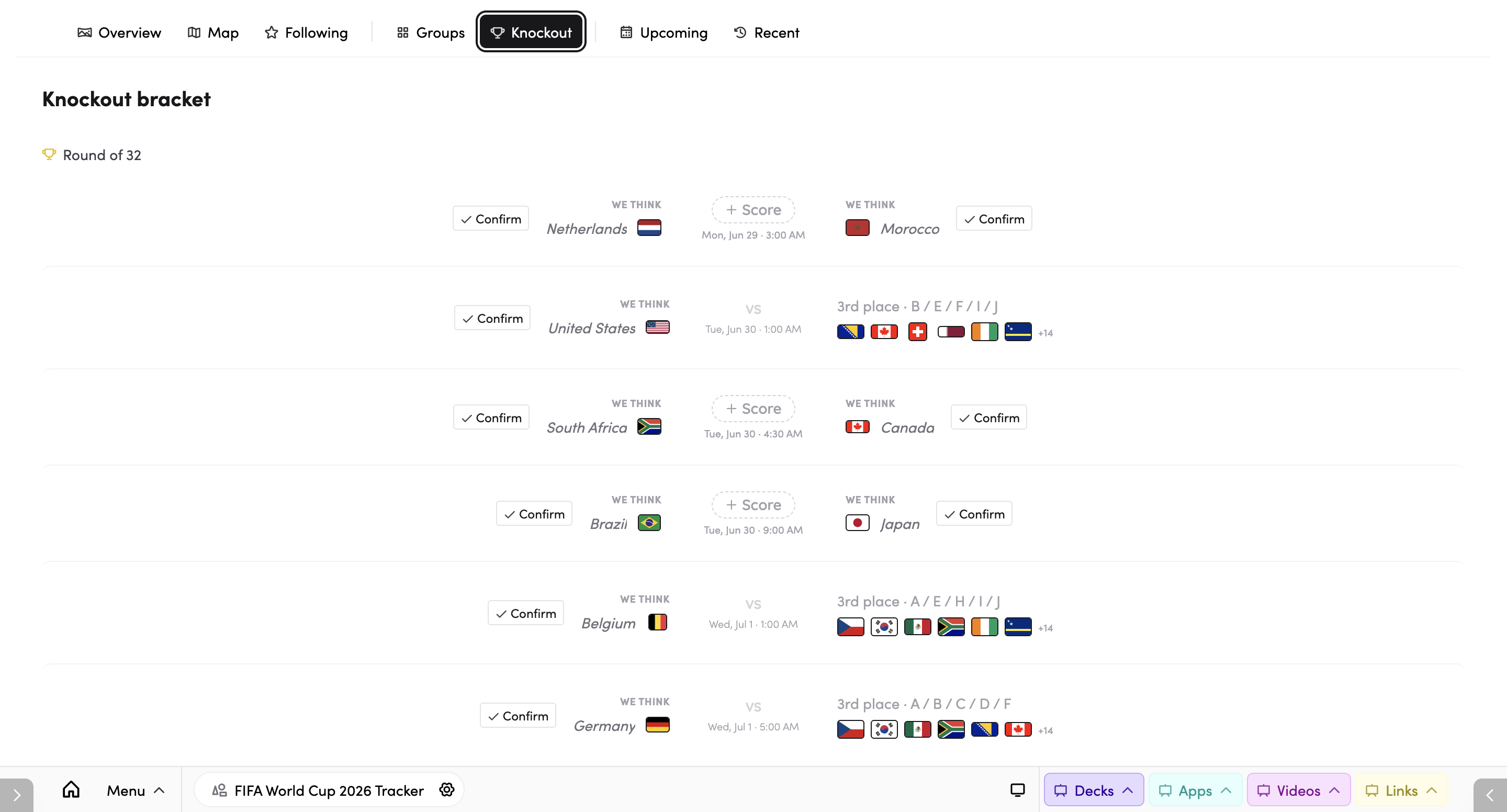
- Knockout -the full knockout bracket with the path to the final.
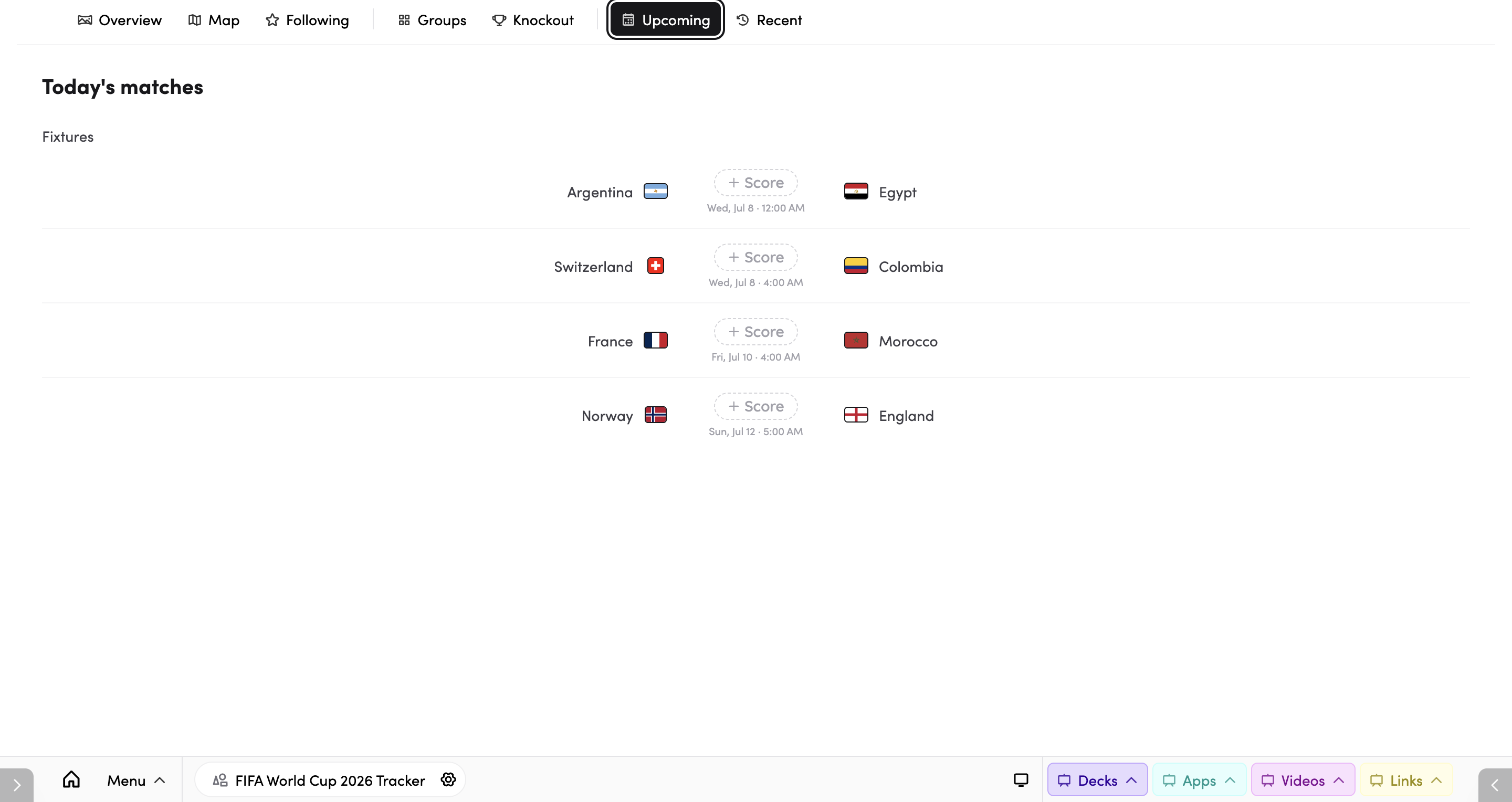
- Upcoming - the next matches still to be played.
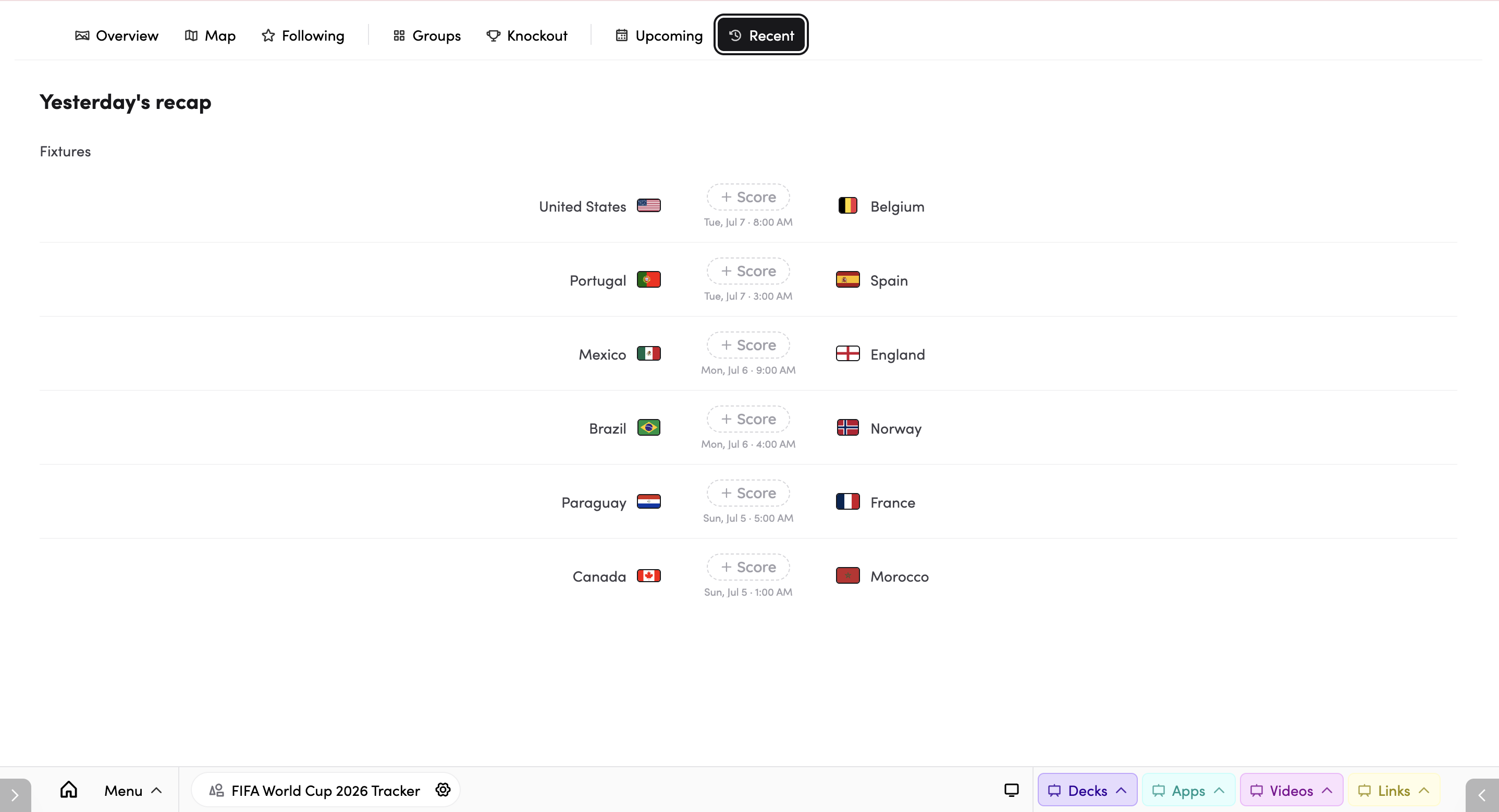
- Recent - the most recent matches, including any that have kicked off but still need a result entered.
Entering results
Entering results is the heart of the tracker and only takes a minute or two each day. Find the match you want in any view — the quickest place is Recent or Upcoming. A match with no result yet shows a dashed + Score pill where the score will go. Tap it, enter the full-time score, and save. For knockout matches decided in extra time or on penalties, you can add those scores too.
As you enter results, group tables update themselves - recalculating points, goal difference, and standings live - and the bracket fills itself in, carrying winners through to the next round as each match is settled. You can enter results at any time, even before the tournament kicks off.
Following nations
Following a nation puts it in the spotlight across every view - a great way to focus the class on the home nation, students' heritage countries, and a few favourites. Open any nation's card and tap Follow. Tap Following again to unfollow. Followed nations are highlighted on the chart and cards, sorted to the top of Upcoming and Recent, and gathered together in the Following view. Following only adds emphasis - it never hides anything.
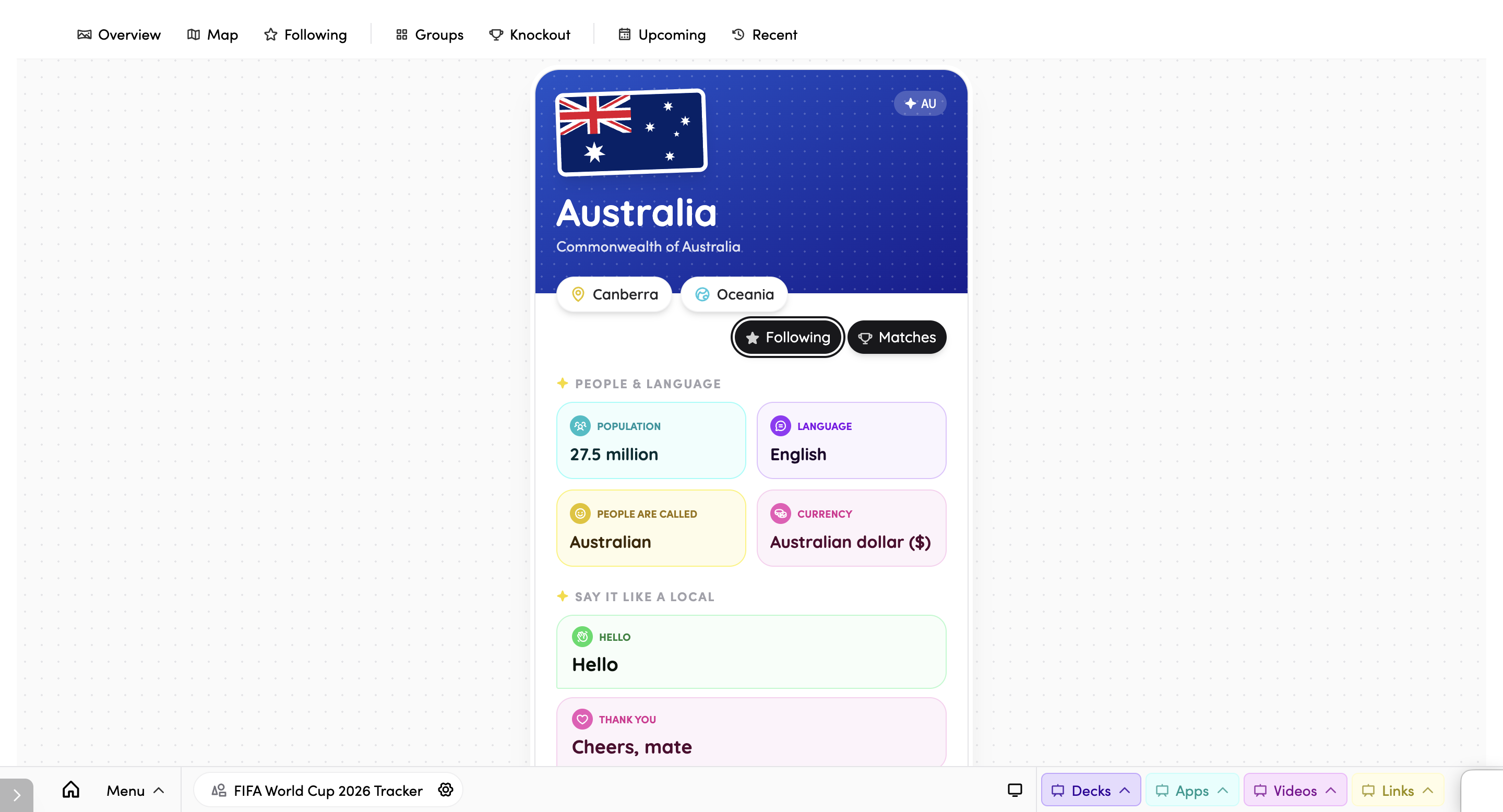
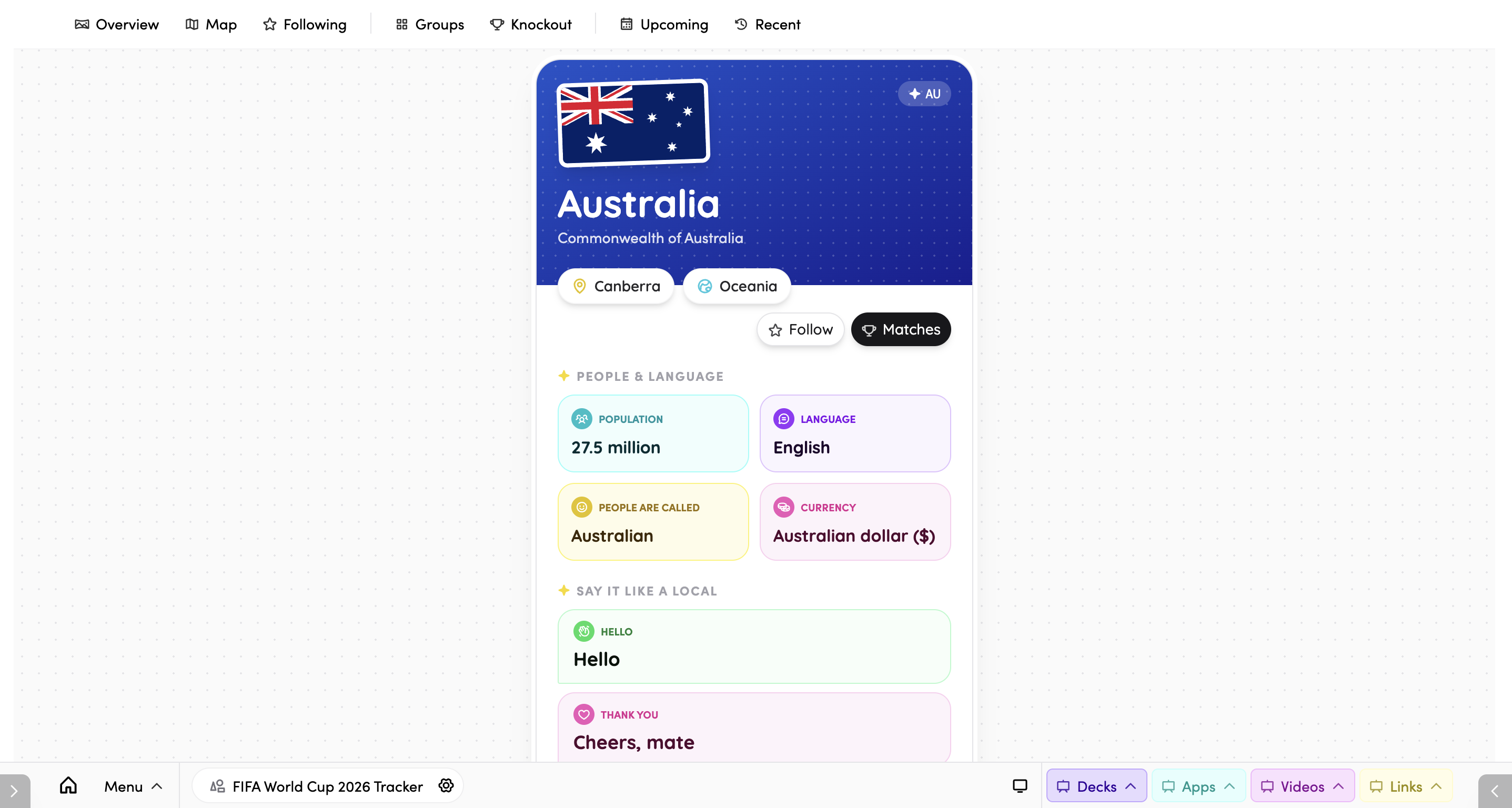
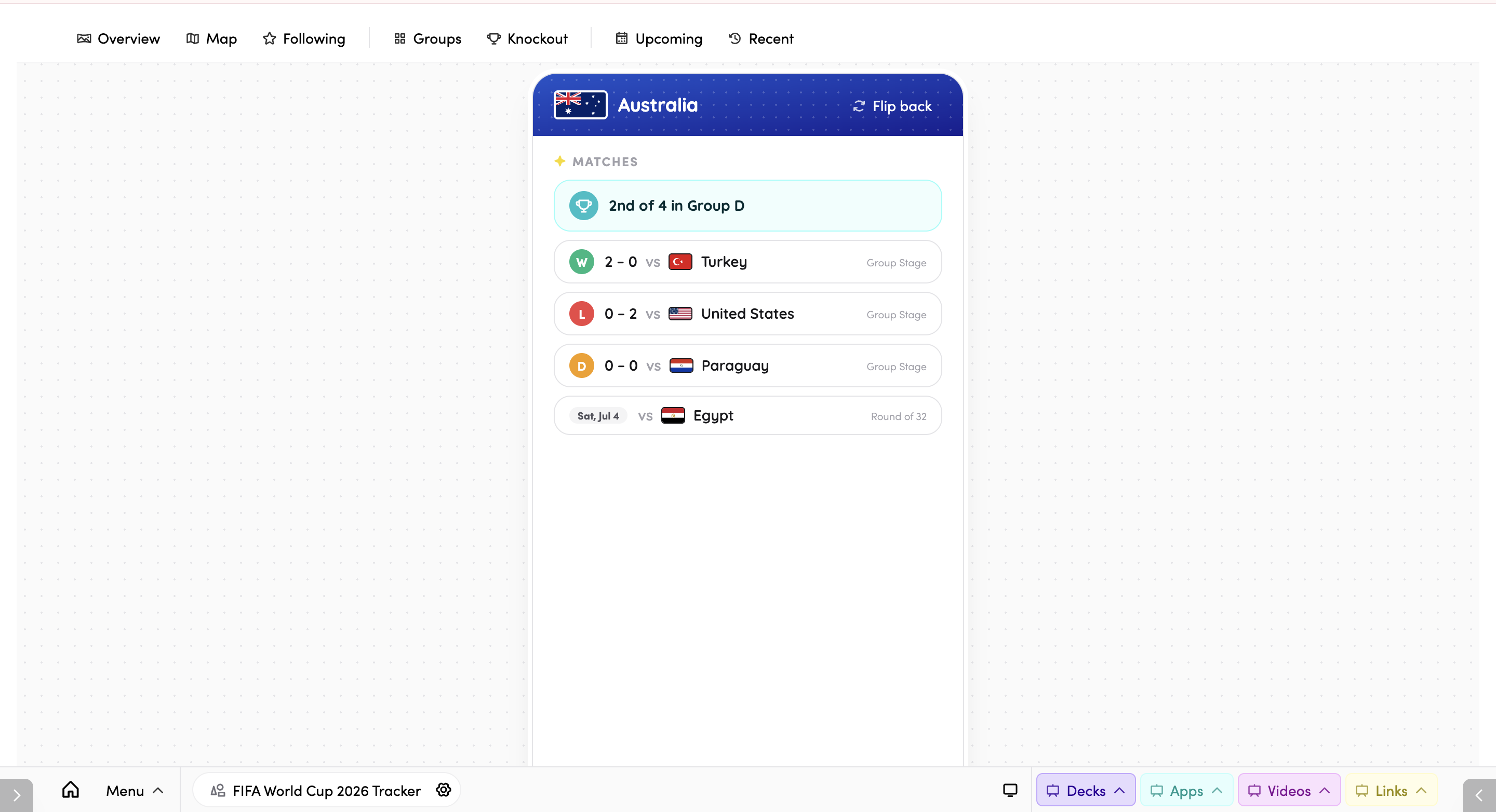
Tap any nation to open its card and see the flag, key facts like capital and continent, a "say it like a local" language section, and that nation's matches.
Filling the knockout bracket by hand
Most knockout slots fill in automatically from the results you enter. But if your class only follows one group, the other side of a knockout match may stay TBD. When that happens, tap the empty slot and pick the nation yourself. The picker offers the nations that could actually fill that slot, with your followed nations starred at the top, plus a "show all teams" option if you need it. If you enter the real group results later, automatic filling takes over again.
Free vs subscriber
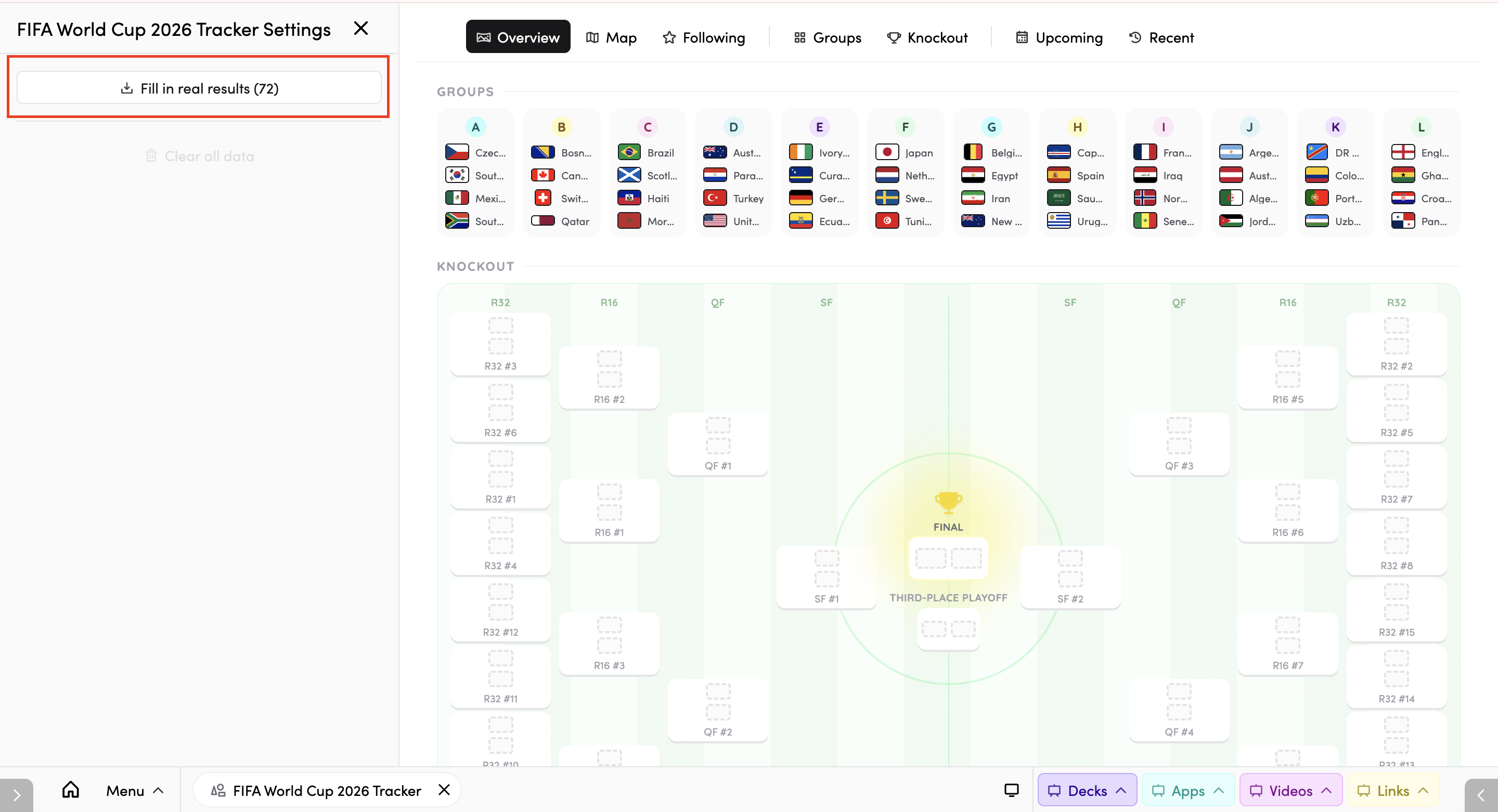
The tracker on the public page is the full app and covers every match of the tournament. Free users can enter results, watch tables and the bracket update, and follow one nation, with progress saved to their browser. Subscribers can follow every nation, save progress across all devices, and use Fill in real results - a one-click catch-up that copies the official scores your class hasn't entered yet straight into your tracker, cascading them through the bracket. The number on the button tells you how many results are waiting.
Putting the tracker on your slides
In The Hive, you can pin any tracker view straight into your slide decks — the overview poster, your followed nations, or a single group. Different slides can even show different views. Update the scores from the front of the room and the tournament is on the board when the class walks in every morning.
Starting over
To wipe your tracker and start again, use Clear all data in the actions panel. This removes every result and bracket override you have entered and cannot be undone, so use it with care.
Tips
- Make it a two-minute morning habit -open Recent, fill in yesterday's scores together, and watch the tables reshuffle.
- Follow the nations your class cares about so they stay in the spotlight everywhere.
- Pin the Overview to your morning slides so the tournament is ready on the board each day.
- Use it for data talk - points, goal difference, and standings all come from the results your class enters, so reading the table comes with real stakes.
- Subscribers: catch up in one click with Fill in real results if you miss a day.
- Click the star icon to add World Cup 2026 Tracker to your favourite apps.
- Click the timetable icon to connect World Cup 2026 Tracker to your timetable. (Read more about timetable connections here)