3D Object Explorer
3D Object Explorer lets you rotate, view, and interact with 3D objects to count their faces, edges, and vertices. It's a hands-on way to teach 3D object properties on the board or on student devices.
How do I access 3D Object Explorer?
You can access 3D Object Explorer in three ways:
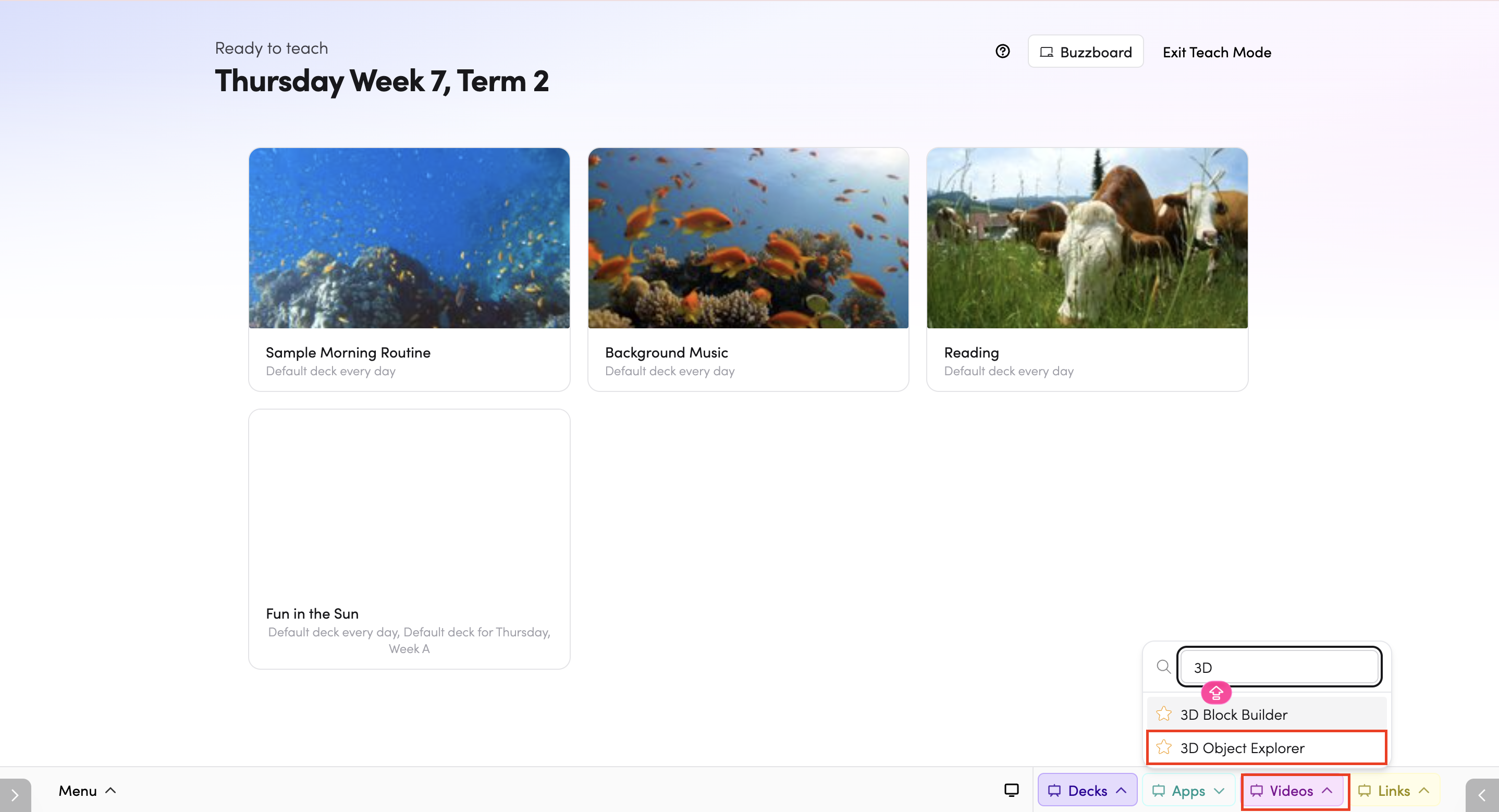
- Through Teach Mode - open 3D Object Explorer directly from the bottom bar of Teach Mode.
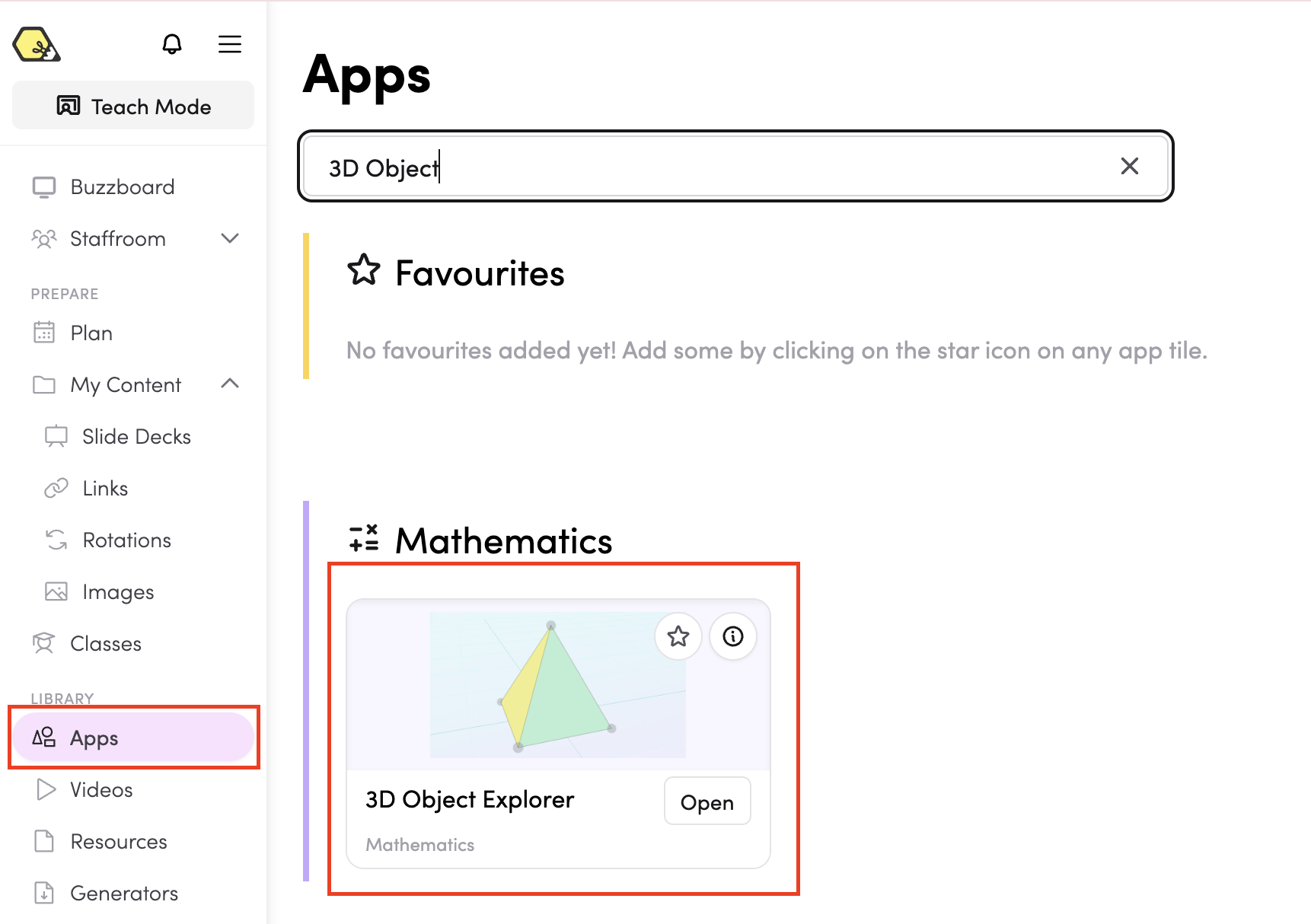
- From the Apps library - browse or search for 3D Object Explorer in the Apps library.
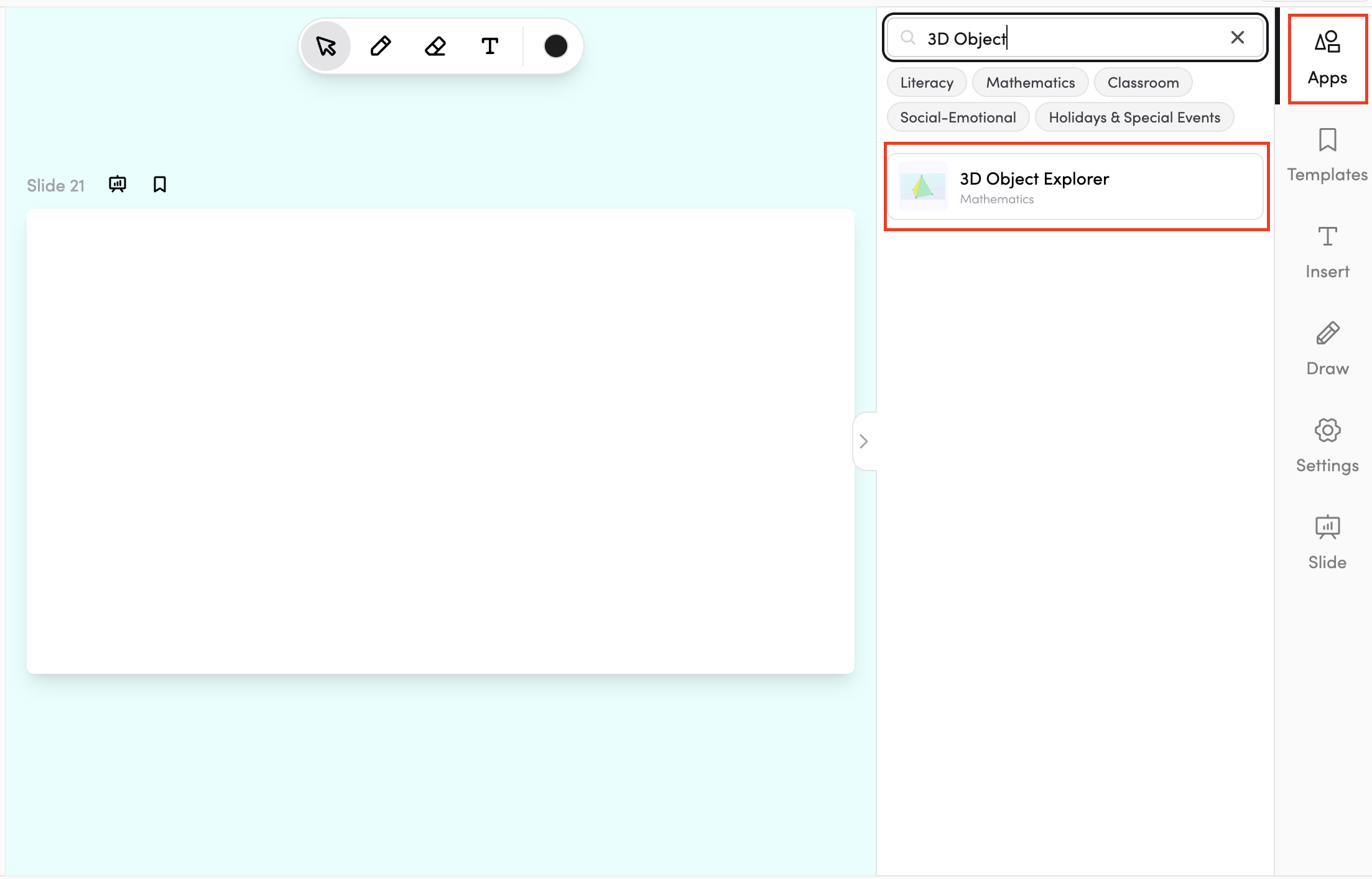
- In your slide deck - search for 3D Object Explorer in the apps panel on the right and tap it to drop it onto your slide. From there, you can move and resize it however you like.
How do I use 3D Object Explorer?
Open the app, and a 3D object will appear on screen in a default angled view. The properties panel on the left (or top-left in full screen) shows a live count of the object's Flat faces, Curved surfaces, Edges, and Vertices:
- Flat faces - the flat surfaces of the shape.
- Curved surfaces -any rounded surfaces (e.g. a sphere has 1 curved surface and 0 flat faces).
- Edges - the lines where two faces meet.
- Vertices - the points (corners) where edges meet.
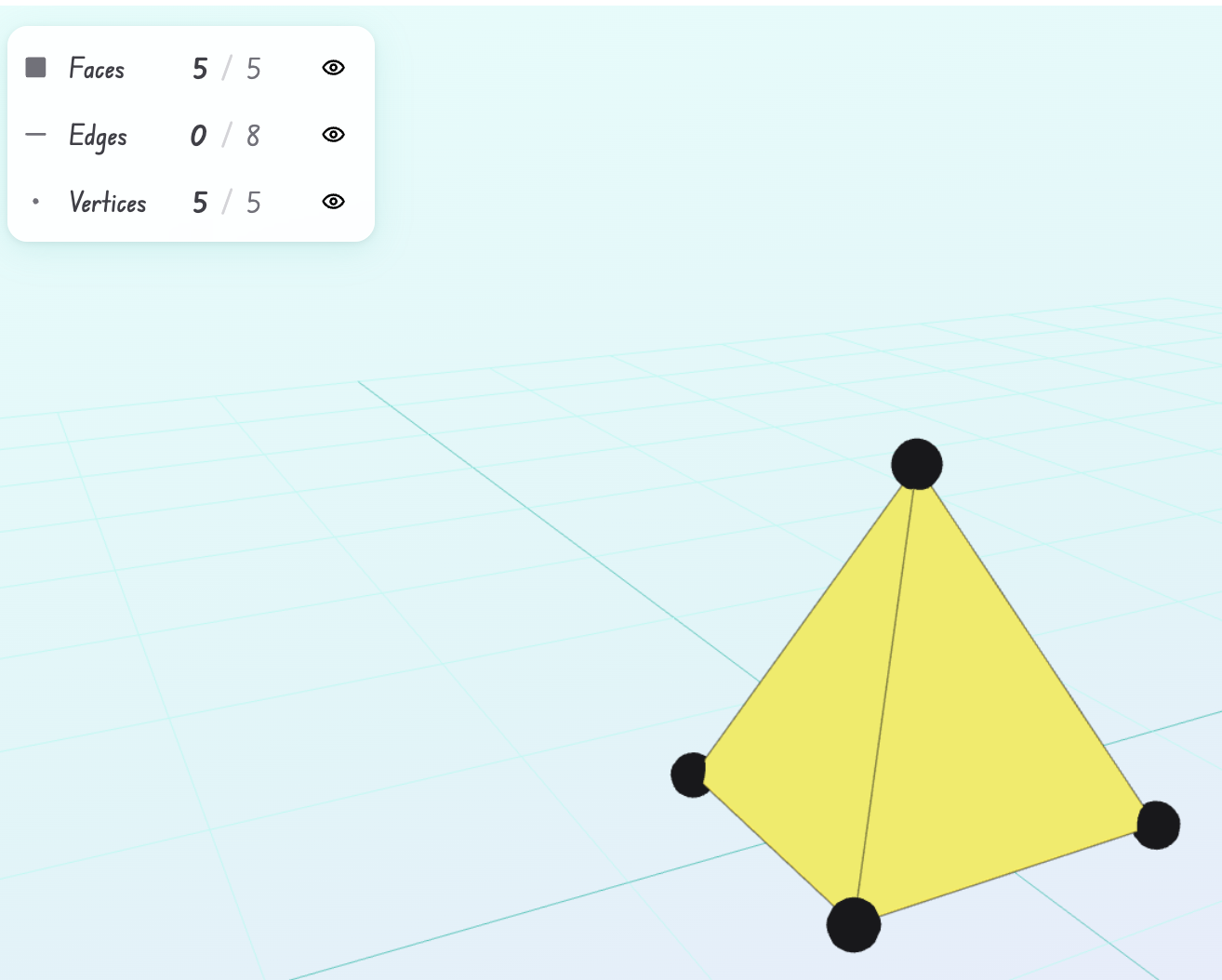
Counting faces, edges, and vertices
Students can tap any face, edge, or vertex on the shape to highlight it. Tap it again to unhighlight. This makes it easy to count each part without losing track.
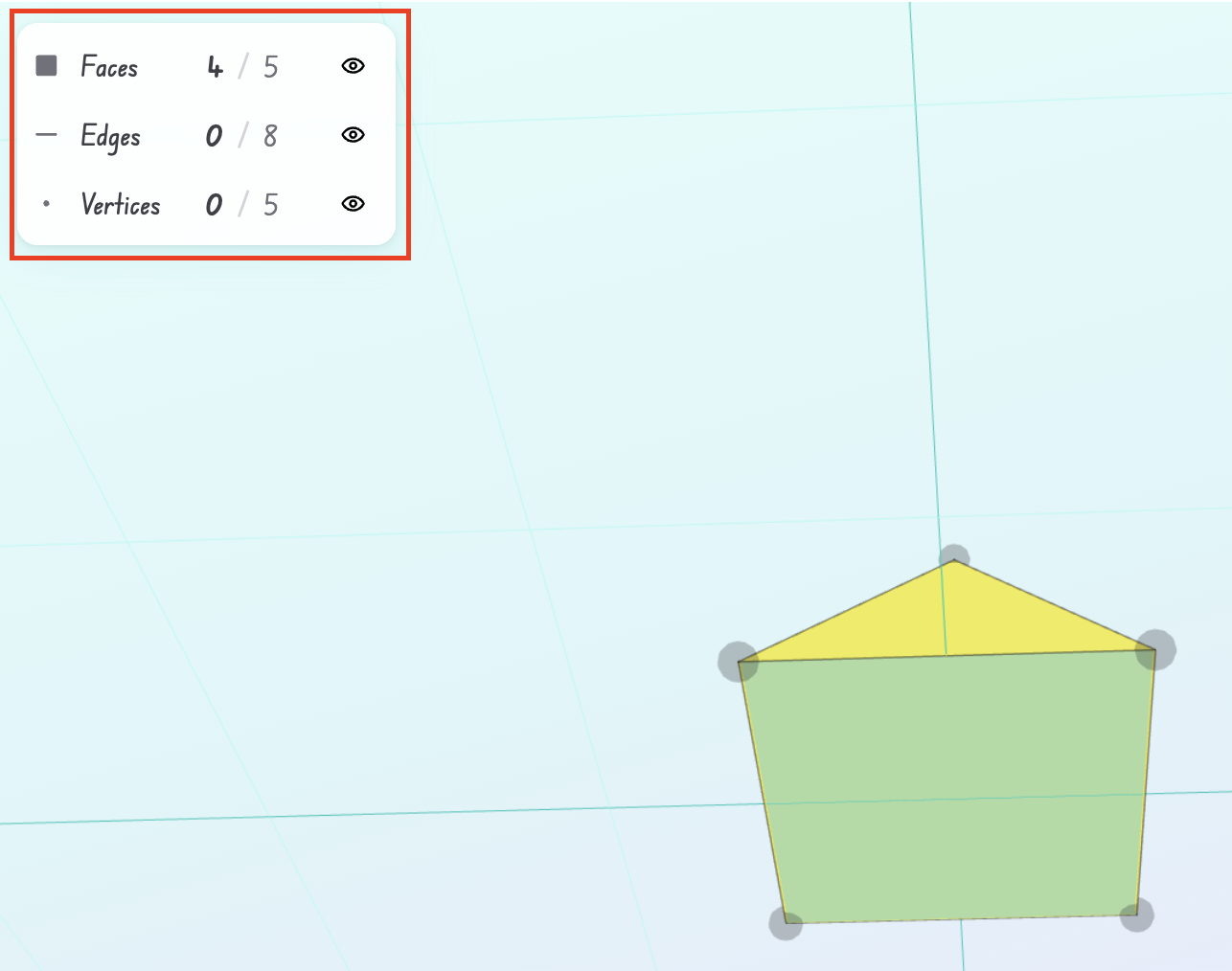
Changing the view
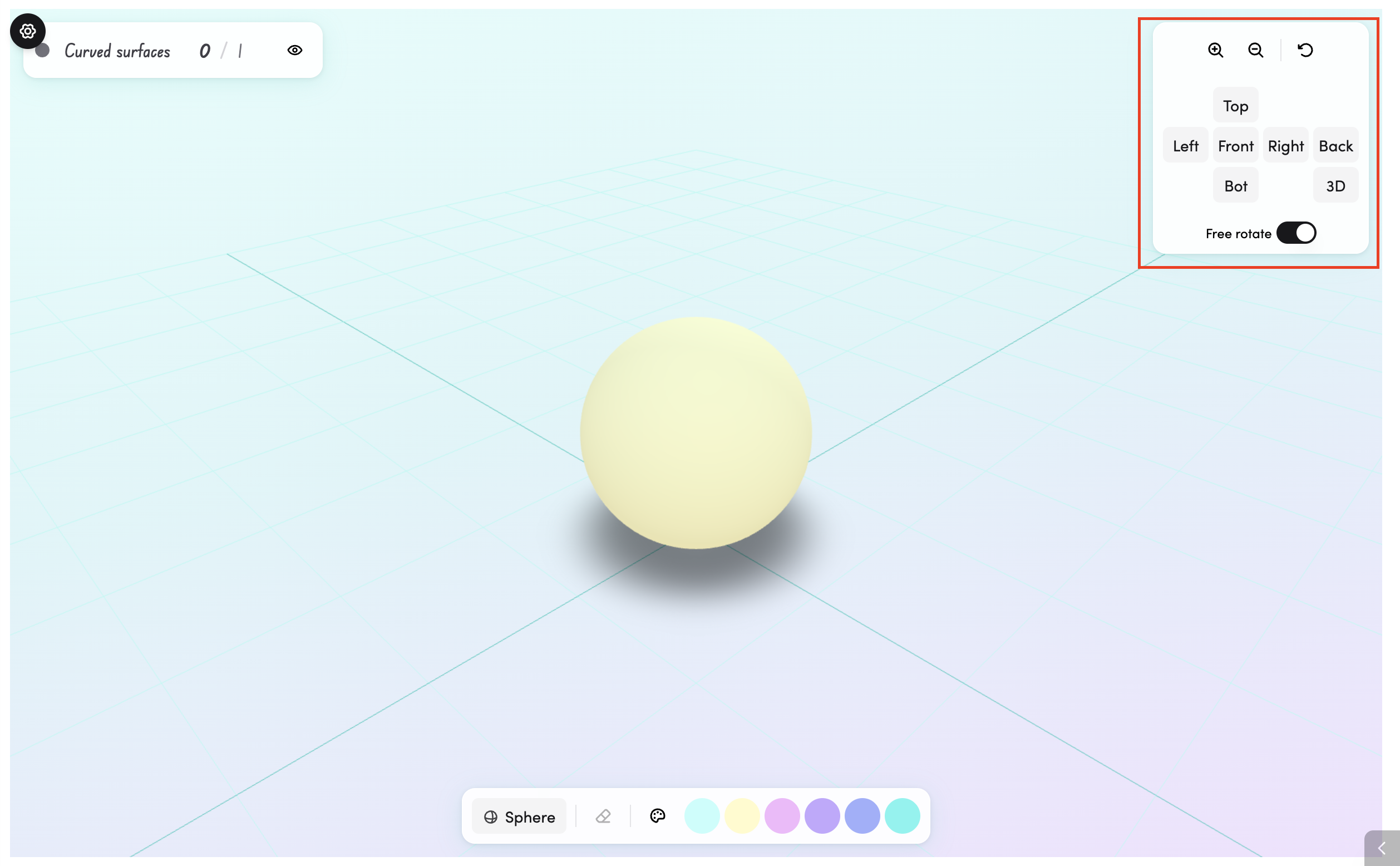
Use the view controls in the top-right corner to look at the object from different angles:
- Top / Bot - view the object from directly above or below.
- Left / Right -view from the left or right side.
- Front / Back -view from the front, or jump back to the previous view you were on.
- 3D - returns to the default angled view the object started in.
- Turn on Free rotate to drag the object with your mouse and spin it freely in any direction. Turn it off if you want the object to stay fixed in place.
- Use the zoom in (+) and zoom out (−) buttons at the top right to get a closer look, or the reset zoom button to return to the default size.
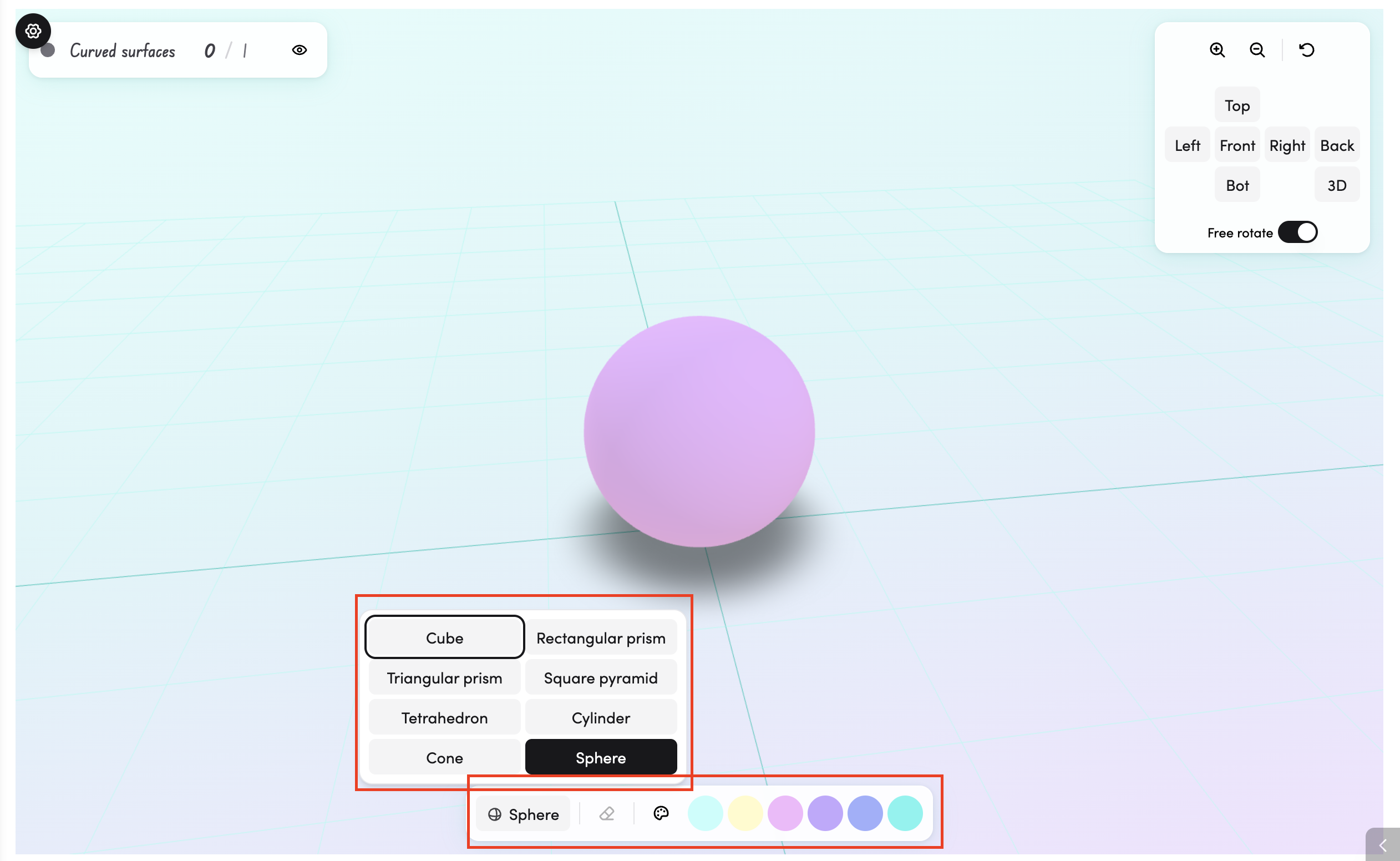
Choosing a shape and colour
- Use the toolbar at the bottom of the screen to switch between shapes - tap the shape name (e.g. 'Sphere') to open the shape selector. You can also choose a colour for the object from the colour circles in the bottom bar.
Showing and hiding the totals
- Tap the eye icon next to the property count (e.g. 'Curved surfaces 0 / 1') to hide or reveal the total. This lets you challenge students to count first before the answer is shown.
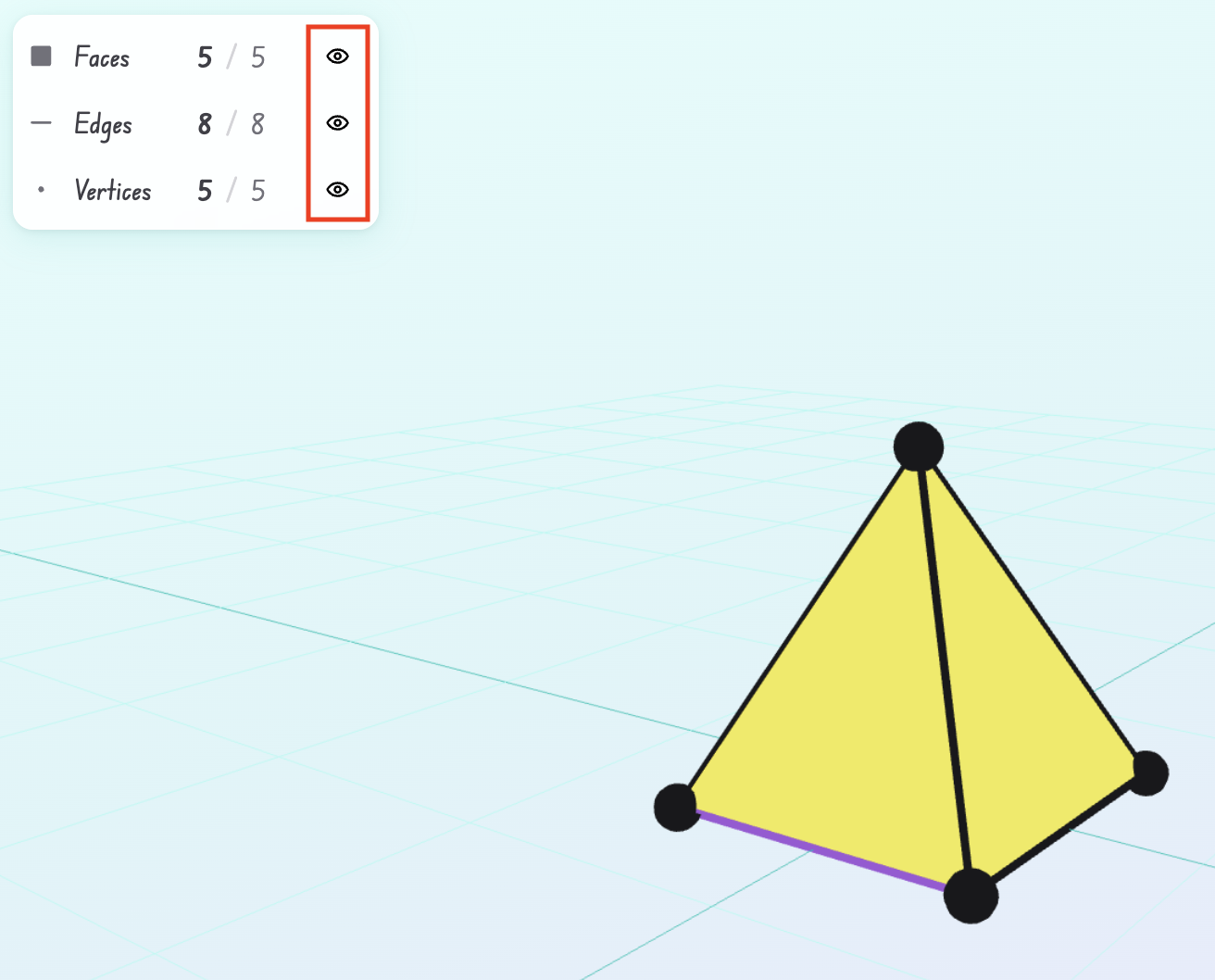
Tips
- Click the star icon to add 3D Object Explorer to your favourite apps.
- Click the timetable icon to connect 3D Object Explorer to your timetable. (Read more about timetable connections here)