
Noggle
Noggle is an interactive maths challenge you can run with your class. A honeycomb grid is filled with numbers, and students create as many equations as they can using the numbers on the grid. You can customise the number range, grid size, and target number to suit your learners — from simple addition to multi-step equations.
How do I access Noggle?
You can access Noggle in three ways:
- Through Teach Mode - open Noggle directly from the bottom bar of Teach Mode.

- From the Apps library - browse or search for Noggle in the Apps library.

-
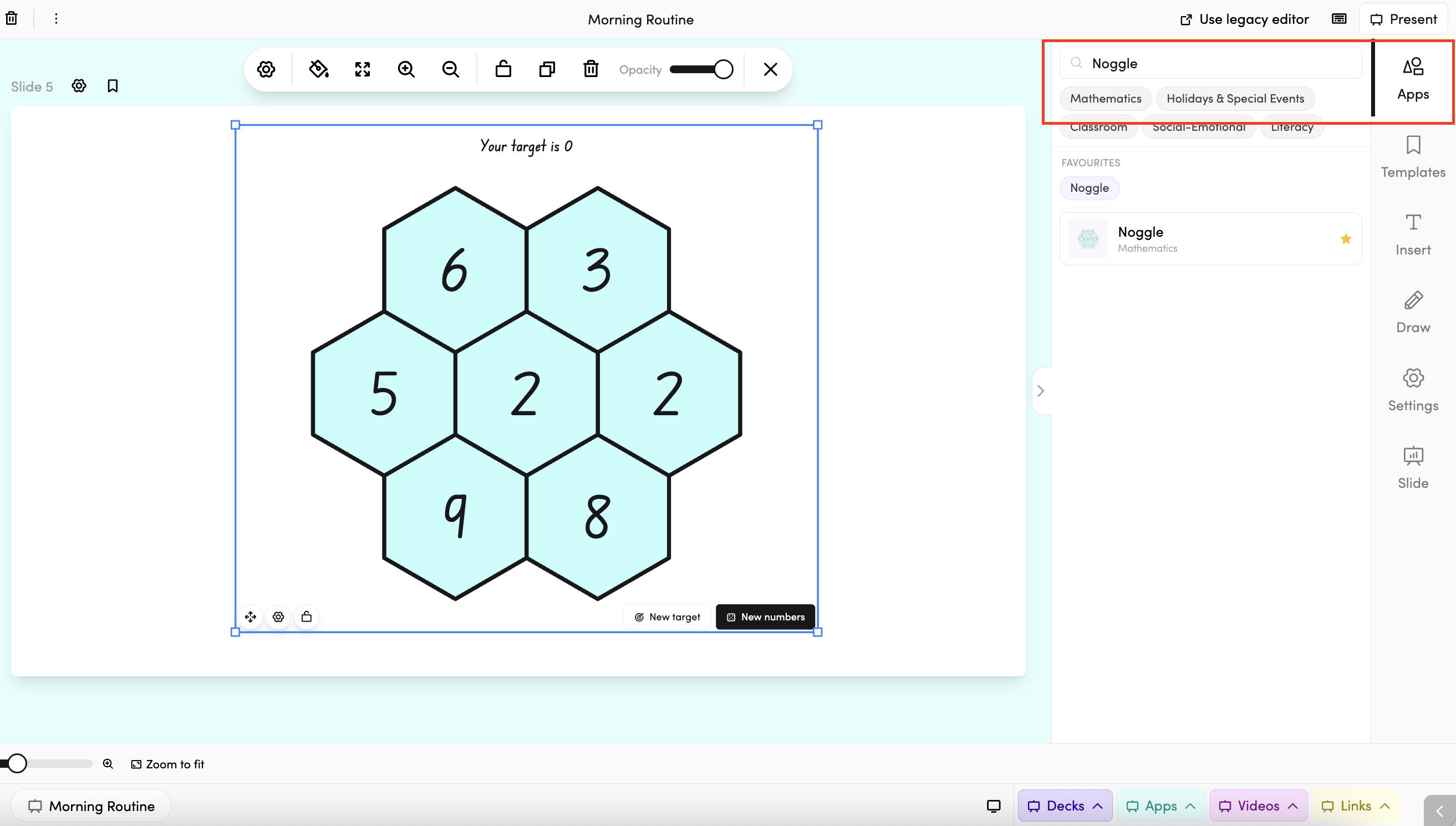
In your slide deck - search Noggle in the apps panel on the right and tap it to drop it onto your slide. From there, you can move and resize it however you like. The New target and New numbers buttons sit at the bottom of the app, so you can keep things fresh during your lesson without leaving the deck.
How do I use Noggle?
Open Noggle, and a honeycomb grid will appear on screen filled with random numbers, along with a target number at the top (e.g. "Your target is 1").
Under Mode on the left panel, you'll see two options:
- Target number - students find expressions that equal the randomly-generated target number shown at the top of the screen.
- Find equations - students find as many correct equations as possible using the numbers on the grid.

For both modes, students can choose numbers from anywhere on the grid, or for a more challenging puzzle, you can ask them to only use adjacent numbers.
Use the buttons at the top of the screen to refresh the puzzle:
- New target - generates a new target number but keeps the same grid.
- New numbers - generates a completely new grid of numbers.

You can also customise the grid using the settings on the left panel:
- Grid size - choose the size of the honeycomb grid from the dropdown (e.g. Small, Medium).
- Min. number / Max. number - set the range of numbers that can appear in the grid (e.g. 1–15). (image)

Turn on Annotations to let you or your students write directly on the screen - great for marking answers, circling numbers, or showing working out. A toolbar will appear at the bottom of the screen with options to Draw, Erase, and Interact.

Tips
- You can add Noggle to your favourite apps via the Teach Mode or through the App library. Click on this icon if you're adding it through the App library.

- You can connect Noggle to specific subjects in your timetable (read more about timetable connections here). If you're connecting it through the App library, click this icon.
