Noggle Sheets Generator
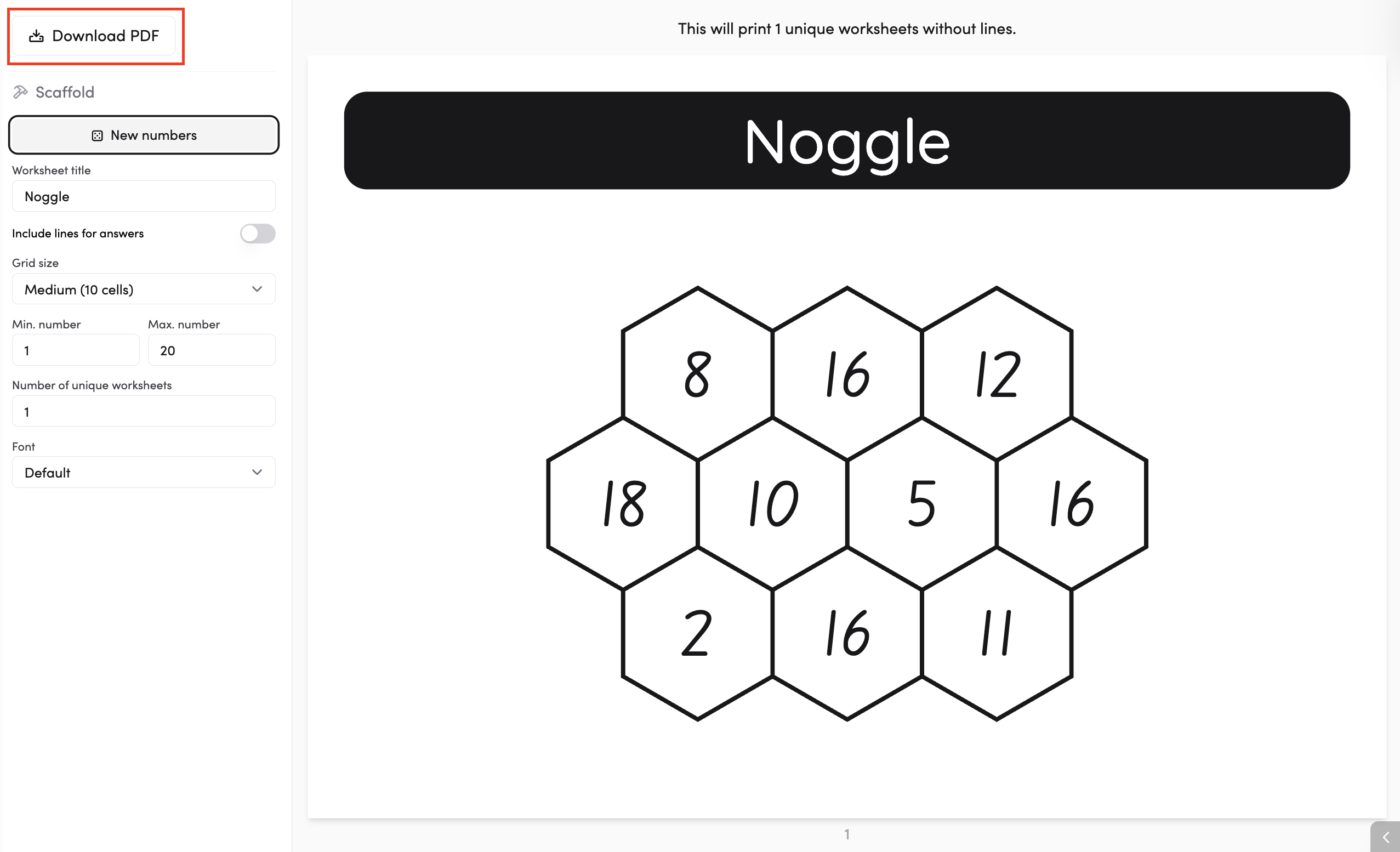
The Noggle Generator creates printable number boggle sheets for your class. Each sheet has a honeycomb grid filled with numbers - students use them to create as many number sentences as they can. Great for building number sense and mental math skills.
Looking for something interactive? If you'd prefer to use noggle on screen rather than printing them, check out the Noggle app — a digital version you can run with your class directly from The Hive.
How do I create a Noggle sheet?
Use the left-hand panel to set up your sheet. Tap 'New numbers' to generate a grid, adjust your settings, then the preview will appear on the right side of the screen.
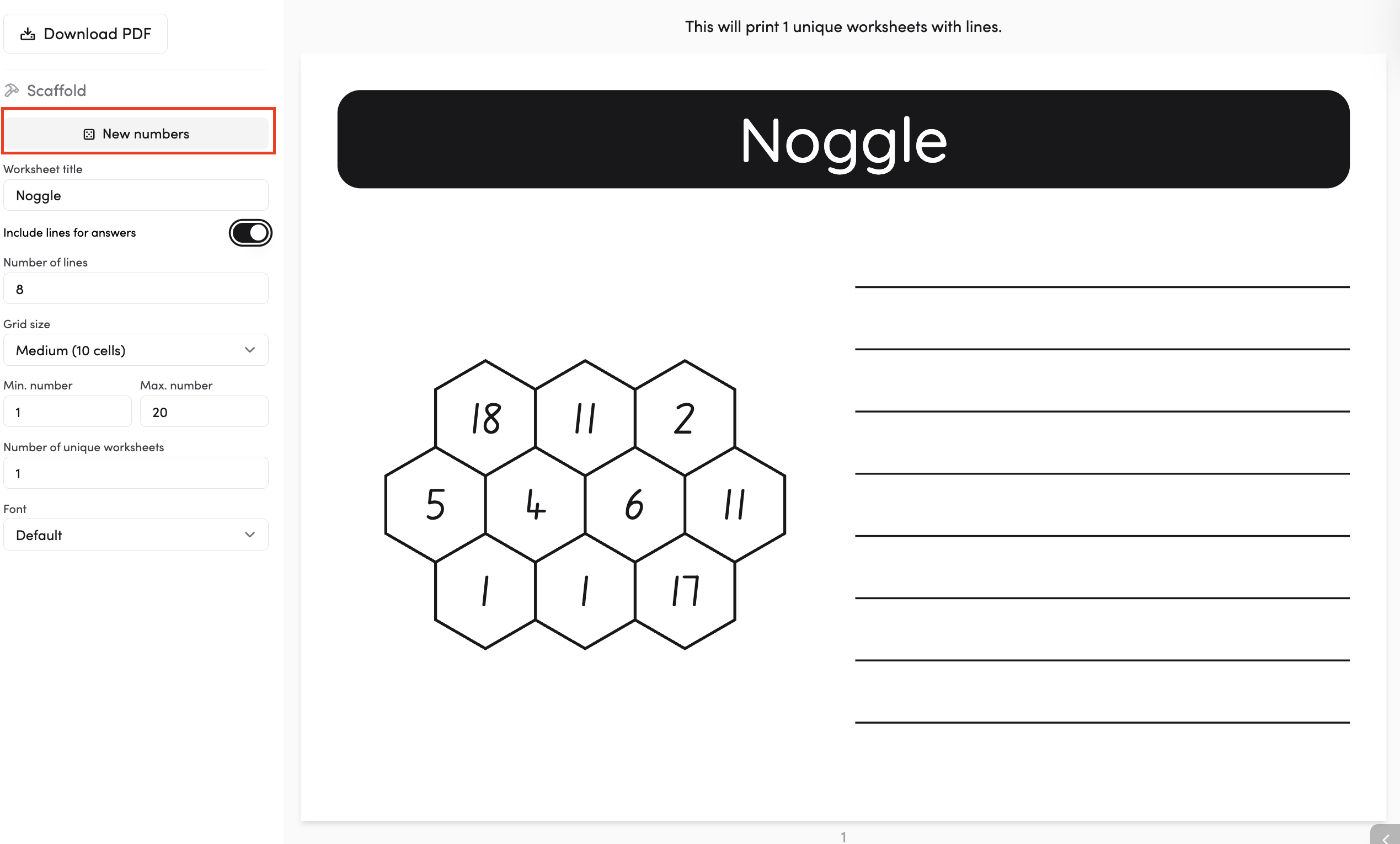
How do I change the look and layout of my Noggle sheet?
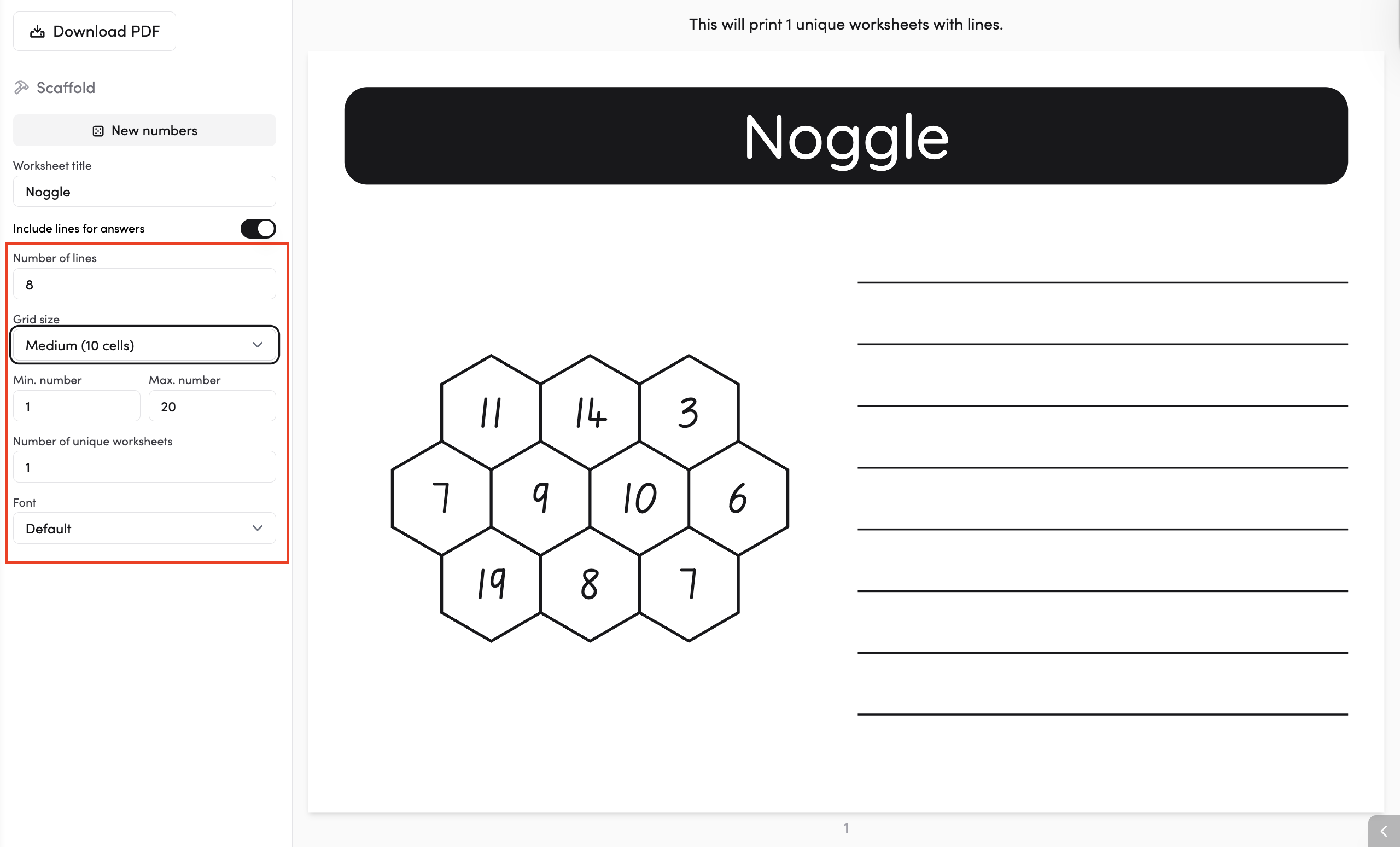
Under the Scaffold section in the left panel, you'll find these settings:
- Worksheet title - set the title that appears at the top of the sheet (default is "Noggle").
- Include lines for answers - turn this on to add writing lines next to the grid, so students have space to write their number sentences. When turned on, you can also set the number of lines (default is 8).
- Grid size - choose the size of the honeycomb grid from the dropdown (default is Medium -10 cells).
- Min. number / Max. number - set the range of numbers that can appear in the grid (e.g. 1–20).
- Number of unique worksheets -set how many different sheets to generate (default is 1). Each sheet will have a different set of numbers.
- Font - choose a display font from the dropdown.
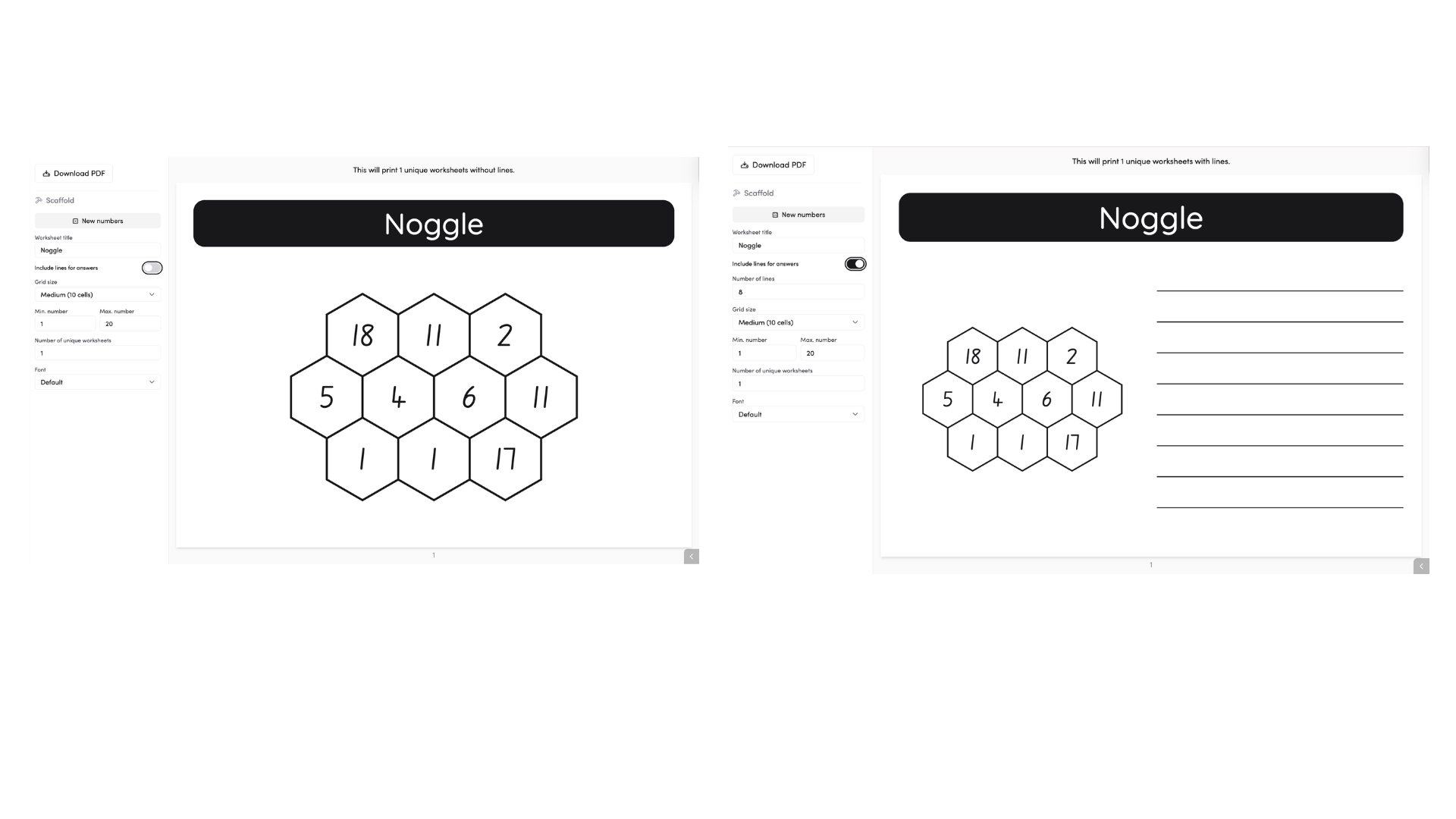
What's the difference between with and without lines?
Without lines, the honeycomb grid takes up the full page - useful if you want students to write their answers in their books. With lines turned on, the grid shrinks to the left and writing lines appear on the right, so everything fits on one page.
How do I download my Noggle sheet?
When you're happy with your sheet, tap Download PDF at the top of the left panel to save your file.