
Seasons
The Seasons app can also be added as a single-use slide in your slide deck. Just go to your slide deck, add a new slide, and scroll down.
- From the Dashboard left-hand side menu click on Apps.

- Search or find the app tile in the list. Click on Seasons.

- Click the 'Close Menu' button at the bottom left of the screen to enter the full screen.

- Simply drag the seasons into the box.

- To remove the season from the box, simply drag it out.

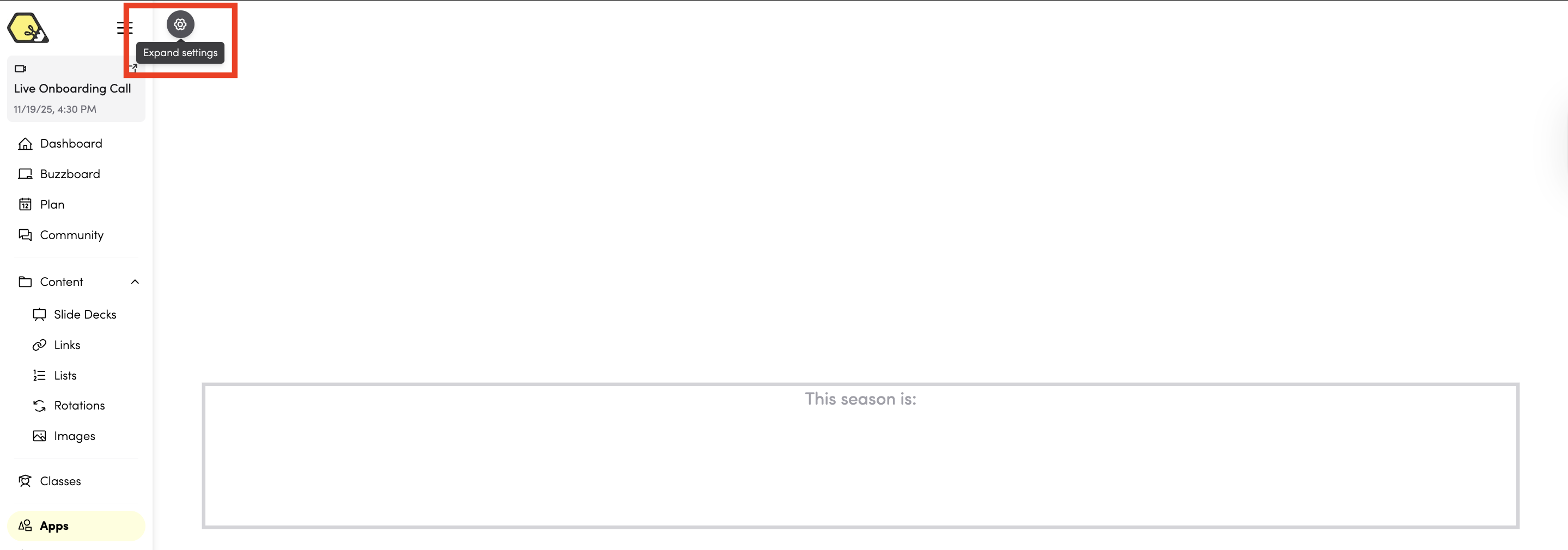
- You can also change the names of the Seasons by clicking on Expand Settings on the top-left side of the screen.
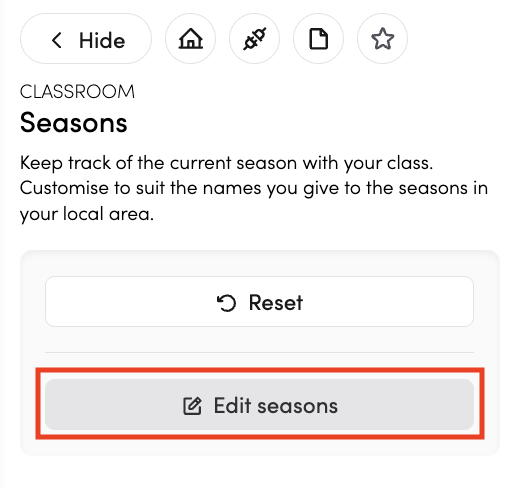
- Click Edit Seasons.
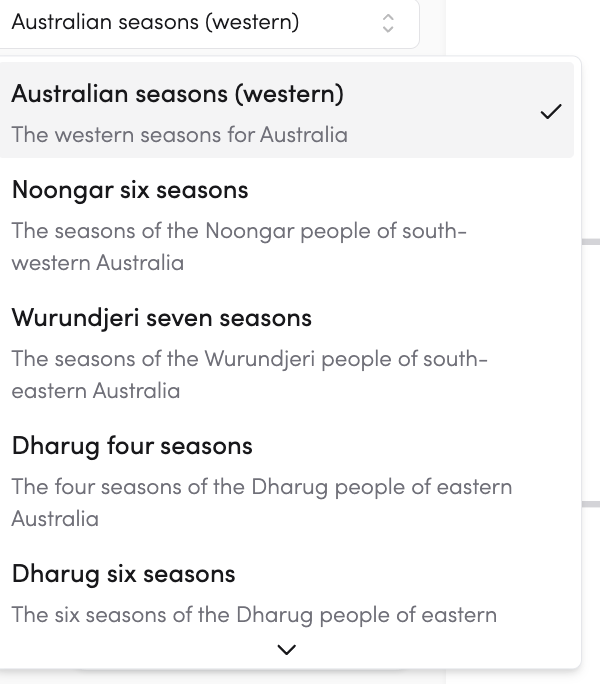
- You can choose the seasons which are applicable to your class.
- You may also edit the names and icons of the seasons to your preference.
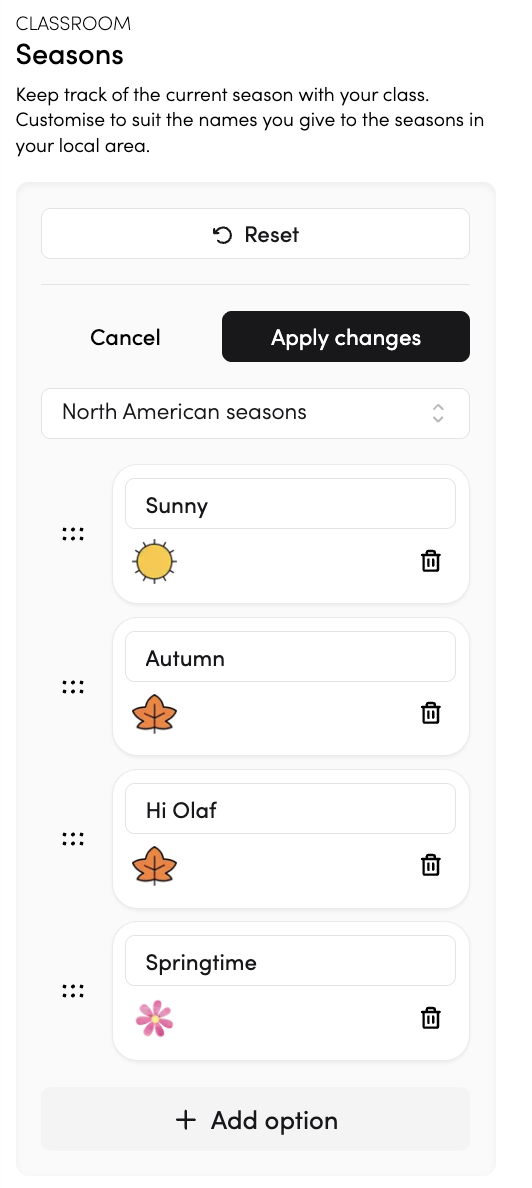
- Click apply changes.
- Click 'Connect to Timetable' to connect the app to your timetable entries.

- Click the pin icon to add the app to your pinned apps on the dashboard.
